
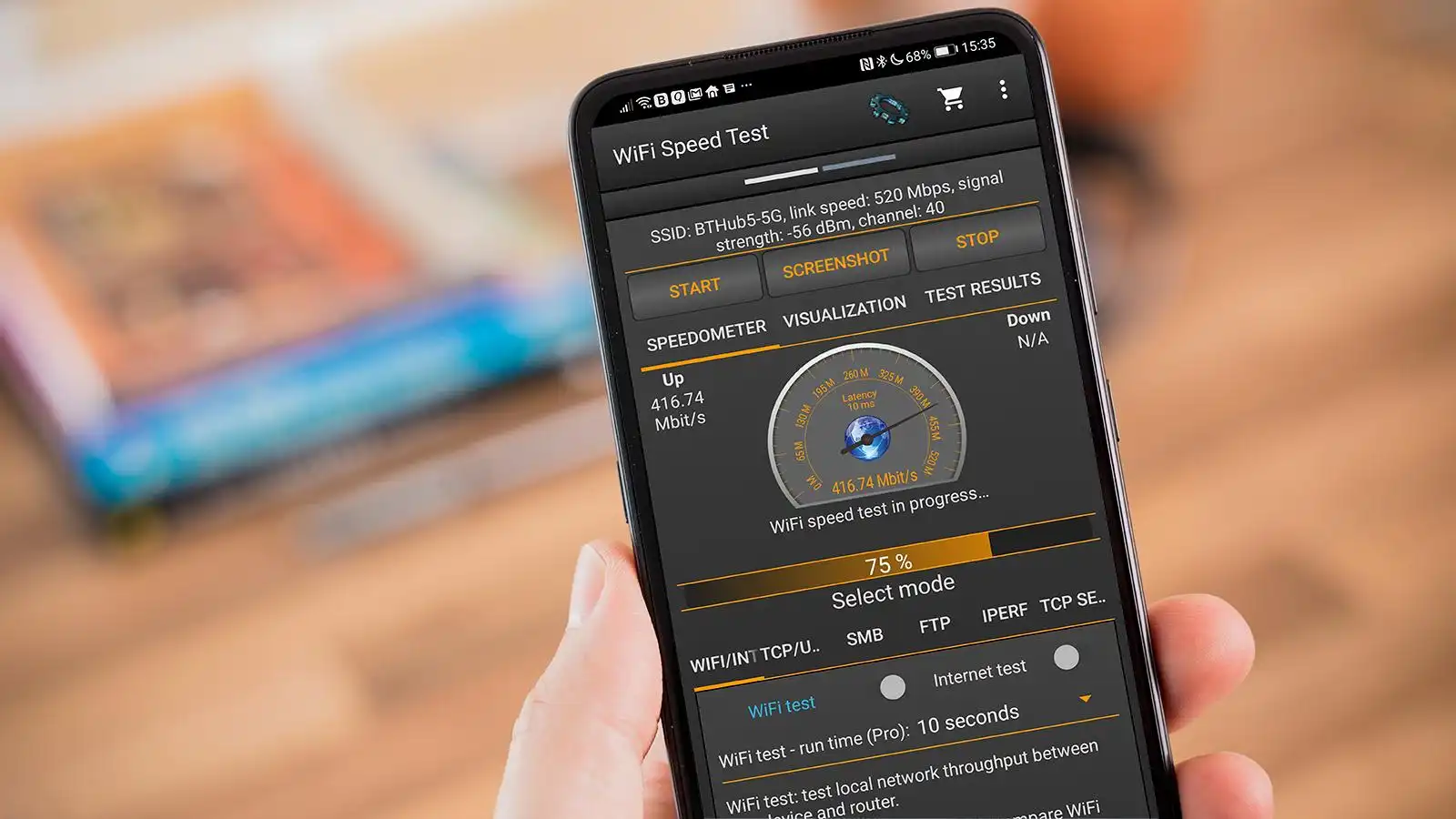
How to Check Internet Speed: A Step-by-step Guide
Are you tired of wondering if your internet speed is up to par? Do you want to ensure that you’re getting the best possible connection for your online activities? Look no further! In this article, we’ll show you how to check your internet speed using various tools and services.
Why Check Internet Speed?
Before we dive into the nitty-gritty of checking your internet speed, let’s quickly discuss why it’s essential to do so. A fast internet connection is crucial for:
- Smooth video streaming
- Quick online gaming
- Efficient file transfers
- Secure browsing
If you’re experiencing slow internet speeds, it can lead to frustration and wasted time.
Tools to Check Internet Speed
There are several tools available that can help you check your internet speed. Here are some of the most popular ones:
1. Ookla Speedtest
OOKLA Speedtest is one of the most widely used tools for checking internet speed. It’s free, user-friendly, and provides accurate results.
How to Use Ookla Speedtest:
- Visit the OOKLA Speedtest website
- Click on the “Go” button
- Wait for the test to complete (approximately 10-15 seconds)
- View your download, upload, and ping speeds
2. Fast.com
Fast.Com is another popular tool that provides a simple and straightforward way to check your internet speed.
How to Use Fast.Com:
- Visit the Fast.Com website
- Click on the “Start Test” button
- Wait for the test to complete (approximately 10-15 seconds)
- View your download, upload, and ping speeds
3. Speedtest by Google
Speedtest by Google is a relatively new tool that allows you to check your internet speed directly from the Google homepage.
How to Use Speedtest by Google:
- Visit the Google homepage
- Click on the “Check Your Internet Speed” button
- Wait for the test to complete (approximately 10-15 seconds)
- View your download, upload, and ping speeds
4. Other Tools
There are many other tools available that can help you check your internet speed, including:
- Speedtest.Net
- NetSpeedTest
- Internet Speed Test
How to Check Internet Speed on a Smartphone
If you want to check your internet speed using your smartphone, here’s what you need to do:
1. Download And Install an App
Download and install the OOKLA Speedtest app (available for both Android and iOS devices).
2. Launch The App
Launch the app and click on the “Go” button.
3. Wait For The Test to Complete
Wait for the test to complete (approximately 10-15 seconds).
4. View Your Results
View your download, upload, and ping speeds.
Tips to Improve Internet Speed
If you’re experiencing slow internet speeds, here are some tips that can help:
- Restart your router
- Check for firmware updates
- Use a wired connection instead of Wi-Fi
- Close unnecessary applications and background processes
Conclusion
Checking your internet speed is an essential step in ensuring that you have a smooth online experience. With the tools and services mentioned above, you’ll be able to determine whether your internet speeds are up to par or not.
Frequently Asked Questions (FAQs)
- What is Internet Speed?
Internet speed refers to the rate at which data can be transmitted over the internet. - Why Should I Check my Internet Speed?
Checking your internet speed ensures that you have a smooth online experience, whether it’s for streaming videos, gaming, or simply browsing the web. - What Tools Can I Use to Check my Internet Speed?
You can use various tools such as OOKLA Speedtest, Fast.Com, Speedtest by Google, and others. - How do I Check my Internet Speed on a Smartphone?
Download and install an app like OOKLA Speedtest, launch the app, wait for the test to complete, and view your results. - What Can I do if my Internet Speeds Are Slow?
Try restarting your router, checking for firmware updates, using a wired connection instead of Wi-Fi, closing unnecessary applications and background processes.
References
- OOKLA Speedtest
- Fast.Com
- Speedtest by Google


