
How to Identify Your Ipad Pattern: A Comprehensive Guide
As an iPad user, it’s natural to wonder about the specific pattern of your device. Apple has released various patterns over the years, each with its unique characteristics. In this article, we’ll walk you through the process of identifying your iPad’s pattern, including tips on how to check it using different methods.
Understanding Your Ipad Pattern
Before we dive into the details, let’s understand what an iPad pattern is. Each iPad model has a specific code that identifies it uniquely. This code can be found in several places, including the device itself and Apple’s official website. By knowing your iPad’s pattern, you can determine its generation, storage capacity, and other relevant details.
Method 1: Checking Your Ipad Pattern Directly
The most straightforward way to check your iPad’s pattern is by accessing the Settings app directly on your device. Here’s how:
- Open the Settings app on your iPad.
- Tap on “General” and then select “Info.”
- Look for the section labeled “Name,” where you’ll find the name of your iPad, including its pattern.
This method provides a quick and easy way to identify your iPad’s pattern. However, if you’re unable to access the device or need more information, there are other methods available.
Method 2: Checking Your Ipad Pattern With Number Model
If you can’t access the Settings app directly on your iPad, you can use another method that involves checking the number model of your device.
- Access the Settings app on another Apple device, such as an iPhone or Mac.
- Tap on your name at the top right corner and select “Devices.”
- Look for your iPad in the list and tap on it.
- On this screen, you’ll find the pattern of your iPad, including its generation and storage capacity.
This method requires access to another Apple device and can provide more detailed information about your iPad’s pattern.
Method 3: Checking Your Ipad Pattern With Number Series
Another way to check your iPad’s pattern is by using the number series code. Here’s how:
- Access the Settings app on your iPad.
- Tap on “General” and then select “Info.”
- Look for the section labeled “Number of series,” where you’ll find a unique code that identifies your iPad.
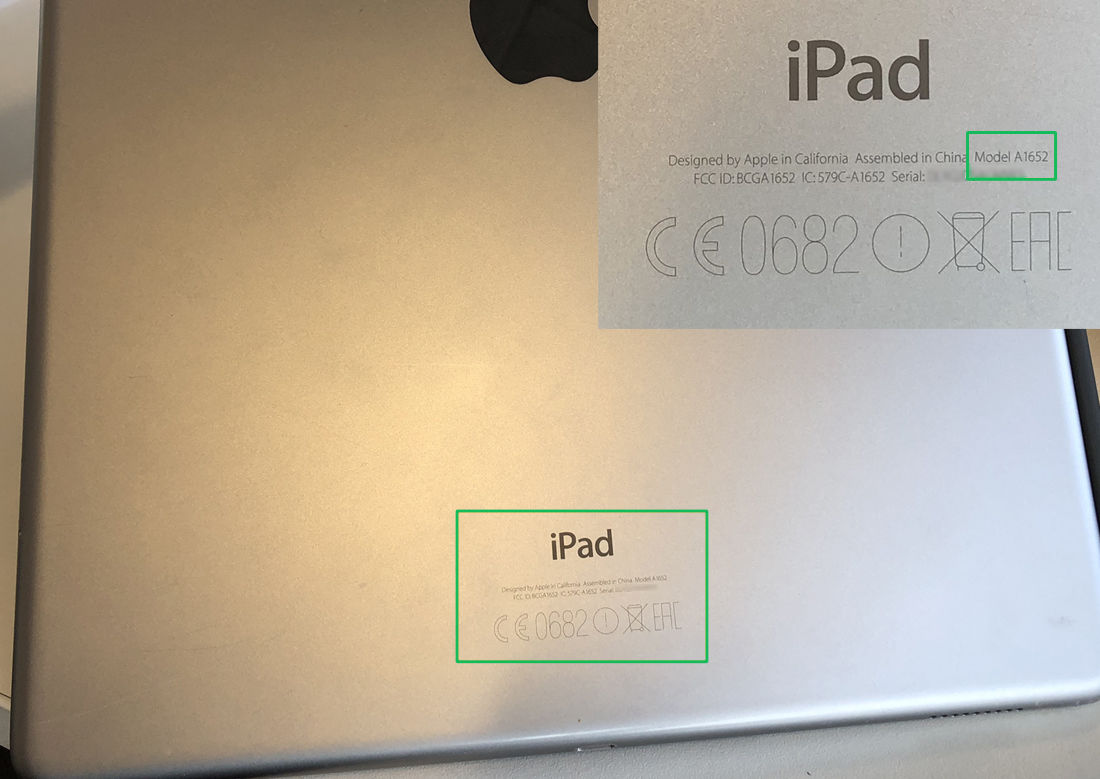
This code can also be found on the back of your iPad, near the Apple logo, or on the original packaging material.
Alternative Methods: Checking Your Ipad Pattern Online
If you’re unable to access the device itself or need more information, there are alternative methods available. You can use an iPhone, Mac, or another iPad to check your iPad’s pattern online.
- Access the official Apple website and sign in with your Apple ID.
- Click on “Devices” in the top menu bar.
- Select your iPad from the list and click on it.
- On this screen, you’ll find detailed information about your iPad’s pattern, including its generation, storage capacity, and more.
Additional Tips: Identifying Your Ipad Pattern
While checking your iPad’s pattern is relatively straightforward, there are some additional tips to keep in mind:
- If you have a first-generation iPad, the pattern will be different from newer models.
- The color of your iPad can also provide clues about its generation.
- Keep in mind that while these methods can help identify your iPad’s pattern, they may not provide all the information you need.
Conclusion
Identifying your iPad pattern is a simple process that can provide valuable insights into your device’s specifications. By following the steps outlined above, you’ll be able to determine your iPad’s pattern using different methods, including direct access on the device itself or online through Apple’s official website. Whether you’re looking to sell your iPad, trade it in for a new model, or simply satisfy your curiosity, knowing your iPad’s pattern can give you peace of mind.
Frequently Asked Questions (FAQs)
Q: How do I check my iPad’s pattern if I’ve forgotten the password?
A: If you’ve forgotten the password to your iPad, you’ll need to reset it. This process will erase all data on the device. Alternatively, try using another Apple device to access the Settings app and check your iPad’s pattern online.
Q: Can I use an iPhone or Mac to check my iPad’s pattern?
A: Yes, any Apple device with the correct permissions can be used to check your iPad’s pattern online.
Q: What if I have a first-generation iPad? Will this method still work?
A: While the methods outlined above should work for most iPad models, there might be some differences when it comes to identifying first-generation iPads. In such cases, it’s best to consult Apple’s official documentation or contact their support team directly.
Q: How can I determine my iPad’s generation using the number series code?
A: The number series code can provide information about your iPad’s storage capacity and other specifications but may not directly indicate its generation.


