
How to See Last Open Files on Windows
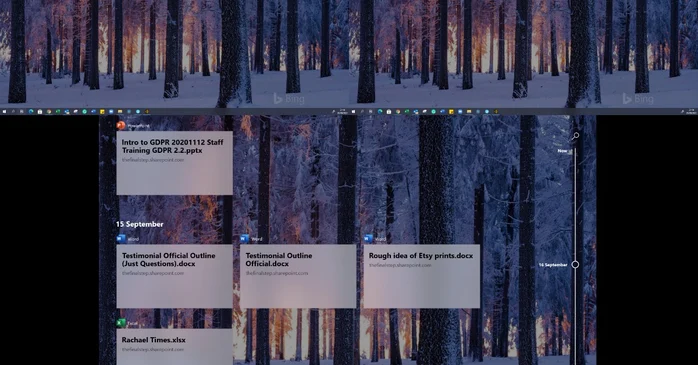
Are you tired of searching for files that were recently opened on your Windows computer? Do you wish there was an easy way to access the last open files, without having to dig through multiple menus or programs? Well, you’re in luck! Microsoft has made it very simple to see the last open files on Windows 11 and earlier versions.
How to See Last Open Files on Windows 11
To see the last open files on Windows 11, follow these steps:
- Click on The Start Button: Located at the bottom left corner of your screen, click on the Start button.
- Look For The “Recent” Section: Above the articles and news section, you’ll find a section called “Recent”. This section will display programs added recently and rows opened in little while ( documents, images, etc.).
- Click on The Three Dots: On top of the “Recent” section, click on the three dots to access an extended list.
- Scroll Down For Recent Files: You’ll see a list of recent files at the bottom of this window.
Alternative Method: Using The Bar of Applications
Another way to view recent files is by using the bar of applications:
- Open The Application: Open the application you want to view recent files for (e.G., Microsoft Word).
- Right-click on The Icon: Right-click on the icon of the open application in the taskbar.
- Select “Recent”: From the context menu, select “Recent”.
- View Recent Files: You’ll see a list of recently opened files for that application.
Other Methods to View Last Open Files
There are several other methods to view recent files on Windows:
- Using Explorer Rows: Open File Explorer and navigate to the “Recent” section.
- Using The Start Menu: Press the Windows key + R to open the Run dialog box, type
shell:Recent, and press Enter.
How to Erase The List of Open Files on Windows
If you want to erase the list of recent files, follow these steps:
- Open Explorer Rows: Open File Explorer.
- Click on Options: In the top right corner, click on the three dots and select “Options”.
- Select The General Tab: Select the General tab.
- Uncheck “Show Recently Used Items in Jump List on Start or Taskbar”: Uncheck this box to erase the recent files list.
How to See Last Open Files on Mac
If you’re using a Mac, there are several ways to view recent files:
- Using Finder: Open Finder and navigate to the “Recent” section.
- Using Application Menu: Right-click on an application’s icon in the dock or menu bar and select “Recent”.
- Using The Command + Shift + F Key Combination: Press this key combination to open the Recent Files window.
Alternative Methods: Using Other Applications
Many applications, such as Microsoft Excel, have a built-in feature to view recent files:
- Open The Application: Open the application you want to view recent files for (e.G., Microsoft Excel).
- Select “Recent” From The Menu: Select “Recent” from the menu.
How to Erase The List of Open Files on Mac
If you want to erase the list of recent files, follow these steps:
- Open Finder Preferences: Open Finder and navigate to the “Finder” > “Preferences”.
- Select The General Tab: Select the General tab.
- Uncheck “Show Recent Items in Sidebar”: Uncheck this box to erase the recent files list.
How to See Last Open Files on Smartphone And Tablet
Many apps, such as File Manager and Apple’s built-in file manager, allow you to view recent files:
- Open The App: Open the app you want to view recent files for.
- Select “Recent” From The Menu: Select “Recent” from the menu.
Conclusion
In conclusion, seeing last open files on Windows and Mac is a straightforward process that can be done using various methods, including the Start button, application menus, and file managers. Erasing the list of recent files is also possible by following simple steps in File Explorer or Finder Preferences.
Frequently Asked Questions (FAQs)
- Q: How do I See Last Open Files on Windows?
A: To see last open files on Windows, click on the Start button and look for the “Recent” section. - Q: Can I Erase The List of Recent Files on Windows?
A: Yes, you can erase the list of recent files by unchecking the box in File Explorer Options. - Q: How do I See Last Open Files on Mac?
A: To see last open files on Mac, use Finder or application menus to access the “Recent” section. - Q: Can I Erase The List of Recent Files on Mac?
A: Yes, you can erase the list of recent files by unchecking the box in Finder Preferences. - Q: How do I See Last Open Files on my Smartphone And Tablet?
A: Many apps allow you to view recent files; check your app’s menu for this feature.
How to See Last Open Files on Windows
Are you tired of searching for files that were recently opened on your Windows computer?
Do you wish there was an easy way to access the last open files, without having to dig through multiple menus or programs?
Well, you’re in luck! Microsoft has made it very simple to see the last open files on Windows 11 and earlier versions.
How to See Last Open Files on Windows 11
To see the last open files on Windows 11:
- Click on the Start button.
- Look for the “Recent” section.
- Click on the three dots to access an extended list.
- Scroll down for recent files.
Alternative Method: Using The Bar of Applications
Another way to view recent files is by using the bar of applications:
- Open the application you want to view recent files for (e.G., Microsoft Word).
- Right-click on the icon of the open application in the taskbar.
- Select “Recent” from the context menu.
- View recent files.
Other Methods to View Last Open Files
There are several other methods to view recent files on Windows:
- Using Explorer Rows: Open File Explorer and navigate to the “Recent” section.
- Using the Start Menu: Press the Windows key + R to open the Run dialog box, type
shell:Recent, and press Enter.
How to Erase The List of Open Files on Windows
If you want to erase the list of recent files:
- Open Explorer Rows.
- Click on Options.
- Select the General tab.
- Uncheck “Show recently used items in Jump List on Start or taskbar”.
How to See Last Open Files on Mac
To see last open files on Mac:
- Using Finder: Open Finder and navigate to the “Recent” section.
- Using Application Menu: Right-click on an application’s icon in the dock or menu bar and select “Recent”.
- Using the Command + Shift + F Key Combination: Press this key combination to open the Recent Files window.
Alternative Methods: Using Other Applications
Many applications, such as Microsoft Excel, have a built-in feature to view recent files:
- Open the application you want to view recent files for (e.G., Microsoft Excel).
- Select “Recent” from the menu.
How to Erase The List of Open Files on Mac
If you want to erase the list of recent files:
- Open Finder Preferences.
- Select the General tab.
- Uncheck “Show Recent items in sidebar”.
How to See Last Open Files on Smartphone And Tablet
Many apps, such as File Manager and Apple’s built-in file manager, allow you to view recent files:
- Open the app you want to view recent files for.
- Select “Recent” from the menu.
Frequently Asked Questions (FAQs)
- Q: How do I see last open files on Windows?
A: To see last open files on Windows, click on the Start button and look for the “Recent” section. - Q: Can I erase the list of recent files on Windows?
A: Yes, you can erase the list of recent files by unchecking the box in File Explorer Options. - Q: How do I see last open files on Mac?
A: To see last open files on Mac, use Finder or application menus to access the “Recent” section. - Q: Can I erase the list of recent files on Mac?
A: Yes, you can erase the list of recent files by unchecking the box in Finder Preferences. - Q: How do I see last open files on my smartphone and tablet?
A: Many apps allow you to view recent files; check your app’s menu for this feature.
How to See Last Open Files on Windows
Are you tired of searching for files that were recently opened on your Windows computer?
Do you wish there was an easy way to access the last open files, without having to dig through multiple menus or programs?
Well, you’re in luck! Microsoft has made it very simple to see the last open files on Windows 11 and earlier versions.
How to See Last Open Files on Windows 11
To see the last open files on Windows 11:
- Click on the Start button.
- Look for the “Recent” section.
- Click on the three dots to access an extended list.
- Scroll down for recent files.
Alternative Method: Using The Bar of Applications
Another way to view recent files is by using the bar of applications:
- Open the application you want to view recent files for (e.G., Microsoft Word).
- Right-click on the icon of the open application in the taskbar.
- Select “Recent” from the context menu.
- View recent files.
Other Methods to View Last Open Files
There are several other methods to view recent files on Windows:
- Using Explorer Rows: Open File Explorer and navigate to the “Recent” section.
- Using the Start Menu: Press the Windows key + R to open the Run dialog box, type
shell:Recent, and press Enter.
How to Erase The List of Open Files on Windows
If you want to erase the list of recent files:
- Open Explorer Rows.
- Click on Options.
- Select the General tab.
- Uncheck “Show recently used items in Jump List on Start or taskbar”.
The Importance of Keeping Your Computer’s Recent Files Visible
While it may seem unnecessary, keeping your computer’s recent files visible can be a great way to stay organized and quickly access frequently used documents.
Moreover, having visibility into the last open files can also provide valuable insights for troubleshooting purposes.


