
How to See The Memory of Your Mac: A Step-by-step Guide
Are you curious about how much memory is available on your Mac? Do you want to understand how to check the RAM and storage usage on your computer? Look no further! In this article, we will guide you through a step-by-step process to see the memory of your Mac, including the RAM, storage, and video memory.
Understanding Your Mac’s Memory
Before we dive into the steps, let’s quickly understand what each type of memory does:
- Ram (Random Access Memory): Temporary storage for data that the computer is currently using. The more RAM you have, the more applications you can run simultaneously.
- Storage: Permanent storage for your files, documents, and operating system. Think of it as a hard drive or solid-state drive (SSD) where all your files are stored.
Step 1: Checking Ram Memory
To check the RAM memory on your Mac, follow these steps:
- Click on the Apple logo in the top left corner of your screen.
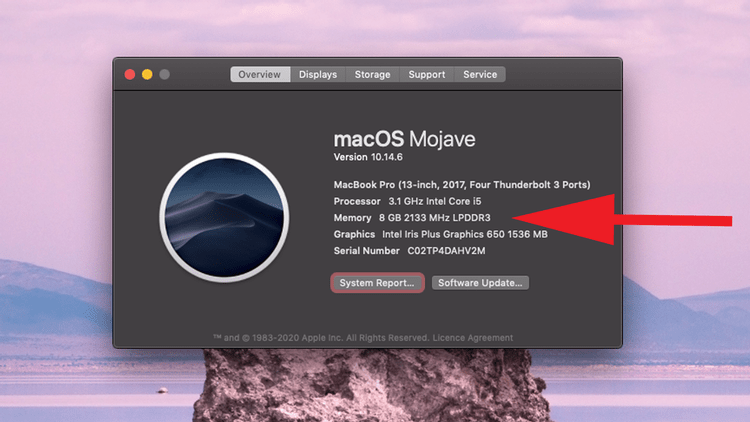
- Select “About This Mac” from the dropdown menu.
- Click on the “System Report” button.
- Scroll down to the “Hardware” section and click on “Memory.”
- You will see the total amount of RAM installed on your Mac, as well as the number of slots available.
Alternatively, you can also check the RAM memory by:
- Opening the Apple menu and selecting “About This Mac.”
- Clicking on the “System Information” button.
- Scrolling down to the “Hardware” section and clicking on “Memory.”
Step 2: Checking Storage Memory
To check the storage memory on your Mac, follow these steps:
- Click on the Apple logo in the top left corner of your screen.
- Select “About This Mac” from the dropdown menu.
- Click on the “Storage” tab.
- You will see the total amount of storage available on your Mac, as well as the amount used and free.
Alternatively, you can also check the storage memory by:
- Opening the Apple menu and selecting “About This Mac.”
- Clicking on the “System Information” button.
- Scrolling down to the “Hardware” section and clicking on “Storage.”
Step 3: Checking Video Memory
To check the video memory (VRAM) on your Mac, follow these steps:
- Click on the Apple logo in the top left corner of your screen.
- Select “About This Mac” from the dropdown menu.
- Click on the “System Report” button.
- Scroll down to the “Hardware” section and click on “Graphics/Displays.”
- Look for the “VRAM (total)” line, which will indicate the total amount of video memory available.
Alternatively, you can also check the video memory by:
- Opening the Apple menu and selecting “About This Mac.”
- Clicking on the “System Information” button.
- Scrolling down to the “Hardware” section and clicking on “Graphics/Displays.”
Monitoring Activity
To monitor how much memory is being used on your Mac, follow these steps:
- Open the Activity Monitor application (located in Applications > Utilities).
- Select the “Memory” tab.
- You will see a graph showing the amount of memory used by each process.
Tips And Tricks
- To free up space on your storage, try deleting unnecessary files and documents.
- To optimize your RAM usage, close any unnecessary applications or background processes.
- To check for updates to your Mac’s operating system, click on the Apple menu and select “Software Update.”
Conclusion
In conclusion, checking the memory of your Mac is a straightforward process that can be completed in just a few steps. By following these steps, you can see the RAM, storage, and video memory available on your computer. Remember to regularly monitor your activity and optimize your memory usage for a smooth computing experience.
Frequently Asked Questions
- Q: How do I Check my Mac’s Ram?
A: To check your Mac’s RAM, click on the Apple logo in the top left corner of your screen, select “About This Mac,” and then click on the “System Report” button. - Q: How do I Check my Mac’s Storage Memory?
A: To check your Mac’s storage memory, click on the Apple logo in the top left corner of your screen, select “About This Mac,” and then click on the “Storage” tab. - Q: How do I Check my Mac’s Video Memory?
A: To check your Mac’s video memory (VRAM), click on the Apple logo in the top left corner of your screen, select “About This Mac,” and then click on the “System Report” button. - Q: What is Vram?
A: VRAM (Video Random Access Memory) is a type of memory that is dedicated to storing graphics data for your computer’s video card. - Q: How do I Monitor my Mac’s Activity?
A: To monitor your Mac’s activity, open the Activity Monitor application and select the “Memory” tab. - Q: What Can I do to Free up Space on my Storage?
A: To free up space on your storage, try deleting unnecessary files and documents, and consider upgrading to a larger storage drive or external hard drive. - Q: How Often Should I Check For Updates to my Mac’s Operating System?
A: We recommend checking for updates to your Mac’s operating system at least once a month to ensure you have the latest security patches and features.
Ultimate Guide Index


