
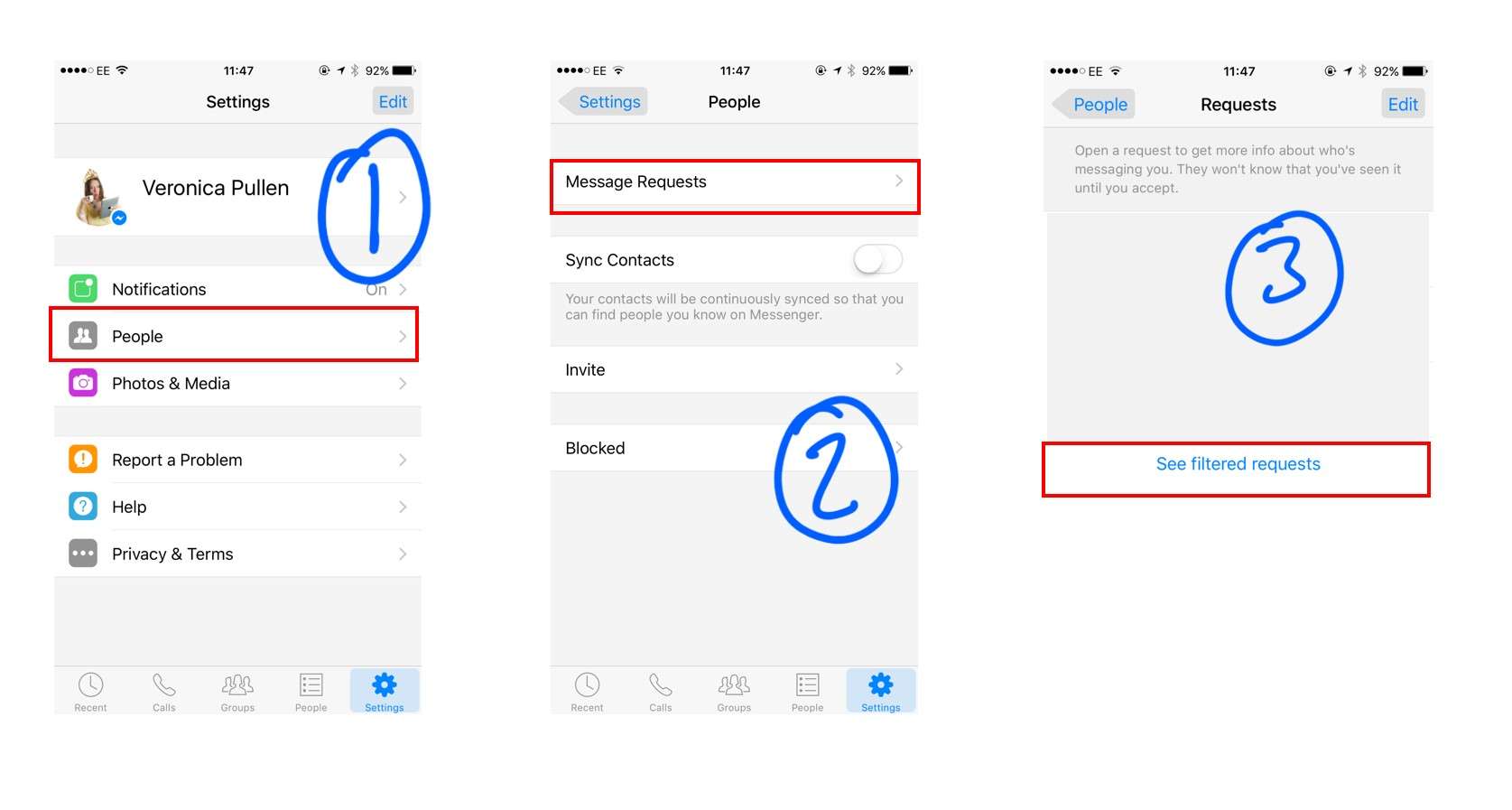
How to See And Manage Requests on Messenger
Are you tired of receiving unwanted messages on Messenger? Do you want to know how to see all the requests on Messenger, block them, or delete them altogether? Look no further! In this article, we’ll guide you through the process of managing your Messenger requests like a pro.
What Are Messenger Requests?
Messenger requests refer to messages sent to you by people who are not in your friend list on Facebook. These can include messages from acquaintances, strangers, or even spammers trying to reach out to you.
Why Should You Manage Your Messenger Requests?
Managing your Messenger requests is essential to maintain a clean and organized messaging experience. By doing so, you can:
- Avoid cluttered conversations with unwanted messages
- Focus on important conversations with friends and family
- Protect yourself from potential spam or harassment
How to See All The Requests on Messenger (App)
To see all the requests on Messenger using your smartphone or tablet:
- Open the Messenger app.
- Tap on your profile picture in the top left corner.
- Select “See All” from the menu.
- You’ll see a list of all the conversations that have been automatically displaced into this section, including messages from people who are not in your friend list.
How to See All The Requests on Messenger (Computer)
To see all the requests on Messenger using your computer:
- Open Facebook and log in to your account.
- Click on the Messenger icon in the top right corner.
- Select “See All” from the menu.
- You’ll see a list of all the conversations that have been automatically displaced into this section, including messages from people who are not in your friend list.
How to Block Requests on Messenger
To block requests on Messenger:
- Open the Messenger app or access it through Facebook on your computer.
- Go to the “See All” section and select the conversation you want to block.
- Tap or click on the three dots next to the conversation and select “Block.”
- Choose whether you want to block only messages from this person or also their calls.
How to Delete Requests on Messenger
To delete requests on Messenger:
- Open the Messenger app or access it through Facebook on your computer.
- Go to the “See All” section and select the conversation you want to delete.
- Tap or click on the three dots next to the conversation and select “Delete.”
- Confirm that you want to delete the conversation.
Tips And Variations
- To block someone who has sent you a private message, tap or click on their name in the conversation list and select “Block.”
- If you want to disable requests altogether, go to Settings > Account > Privacy and choose not to allow friends of friends to send you messages.
- On Messenger for PC, you can also access the “See All” section by clicking on your profile picture and selecting “Settings.”
Conclusion
Managing your Messenger requests is a simple yet effective way to maintain a clean and organized messaging experience. By following these steps, you can see all the requests, block or delete them as needed, and enjoy a more streamlined conversation with friends and family.
Frequently Asked Questions (FAQs)
Q: What are Messenger requests?
A: Messenger requests refer to messages sent to you by people who are not in your friend list on Facebook.
Q: Why should I manage my Messenger requests?
A: Managing your Messenger requests helps avoid cluttered conversations, focus on important conversations, and protect yourself from potential spam or harassment.
Q: How do I see all the requests on Messenger using my smartphone or tablet?
A: Open the Messenger app, tap on your profile picture in the top left corner, and select “See All.”
Q: How do I block someone who has sent me a private message?
A: Tap or click on their name in the conversation list and select “Block.”
Q: Can I delete multiple conversations at once?
A: Yes, you can delete multiple conversations by selecting the “Modify” option in the top right corner of the conversation list.
Q: How do I disable requests altogether?
A: Go to Settings > Account > Privacy and choose not to allow friends of friends to send you messages.
Q: Can I use Messenger on my computer?
A: Yes, you can access Messenger through Facebook on your computer.
Q: What if I have a problem with someone who has sent me an unwanted message?
A: Report the issue to Facebook’s support team and take necessary steps to protect yourself.


