
Understanding Dpi of a Mouse: A Comprehensive Guide
As technology continues to evolve, understanding the intricacies of computer peripherals has become increasingly important. One such aspect is the Dots Per Inch (DPI) setting on your mouse. In this article, we’ll delve into the world of DPI and provide you with a comprehensive guide on how to see and modify it.
What is Dpi?
DPI stands for Dots Per Inch, which refers to the number of pixels or dots that can be displayed in a one-inch square area on your monitor. In simpler terms, DPI determines the resolution and sensitivity of your mouse cursor.
Why is Dpi Important?
Understanding DPI is crucial, especially when it comes to gaming, software, or any activity that requires high precision. A higher DPI setting can make your mouse more sensitive, allowing for finer movements and quicker responsiveness.
How to See The Dpi of Your Mouse
There are several ways to determine the DPI setting on your mouse:
Checking The Device Specifications
- Check your mouse’s user manual or packaging for specifications.
- Visit the manufacturer’s website and look for the product’s technical sheet.
- Search online for “DPI” along with your mouse model number.
Using Software
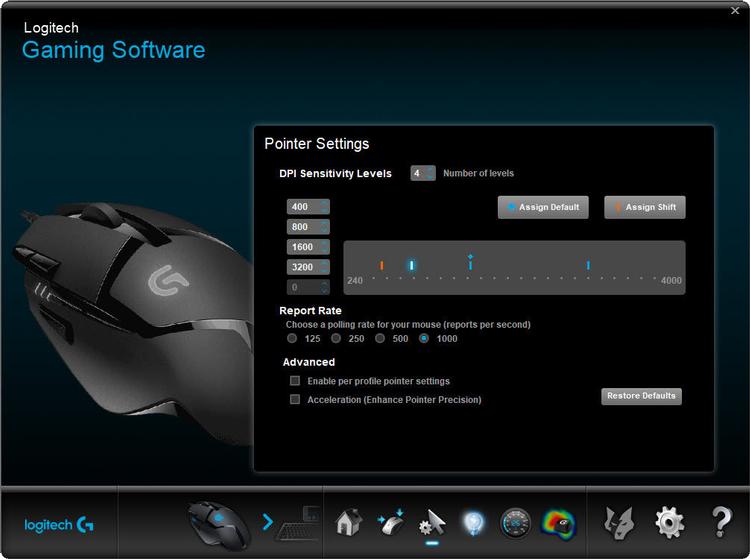
Most modern mice come with software that allows you to adjust settings, including DPI:
- Install the software provided by the manufacturer.
- Open the program and navigate to the settings section.
- Look for the DPI setting and adjust it according to your preferences.
Checking Display Indicators
Some mice display DPI information on their screens or through light indicators:
- Check if your mouse has a screen or display that shows DPI values.
- Observe any light indicators or LEDs that may be associated with DPI settings.
How to Modify The Dpi of Your Mouse
Modifying DPI is relatively straightforward, and we’ll walk you through it step by step for both Windows and macOS:
Windows 10/11:
- Click on the Start button and search for “Control Panel”.
- Open the Control Panel and navigate to Hardware and Sound.
- Select Devices and click on the Mouse option.
- In the Mouse settings window, look for the Motion tab and adjust the DPI setting.
Macos:
- Click on the Apple menu and select System Preferences.
- Open the Trackpad or Mouse settings (depending on your device).
- Adjust the Speed slider to change the DPI setting.
Conclusion
Understanding DPI is essential for optimal mouse performance, especially in gaming and precision-demanding activities. By following this comprehensive guide, you’ll be able to see and modify the DPI of your mouse, ensuring a smooth and responsive experience.
Frequently Asked Questions (FAQs)
- What is The Standard Dpi Setting?
Typically, DPI settings range from 800 to 3200, with common values being 1600, 1800, or 2400.
- Can I Adjust Dpi on Any Mouse?
Not all mice allow for manual DPI adjustments. Check your device’s specifications or software to see if this feature is available.
- Does Modifying Dpi Affect Other Settings?
In some cases, adjusting DPI might impact other settings like cursor speed or acceleration. Consult your device’s user manual or manufacturer’s documentation for specific guidance.
- Can I Reset my Mouse’s Dpi Setting?
Yes, most mice allow you to reset the DPI setting to its default value. Refer to your device’s user manual or software instructions for details.
- Is Higher Dpi Always Better?
Not necessarily. Higher DPI settings can make your mouse more sensitive but might also lead to accidental cursor movements.
- Can I Adjust Dpi on a Gaming Mouse?
Yes, most gaming mice allow for manual DPI adjustments through their software.
- Does Modifying Dpi Affect The Accuracy of my Mouse?
In general, adjusting DPI should not significantly impact the accuracy of your mouse. However, excessive changes might lead to precision issues.
- Can I Adjust Dpi on a Trackpad?
Yes, many modern laptops and devices allow for DPI adjustments through their settings menus.
By following this comprehensive guide, you’ll be able to understand and modify the DPI setting on your mouse, ensuring optimal performance in various applications.


