
How to See Old Calls on Iphone: A Step-by-step Guide
Are you tired of losing track of important calls on your iPhone? Do you want to recover old calls that are no longer in your recent call history? Look no further! In this article, we’ll guide you through the process of seeing old calls on your iPhone, even if they’re several years old.
Why Can’t I See Old Calls on My Iphone?
There could be several reasons why you can’t see old calls on your iPhone. One reason is that your iPhone may not have been configured to save call logs for a long time. Another reason is that the data may have been deleted or overwritten due to various factors.
Method 1: Using The Call History Feature
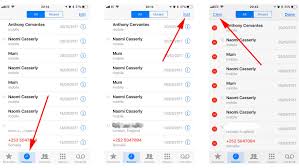
One of the simplest ways to see old calls on your iPhone is by using the built-in call history feature. Here’s how to do it:
Step 1: Access The Phone App
Open the Phone app on your iPhone, which is usually located in the dock.
Step 2: Tap on The Keypad
Tap on the keypad icon at the bottom of the screen.
Step 3: Swipe Down to See All Calls
Swipe down from the top of the screen to see all calls, including those that are no longer in your recent call history.
Step 4: View Call Details
You can view more details about each call by tapping on it. This will show you information such as the date and time of the call, the number called, and even a map showing the location where the call was made.
Method 2: Using Icloud Backup
Another way to see old calls on your iPhone is by using an iCloud backup. Here’s how:
Step 1: Go to Settings
Go to Settings > [Your Name] > iCloud.
Step 2: Tap on Icloud Backup
Tap on iCloud Backup, and then tap on “Merge” to combine all backups from your device.
Step 3: Choose The Desired Backup
Choose the backup that corresponds to the time period when you made the old calls.
Step 4: Restore Your Iphone
Restore your iPhone with the chosen backup. This will restore all data, including call logs, to their original state.
Method 3: Using a Third-party Recovery Software
If the above methods don’t work for you, there are third-party recovery software options available that can help you recover old calls on your iPhone. One such software is Wondershare Dr.Fone.
Step 1: Download And Install The Software
Download and install the Wondershare Dr.Fone software from their official website.
Step 2: Connect Your Iphone to The Computer
Connect your iPhone to the computer using a USB cable.
Step 3: Launch The Software
Launch the Wondershare Dr.Fone software on your computer, and follow the instructions provided by the software to recover old calls from your iPhone.
Conclusion
In conclusion, seeing old calls on your iPhone is possible with the right tools and methods. Whether you use the built-in call history feature or a third-party recovery software like Wondershare Dr.Fone, you can recover old calls that are no longer in your recent call history. Remember to always back up your data regularly to avoid losing important information.
Frequently Asked Questions (FAQs)
- Q: Why Can’t I See Old Calls on my Iphone?
A: There could be several reasons why you can’t see old calls on your iPhone, including lack of configuration or overwritten data due to various factors.
- Q: How do I Use The Call History Feature on my Iphone?
A: To access the call history feature, open the Phone app and tap on the keypad icon at the bottom of the screen. Swipe down from the top of the screen to see all calls.
- Q: Can I Recover Old Calls Using Icloud Backup?
A: Yes, you can recover old calls by using an iCloud backup. Go to Settings > [Your Name] > iCloud and tap on “Merge” to combine all backups from your device.
- Q: What is Wondershare Dr.Fone?
A: Wondershare Dr.Fone is a third-party recovery software that can help you recover old calls, text messages, photos, and other data from your iPhone or iPad.
- Q: Is Wondershare Dr.Fone Safe to Use?
A: Yes, Wondershare Dr.Fone is a reputable and trustworthy software that has been used by millions of users worldwide.


