
How to Check Your Cpu on Windows 10/7 And Mac: A Step-by-step Guide
Are you curious about your computer’s brain, the Central Processing Unit (CPU)? Do you want to know its specifications, speed, and other details? Look no further! In this article, we’ll show you how to check your CPU on Windows 10, Windows 7, and Mac operating systems.
Checking Cpu on Windows 10
Windows 10 provides a simple way to check your CPU’s specifications. Here are the steps:
Method 1: Using Task Manager
- Press the Ctrl + Shift + Esc keys simultaneously to open the Task Manager.
- Click on the “Performance” tab at the top of the window.
- In the Performance Monitor, click on the “CPU” graph to view your CPU’s usage and specifications.
Method 2: Using System Information
- Press the Windows key + R to open the Run dialog box.
- Type “msinfo32” and press Enter.
- Click on the “System Summary” tab at the top of the window.
- Scroll down to the “Processor” section, which will display your CPU’s specifications.
Checking Cpu on Windows 7
Windows 7 also provides a simple way to check your CPU’s specifications. Here are the steps:
Method 1: Using System Properties
- Click on the Start button and select “Control Panel”.
- Click on “System and Security” and then click on “System”.
- Click on the “Properties” button.
- In the System Properties window, click on the “Hardware” tab.
- Under the “Device Manager” section, click on the “+” icon next to “Processors” or “CPU”.
- Your CPU’s specifications will be displayed in the right-hand pane.
Method 2: Using Device Manager
- Click on the Start button and select “Control Panel”.
- Click on “System and Security” and then click on “Device Manager”.
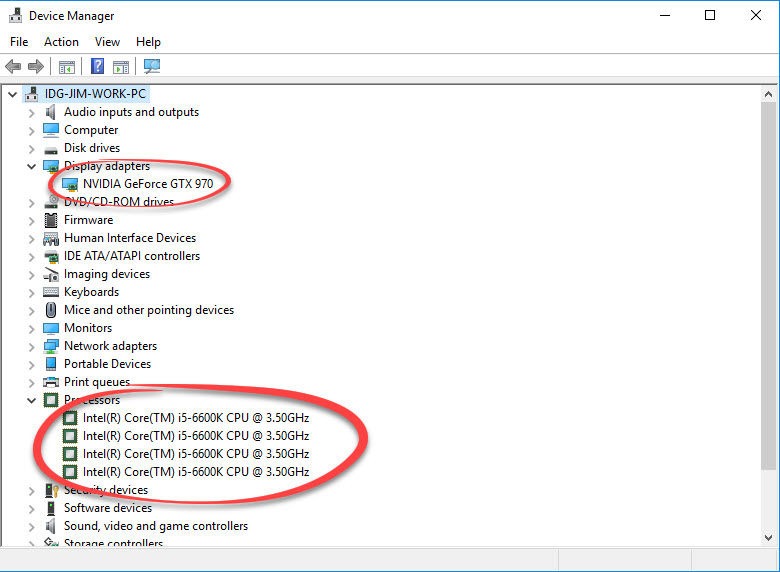
- In the Device Manager window, expand the “Processors” or “CPU” section.
- Your CPU’s specifications will be displayed in the right-hand pane.
Checking Cpu on Mac
Mac provides a simple way to check your CPU’s specifications using the About This Mac feature. Here are the steps:
- Click on the Apple logo in the top left corner of the screen.
- Select “About This Mac” from the dropdown menu.
- In the About This Mac window, click on the “System Report” button.
- Scroll down to the “Hardware” section and select “CPU”.
- Your CPU’s specifications will be displayed in the right-hand pane.
Using Third-party Tools
If you want more detailed information about your CPU or prefer to use third-party tools, consider using:
- Cpu-z: A free tool that provides detailed information about your CPU, including its specifications, speed, and cache.
- Gpu-z: A free tool that provides detailed information about your graphics card (if applicable).
Conclusion
Checking your CPU’s specifications is a straightforward process on Windows 10, Windows 7, and Mac operating systems. By following these steps, you’ll be able to determine the capabilities of your computer’s brain, which will help you make informed decisions when buying new software or hardware.
Frequently Asked Questions (FAQs)
- What is The Difference Between a Cpu And a Gpu?
A CPU (Central Processing Unit) handles tasks such as data processing, calculations, and memory management. A GPU (Graphics Processing Unit) handles graphics rendering and computing-intensive tasks.
- How do I Check my Cpu’s Speed on Windows 10/7 And Mac?
To check your CPU’s speed on Windows 10, use the Task Manager or System Information tool. On Windows 7, use the System Properties or Device Manager tools. On Mac, use the About This Mac feature.
- What is a Cache in my Cpu?
A cache is a small amount of memory that stores frequently accessed data to improve performance and reduce latency.
- How do I Update my Cpu Drivers on Windows 10/7 And Mac?
To update your CPU drivers on Windows 10, use the Device Manager or System Information tool. On Windows 7, use the Device Manager or System Properties tool. On Mac, use the About This Mac feature.
- What is Overclocking, And How Does it Affect my Cpu’s Performance?
Overclocking involves pushing your CPU beyond its manufacturer-recommended clock speed to improve performance. However, this can also increase heat generation and reduce lifespan if not done carefully.
- Can I Upgrade my Cpu on Windows 10/7 And Mac?
Upgrading a CPU is generally possible, but it may require additional hardware or software modifications.
- How do I Check For Malware Affecting my Cpu Performance?
Use reputable antivirus software to scan your system and detect any potential malware threats.
- Can I Use Third-party Tools to Monitor my Cpu’s Performance?
Yes, you can use third-party tools like CPU-Z or GPU-Z to monitor your CPU’s performance and other specifications.


