
How to See The Memory of Your Phone: A Step-by-step Guide
Are you tired of your smartphone’s slow performance and long loading times? Do you want to know how to see the memory of your phone and optimize its storage space? Look no further! In this article, we’ll guide you through a step-by-step process on how to check the memory of your Android or iPhone device.
Why is it Important to Check Your Phone’s Memory?
Before we dive into the nitty-gritty details, let’s understand why checking your phone’s memory is crucial. Your smartphone has two types of memory: Storage and RAM (Random Access Memory). Storage refers to the space where all your apps, photos, videos, and documents are stored. On the other hand, RAM is a temporary storage area that holds data from running applications.
Types of Memory in Phones
To understand how to see the memory of your phone, it’s essential to know the different types of memory used by smartphones:
- Storage: This refers to the internal memory where all your files are stored.
- Ram (Random Access Memory): This is a temporary storage area that holds data from running applications.
Checking Your Phone’s Storage
Let’s start with checking your phone’s storage. The process varies depending on whether you have an Android or iPhone device.
How to See The Memory of Your Phone: Android Devices
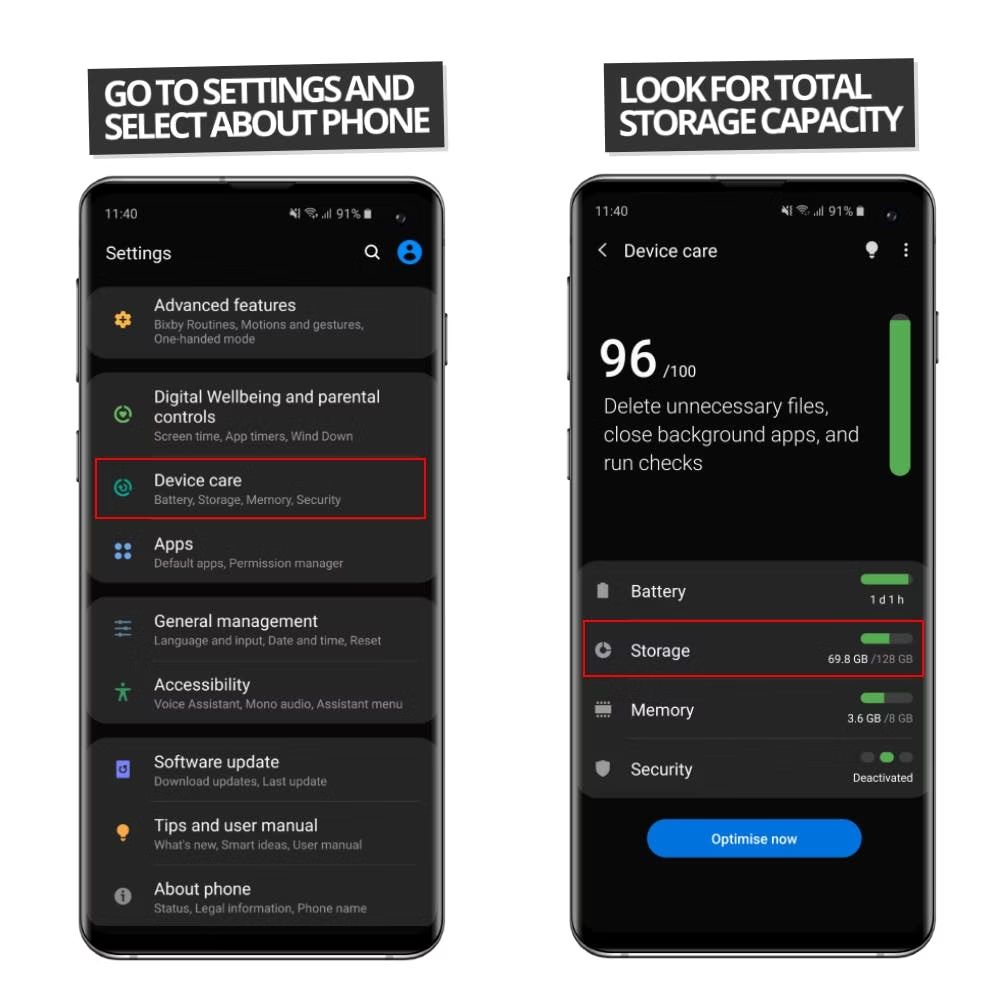
If you use an Android device, follow these steps:
- Go to your phone’s Settings app.
- Scroll down and find the “Storage” option.
- Tap on it to view a detailed breakdown of your storage space usage.
- You’ll see categories such as apps, photos, videos, and documents.
- Tap on each category to view more details.
How to See The Memory of Your Phone: Iphone Devices
If you have an iPhone device, follow these steps:
- Go to Settings > General > Storage & iCloud Usage.
- Tap on “Manage Storage” to view a detailed breakdown of your storage space usage.
- You’ll see categories such as apps, photos, videos, and documents.
- Tap on each category to view more details.
Checking Your Phone’s Ram
Now that we’ve covered how to check your phone’s storage, let’s move on to checking its RAM. Unfortunately, iPhone devices don’t provide direct access to the RAM usage. However, you can download a third-party app called Lirum Device Info Lite to monitor your RAM usage.
Why is it Important to Optimize Your Phone’s Memory?
Optimizing your phone’s memory is essential for maintaining good performance and avoiding slow loading times. By deleting unnecessary files, closing unused apps, and clearing cache data, you can free up space on your device and improve its overall speed.
Tips For Optimizing Your Phone’s Memory
Here are some additional tips to help you optimize your phone’s memory:
- Delete Unnecessary Files: Remove any files or documents that you no longer need.
- Close Unused Apps: Regularly close apps that you’re not using to free up RAM.
- Clear Cache Data: Clearing cache data can help improve app performance and speed.
- Update Your Operating System: Keeping your OS up-to-date can also help improve phone performance.
Conclusion
In conclusion, checking the memory of your phone is an essential step in maintaining its performance and overall health. By following the steps outlined above, you’ll be able to see the memory of your Android or iPhone device and optimize it for better speed and efficiency.
Frequently Asked Questions (FAQs)
Here are some additional FAQs related to checking your phone’s memory:
- Q: Why is my Phone Slow?
A: A slow phone can be due to various reasons such as low storage space, high RAM usage, or outdated software. - Q: How do I Check my Phone’s Storage?
A: On Android devices, go to Settings > Storage. On iPhone devices, go to Settings > General > Storage & iCloud Usage. - Q: What is The Difference Between Storage And Ram?
A: Storage refers to the internal memory where all your files are stored. RAM is a temporary storage area that holds data from running applications. - Q: How do I Clear Cache Data on my Phone?
A: To clear cache data, go to Settings > Storage (Android) or General > Storage & iCloud Usage (iPhone). - Q: Can I Download an App to Check my Ram Usage?
A: Yes, you can download Lirum Device Info Lite on iPhone devices to monitor your RAM usage. - Q: How Often Should I Clear Cache Data?
A: It’s recommended to clear cache data regularly (every 1-2 months) to maintain good app performance and speed. - Q: Can I Delete System Apps on my Phone?
A: No, it’s not recommended to delete system apps as they are essential for your device’s functionality. - Q: How do I Update my Operating System?
A: To update your OS, go to Settings > System Update (Android) or General > Software Update (iPhone).
We hope this article has provided you with a comprehensive guide on how to see the memory of your phone and optimize it for better performance. Happy optimizing!


