
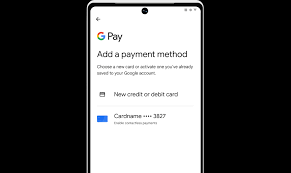
How to See The Cards Saved on Google: A Step-by-step Guide
Are you wondering how to see the cards saved on Google? Look no further! In this article, we will guide you through a step-by-step process on how to access and manage your credit/debit cards saved on Google.
Why See Your Cards Saved on Google?
Seeing your cards saved on Google can be beneficial in several ways:
- You can check which cards are associated with your Google account
- You can delete or modify cards that are no longer valid or needed
- You can monitor your transactions and activity related to each card
How to See The Cards Saved on Google of PC
To see the cards saved on Google from your PC, follow these steps:
- Access Google Pay: Open your preferred browser and navigate to the Google Pay page.
- Log in With Your Google Account: If you haven’t already, log in with your Google account credentials.
- Go to Google Pay Settings: Click on the three vertical dots in the top right corner of the screen and select “Settings.”
- View Saved Cards: You will see a list of cards associated with your Google Pay account.
How to Modify or Delete a Card
If you need to modify or delete a card, follow these steps:
- Click on The Card: Select the card you want to modify or delete.
- Click “Modify”: Click on the “Modify” button next to the card details.
- Update Card Information: You can update the card details, such as the expiration date, name, and address.
- Save Changes: Once you’ve made the necessary changes, click “Update” to save them.
How to Delete a Card
If you no longer need a card associated with your Google account, follow these steps:
- Click on The Card: Select the card you want to delete.
- Click “Delete”: Click on the “Delete” button next to the card details.
- Confirm Deletion: Confirm that you want to delete the card.
How to See The Cards Saved on Google of Smartphone And Tablet
To see the cards saved on Google from your smartphone or tablet, follow these steps:
- Open The Google App: Open the Google app on your device.
- Go to Settings: Tap on the menu icon (three horizontal lines) in the top left corner and select “Settings.”
- View Saved Cards: You will see a list of cards associated with your Google account.
How to Check Activity And Transactions
To check activity and transactions related to each card, follow these steps:
- Open The Card Details: Select the card you want to view.
- Tap on The Menu Icon: Tap on the three vertical dots in the top right corner of the screen.
- View Activity: You will see a list of recent activities and transactions related to the card.
How to Add or Remove Cards
To add or remove cards associated with your Google account, follow these steps:
- Open The Google App: Open the Google app on your device.
- Go to Settings: Tap on the menu icon (three horizontal lines) in the top left corner and select “Settings.”
- Add Card: Select the “Add card” option to add a new card or remove an existing one.
Google Wallet: How to Manage Your Cards
If you use Google Wallet, you can also manage your cards from the app:
- Open Google Wallet: Open the Google Wallet app on your device.
- View Saved Cards: You will see a list of cards associated with your Google account.
- Manage Cards: Tap on the menu icon (three horizontal lines) in the top left corner and select “Manage cards” to add or remove cards.
Conclusion
In conclusion, seeing the cards saved on Google is a straightforward process that can be completed from both PC and mobile devices. By following these steps, you can manage your credit/debit cards associated with your Google account and keep track of your transactions.
Frequently Asked Questions (FAQs)
- What Happens if I Delete a Card?
If you delete a card, it will no longer be associated with your Google account, and you won’t receive any further notifications or updates related to that card.
- How do I Add a New Card to my Google Account?
To add a new card to your Google account, open the Google app on your device, go to settings, and select “Add card.” Follow the prompts to enter the necessary information.
- Can I Modify a Card’s Details?
Yes, you can modify a card’s details from within the Google Pay or Google Wallet app.
- How do I Remove a Card From my Google Account?
To remove a card from your Google account, open the Google app on your device, go to settings, and select “Remove card.” Follow the prompts to confirm that you want to delete the card.
- What Happens if I Have Multiple Cards Associated With my Google Account?
If you have multiple cards associated with your Google account, they will all be listed in the Google Pay or Google Wallet app. You can manage each card separately by selecting it and modifying or deleting as needed.


