
Unlocking The Secrets of Android Passwords: A Comprehensive Guide
Are you tired of forgetting your passwords or wanting to access them on multiple devices? Look no further! In this article, we’ll delve into the world of Android password management, exploring how to see, save, and delete passwords saved on your device.
Table 1: Key Features of Google Smart Lock
| Feature | Description |
|---|---|
| Password Management | Automatically saves and retrieves passwords for websites and apps. |
| Device Association | Links multiple devices to a single account, making password management seamless. |
The Power of Google Smart Lock
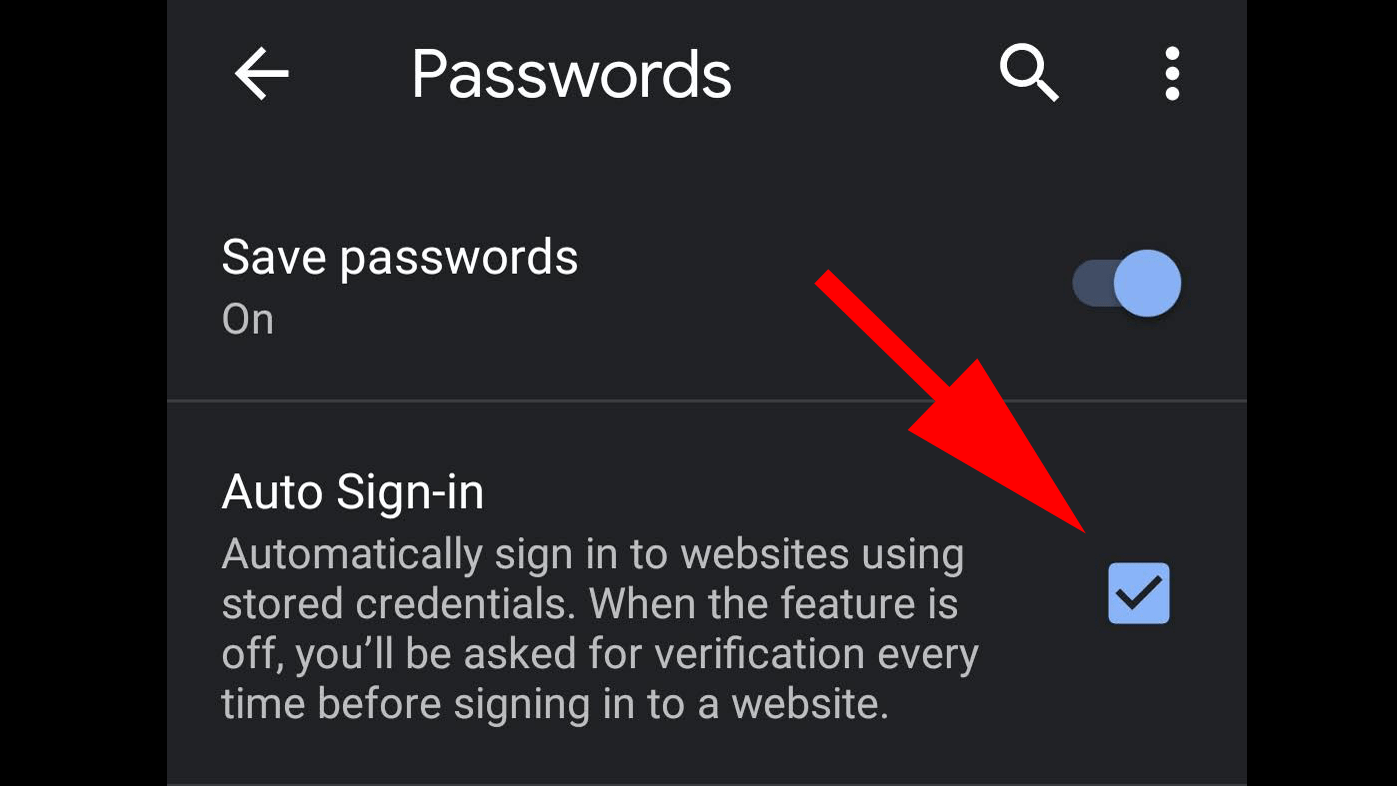
Google Smart Lock is an innovative feature that enables automatic password management on your Android device. With this feature, you can access saved passwords across various devices associated with the same Google account.
To activate Google Smart Lock, follow these simple steps:
- Check if Smart Lock is Enabled: Open Settings > Google > Smart Lock for Password.
- Verify The Credentials: If prompted, confirm your Google account credentials to access saved passwords.
Table 2: Exploring Wi-fi Passwords on Android
| Feature | Description |
|---|---|
| QR Code Display | Displays a QR code containing the Wi-Fi password for easy scanning. |
| Screenshot Option | Allows you to take a screenshot of the QR code or save it as an image. |
How to See Saved Wi-fi Passwords on Android
Want to access your saved Wi-Fi passwords without rooting your device? Try these methods:
- Check The Settings App: Open Settings > Nets and Internet > Wi-Fi, then tap on the network name to view its password.
- Use a QR Code Trick: Take a screenshot of the QR code displayed next to the Wi-Fi network name or scan it with another device using the Google Lens app.
Alternative Apps For Rooted Devices
For devices that require rooting, consider using apps like Wifi Password (available on the Play Store) to access saved passwords. This app requires root permissions and provides additional features for managing Wi-Fi passwords.
Deleting Saved Passwords on Android: A Step-by-step Guide
Want to remove a specific password from your device? Follow these steps:
- Open The Settings App: Tap on the icon to open the Settings menu.
- Access The Google Smart Lock Section: Navigate to Google > Smart Lock for Password.
- Select The App or Website: Choose the saved password you wish to delete.
Safety And Security Considerations
When deleting passwords, consider these best practices:
- Backup Your Data: Regularly backup your device’s data to prevent accidental loss of passwords.
- Use a Password Manager: Utilize reputable password management apps to securely store and retrieve your passwords.
Conclusion: Mastering Android Password Management
With this comprehensive guide, you’ve gained valuable insights into managing saved passwords on your Android device. Remember to stay safe and secure by regularly backing up your data and utilizing reliable password management tools.
Frequently Asked Questions (FAQs)
- Q: How do I See my Saved Wi-fi Passwords on Android?
A: You can check the Settings app, use a QR code trick, or utilize an alternative app like Wifi Password. - Q: Can I Delete Specific Passwords From my Device?
A: Yes, follow the step-by-step guide provided in this article to safely remove unwanted passwords. - Q: How do I Enable Google Smart Lock For Password Management?
A: Activate Google Smart Lock by checking if it’s enabled in Settings > Google > Smart Lock for Password. - Q: What Are Some Safety And Security Considerations When Deleting Passwords?
A: Regularly backup your data, use a reputable password manager, and follow best practices to ensure secure password management. - Q: Can I Access my Saved Passwords on Multiple Devices?
A: Yes, with Google Smart Lock enabled, you can access saved passwords across various devices associated with the same Google account. - Q: How do I Update my Google Smart Lock Settings?
A: Open Settings > Google > Smart Lock for Password to verify and update your settings as needed. - Q: Can I Recover Deleted Passwords on Android?
A: Unfortunately, once deleted, saved passwords cannot be recovered. - Q: Are There Any Recommended Password Management Apps For Android?
A: Yes, consider reputable options like Google Smart Lock or reputable third-party password managers specifically designed for Android devices.


