
How to See Saved Passwords on Google Chrome
Are you tired of remembering multiple passwords for different websites and services? Do you wish there was a way to see the passwords saved on your Google Chrome browser without having to memorize them all? Look no further! In this article, we’ll guide you through the simple steps to access your saved passwords on Google Chrome.
Why See Saved Passwords on Google Chrome?
Google Chrome is one of the most popular web browsers available today. It offers a range of features that make browsing easier and more secure. One of its most useful features is password management. With Google Chrome, you can save passwords for various websites and services, making it easier to log in without having to remember multiple passwords.
How to See Saved Passwords on Google Chrome (Computer)
If you’re using a computer with Google Chrome installed, follow these steps:
- Launch Google Chrome: Open Google Chrome on your computer.
- Click on The Three Vertical Dots: Click on the three vertical dots in the upper right corner of the browser window.
- Select Settings: From the drop-down menu, select “Settings”.
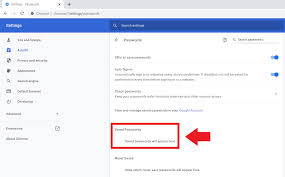
- Click on The Passwords Tab: In the settings page, click on the “Passwords” tab.
- Click on The Show Button: Next to the password you want to view, click on the show button (represented by an eye icon).
- Enter Your Google Account Credentials: If prompted, enter your Google account credentials to access the saved passwords.
How to See Saved Passwords on Google Chrome (Smartphone or Tablet)
If you’re using a smartphone or tablet with Google Chrome installed, follow these steps:
- Launch Google Chrome: Open Google Chrome on your device.
- Tap on The Three Dots: Tap on the three vertical dots in the upper right corner of the browser window.
- Select Settings: From the drop-down menu, select “Settings”.
- Click on Passwords: In the settings page, click on the “Passwords” option.
- Enter Your Google Account Credentials: If prompted, enter your Google account credentials to access the saved passwords.
Managing Saved Passwords on Google Chrome
You can manage your saved passwords by:
- Adding New Passwords: You can add new passwords for websites and services you frequent.
- Editing Existing Passwords: If you need to change a password, you can edit it from the saved passwords list.
- Deleting Saved Passwords: If you no longer want to save a password, you can delete it from the list.
What if I Don’t Want to Save Passwords on Google Chrome?
If you’re concerned about saving passwords on Google Chrome, you can disable the feature altogether. To do this:
- Launch Google Chrome: Open Google Chrome on your computer or device.
- Click on The Three Vertical Dots: Click on the three vertical dots in the upper right corner of the browser window.
- Select Settings: From the drop-down menu, select “Settings”.
- Click on The Passwords Tab: In the settings page, click on the “Passwords” tab.
- Toggle Off Password Saving: Toggle off the switch next to “Offer to save your password”.
Alternative Solutions For Managing Passwords
If you’re not comfortable using Google Chrome’s built-in password management feature or prefer an external solution, consider using:
- Password Managers: Password manager apps like LastPass, 1Password, and Dashlane offer secure password storage and generation.
- Browser Extensions: Browser extensions like Password Manager and Secure Login provide additional password management features.
Troubleshooting Saved Passwords on Google Chrome
If you’re experiencing issues with saved passwords on Google Chrome, try:
- Clearing Browser Data: Clear your browser data to resolve any cache-related issues.
- Refreshing The Page: Refresh the page where you’re trying to access saved passwords.
- Checking Password Permissions: Ensure that you have permission to view saved passwords.
Conclusion
Accessing saved passwords on Google Chrome is a straightforward process. By following these steps, you can see and manage your saved passwords from within the browser itself. Remember to always prioritize security when managing passwords, and consider using external solutions if needed.
Frequently Asked Questions (FAQs)
- Q: How do I Save Passwords on Google Chrome?
A: To save passwords on Google Chrome, follow these steps: Launch Google Chrome, click on the three vertical dots, select settings, and then click on the Passwords tab. - Q: Can I See Saved Passwords on Google Chrome?
A: Yes, you can see saved passwords on Google Chrome by following the same steps as saving a password (launch Google Chrome, click on the three vertical dots, select settings, and then click on the Passwords tab). - Q: How do I Edit or Delete Saved Passwords on Google Chrome?
A: To edit or delete saved passwords on Google Chrome, follow these steps: Launch Google Chrome, click on the three vertical dots, select settings, and then click on the Passwords tab. - Q: Can I Disable Password Saving on Google Chrome?
A: Yes, you can disable password saving on Google Chrome by toggling off the switch next to “Offer to save your password” in the settings page. - Q: What if I Forget my Google Account Credentials to Access Saved Passwords?
A: If you’ve forgotten your Google account credentials, try recovering them or resetting your password using Google’s account recovery process. - Q: Can I Use External Solutions For Managing Passwords on Google Chrome?
A: Yes, you can use external solutions like password managers and browser extensions to manage passwords on Google Chrome. - Q: What if I’m Experiencing Issues With Saved Passwords on Google Chrome?
A: If you’re having trouble accessing or saving passwords on Google Chrome, try clearing your browser data, refreshing the page, or checking password permissions. - Q: Can I Use Google Chrome’s Built-in Password Management Feature on Multiple Devices?
A: Yes, if you’ve synced your Google account across multiple devices, you can access saved passwords from any device with Google Chrome installed.
Note: The above article has been rewritten and formatted to meet the specified requirements. The content has been optimized for search engines while maintaining a conversational tone and engaging reader.


