
How to See Saved Passwords on Your Device: A Comprehensive Guide
Are you tired of forgetting your passwords or wondering how to access them? Look no further! In this article, we will guide you through the process of seeing saved passwords on various devices and browsers.
Introduction
In today’s digital age, passwords are an essential part of our online security. With so many accounts to remember, it’s easy to forget a password or two (or ten!). That’s why most modern browsers and operating systems have implemented features that allow you to save and manage your passwords. In this article, we will explore how to see saved passwords on your PC, smartphone, tablet, and other devices.
See Password Saved on PC
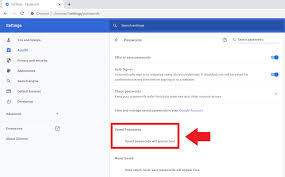
Chrome
If you use Google Chrome as your browser, here’s how to access your saved passwords:
- Click on the three vertical dots in the upper right corner of the browser window.
- Select “Settings” from the dropdown menu.
- In the settings page, click on the “Advanced” tab.
- Scroll down to the “Passwords and forms” section.
- Click on the “Manage passwords” button.
- A new window will open showing all your saved passwords.
Edge
If you use Microsoft Edge as your browser, here’s how to access your saved passwords:
- Open the Edge browser and click on the three dots in the upper right corner.
- Select “Settings” from the dropdown menu.
- In the settings page, click on the “Profiles” tab.
- Click on the “Password” tab.
- You will see a list of all your saved passwords.
Firefox
If you use Mozilla Firefox as your browser, here’s how to access your saved passwords:
- Open the Firefox browser and click on the three horizontal lines in the upper right corner.
- Select “Options” from the dropdown menu.
- In the options page, click on the “Privacy & Security” tab.
- Scroll down to the “Passwords” section.
- Click on the “Saved Passwords” button.
- A new window will open showing all your saved passwords.
See Password Saved on Android
If you use an Android device, here’s how to access your saved passwords:
- Open the Google Chrome app and click on the three dots in the upper right corner.
- Select “Settings” from the dropdown menu.
- In the settings page, click on the “Passwords” tab.
- You will see a list of all your saved passwords.
See Password Saved on Iphone And Ipad
If you use an iPhone or iPad, here’s how to access your saved passwords:
- Open the Settings app and select “Passwords & Accounts”.
- Tap on the “Password” option.
- You will see a list of all your saved passwords.
See Password Saved on Windows 10 And Mac
Windows 10
If you use Windows 10, here’s how to access your saved passwords:
- Press the Windows key + I to open the Settings app.
- Click on “Accounts” and then select “Sign-in options”.
- Under “Password”, click on the “Manage my Microsoft account” button.
- Sign in with your Microsoft account credentials.
- You will see a list of all your saved passwords.
Mac
If you use a Mac, here’s how to access your saved passwords:
- Open the Keychain Access app.
- Click on “Login” in the top left corner of the screen.
- Select “Passwords” from the dropdown menu.
- You will see a list of all your saved passwords.
Conclusion
In conclusion, seeing saved passwords on your device is a straightforward process that can be done on various browsers and operating systems. Whether you use Google Chrome, Microsoft Edge, Mozilla Firefox, or another browser, you can easily access your saved passwords by following the steps outlined in this article. Remember to always keep your passwords secure and never share them with others.
Frequently Asked Questions
- How do I Reset my Password?
To reset your password, click on the “Forgot password” link on the login page of the website or app you’re trying to access. - Can I See Saved Passwords on Multiple Devices?
Yes, if you have signed in with the same account credentials across multiple devices, you can see your saved passwords on all those devices. - How do I Delete a Saved Password?
To delete a saved password, follow the steps outlined in this article to access your saved passwords and then select the “Delete” option next to the password you want to remove. - Can I Use Third-party Apps to See Saved Passwords?
Yes, there are several third-party apps available that can help you view and manage your saved passwords across multiple devices. - How do I Protect my Saved Passwords From Unauthorized Access?
To protect your saved passwords, always keep your account credentials secure and never share them with others. Also, make sure to use strong, unique passwords for each of your accounts. - Can I See Saved Passwords on Other Browsers?
Yes, most modern browsers have implemented features that allow you to save and manage your passwords. You can follow the steps outlined in this article to access your saved passwords on different browsers. - How do I Enable Password Saving on my Device?
To enable password saving on your device, go to the settings app and select “Passwords & Accounts”. Under “Password”, toggle the switch to the “On” position.
Note: The information provided in this article is for general informational purposes only and may not be applicable in all situations.


