
How to See The Password of Spotify on a New Device
Are you trying to access your Spotify account on a new device, but can’t seem to remember your password? Don’t worry, this is a common problem! In this article, we’ll guide you through the steps to see your Spotify password on various devices.
Why Can’t I See My Password?
Unfortunately, Spotify doesn’t allow users to view their passwords directly from the app or web version. However, there are workarounds to help you recover your password.
Method 1: Checking The Browser’s Password Manager
If you’ve saved your password in a browser like Google Chrome, Microsoft Edge, Mozilla Firefox, or Safari, you can check the password manager to see if it’s stored there. Let’s go through each browser individually:
Google Chrome
- Open Google Chrome and click on the three vertical dots in the upper right corner.
- Select “Settings” from the dropdown menu.
- Scroll down to the “Password” section and click on “View passwords”.
- Type “Spotify” in the search bar, and you should see your password listed.
Microsoft Edge
- Open Microsoft Edge and click on the three horizontal dots in the upper right corner.
- Select “Settings” from the dropdown menu.
- Scroll down to the “Password” section and click on “Show passwords”.
- Type “Spotify” in the search bar, and you should see your password listed.
Mozilla Firefox
- Open Mozilla Firefox and click on the three horizontal lines in the upper right corner.
- Select “Settings” from the dropdown menu.
- Scroll down to the “Privacy & Security” section and click on “Password Manager”.
- Type “Spotify” in the search bar, and you should see your password listed.
Safari
- Open Safari and click on the three horizontal lines in the upper right corner.
- Select “Settings” from the dropdown menu.
- Scroll down to the “Passwords” section and click on “View”.
- Type “Spotify” in the search bar, and you should see your password listed.
Method 2: Checking The Device’s Password Manager
If you’ve saved your password on your device, you can check the password manager for that specific device. For example:
Windows Device
- Press the Windows key + I to open Settings.
- Select “Accounts” from the menu.
- Scroll down to the “Your email & accounts” section and click on “Manage credentials”.
- Type “Spotify” in the search bar, and you should see your password listed.
Mac Device
- Click on the Apple logo in the top left corner.
- Select “System Preferences” from the dropdown menu.
- Click on “Passwords” under System Preferences.
- Type “Spotify” in the search bar, and you should see your password listed.
Method 3: Checking Email And Password
If you’ve forgotten both your email and password, you can try checking the email associated with your Spotify account. Here’s how:
Computer
- Open the Spotify app or go to the Spotify web player.
- Click on your name at the top right corner of the app or web player.
- Select “Account” from the dropdown menu.
- Scroll down to the “Email” section, and you should see your email address listed.
Smartphone or Tablet
- Open the Spotify app.
- Tap on the three horizontal lines in the top left corner of the screen.
- Select “Settings” from the menu.
- Scroll down to the “Account” section, and you should see your email address listed.
Recovering Your Password
If none of the above methods work, you can try recovering your password. Here’s how:
Computer
- Open the Spotify app or go to the Spotify web player.
- Click on the “Access” button at the top right corner of the app or web player.
- Select “Recover password” from the dropdown menu.
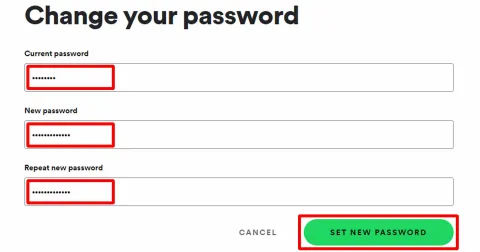
- Follow the prompts to reset your password.
Smartphone or Tablet
- Open the Spotify app.
- Tap on the three horizontal lines in the top left corner of the screen.
- Select “Settings” from the menu.
- Scroll down to the “Account” section and tap on “Recover password”.
- Follow the prompts to reset your password.
Conclusion
We hope this article has helped you recover your Spotify password or see it on a new device. Remember, if you’re having trouble accessing your account, you can always contact Spotify support for assistance.


