
Understanding Windows 10 PC Features
Are you considering installing new programs on your Windows 10 computer but want to verify its specifications first? You’re not alone! Many users face this dilemma, especially when they’re new to the world of computing. In this article, we’ll explore various methods for viewing your Windows 10 PC’s features, from basic system settings to advanced tools.
Why Verify PC Features Before Installation?
Before installing any software on your computer, it’s essential to check its specifications to ensure compatibility and smooth performance. Some programs may require specific hardware or software configurations that might not be met by your current setup.
Method 1: Viewing PC Features From System Settings
One of the simplest ways to view your Windows 10 PC’s features is through the system settings. Here’s how:
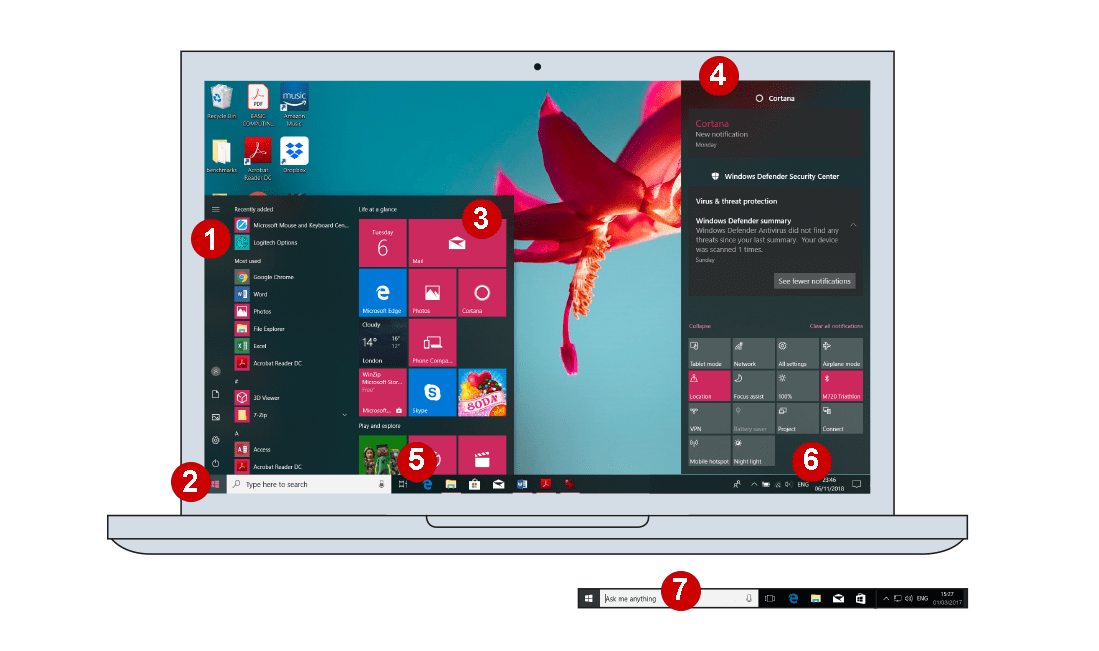
- Open the Start menu and click on “System” (represented by a gear icon).
- Scroll down to the “About” section, which lists essential details like processor type, RAM capacity, and operating system version.
Method 2: Using Command Prompt
You can also use the Command Prompt (also known as cmd) to view detailed information about your PC’s hardware and software specifications. Here’s how:
- Press the Windows key + R to open the Run dialog box.
- Type “cmd” in the search bar, right-click on it, and select “Run as administrator.”
- In the Command Prompt window, type “systeminfo” and press Enter.
Method 3: Utilizing Device Manager
Device Manager allows you to view detailed information about your PC’s hardware components. Here’s how:
- Press the Windows key + X to open the Quick Links menu.
- Click on “Device Manager.”
- Expand the relevant categories (e.G., “Display Adapters” or “Network Adapters”) to view detailed information about each device.
Method 4: Using System Information
System Information is another built-in utility that can help you view your PC’s hardware and software specifications. Here’s how:
- Press the Windows key + R to open the Run dialog box.
- Type “msinfo32” in the search bar and press Enter.
- In the System Information window, click on the “System Summary” tab for a comprehensive overview of your PC’s specs.
Conclusion
Verifying your Windows 10 PC’s features is essential before installing any software or hardware components. By using these methods, you can gain a deeper understanding of your computer’s capabilities and ensure smooth performance.
Frequently Asked Questions (FAQs)
-
What Are The Minimum System Requirements For Windows 10?
- Processor: 1 GHz CPU
- RAM: 1 GB (32-bit) or 2 GB (64-bit)
- Storage: 16 GB (32-bit) or 20 GB (64-bit)
-
How Can I Check my Pc’s Processor Specifications?
- Use Method 1 (viewing PC features from system settings) to find the processor type and model.
-
What is Device Manager, And How Does it Help me View PC Features?
- Device Manager allows you to view detailed information about your PC’s hardware components.
-
Can I Use System Information to View my Pc’s Software Specifications?
- Yes, System Information can provide details on installed software versions and updates.
-
How do I Update my Windows 10 Operating System?
- Open the Start menu, click on “Settings” (represented by a gear icon), and navigate to the “Update & Security” section.
-
What Are Some Other Tools Available For Viewing PC Features?
- Speccy is a free utility that provides detailed information about your PC’s hardware and software specifications.


