
Discovering The Password: A Step-by-step Guide
Are you tired of searching high and low for your WiFi password? Look no further! In this article, we’ll guide you through the process of discovering your WiFi password on Windows, macOS, and Linux operating systems.
Why Do You Need to Know Your Wifi Password?
Knowing your WiFi password is essential for various reasons. Firstly, it helps you troubleshoot connectivity issues with your router or modem. Secondly, it allows you to modify the password for added security. Finally, it’s a good practice to keep track of all your network credentials.
Windows 11: How to See Your Wifi Password
If you’re using Windows 11, finding your WiFi password is as easy as pie. Here’s how:
- Press Win + S: Open the Start menu and search for “Net and Internet” options.
- Click on Centre Connections of Net And Sharings: In the new window that opens, select “Centre connections of net and sharings.”
- Look For The Wifi Network Name: Find your WiFi network name under the “Internet” section.
- Click on Property Wireless: Click on the three dots next to your WiFi network name and select “Property Wireless.”
- Check The Key Voice of Safety of Net: In the new window that opens, look for the password in the “Key voice of safety of net” field.
Windows 10: How to See Your Wifi Password
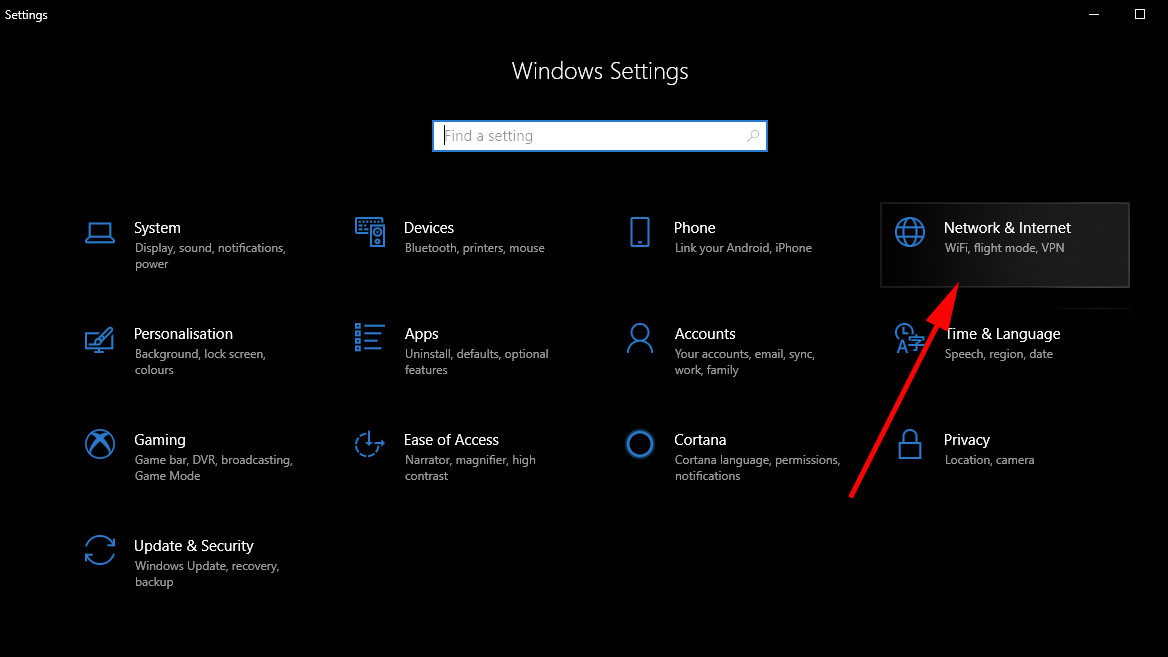
If you’re using Windows 10, follow these steps:
- Right-click on The Wi-fi Icon: Click on the Wi-Fi icon (represented by a bunch of waves) in the system tray and select “Open Settings connection and Internet.”
- Select State on The Left: In the new window that opens, ensure you’re selected “State” on the left.
- Click on Centre Connections of Net And Sharing: Click on “Centre connections of net and sharing.”
- Look For Your Wifi Network Name: Find your WiFi network name under the “Internet” section.
- Click on Property Wireless: Click on the three dots next to your WiFi network name and select “Property Wireless.”
- Check The Key Voice of Safety of Net: In the new window that opens, look for the password in the “Key voice of safety of net” field.
Windows 8.*X: How to See Your Wifi Password
If you’re using Windows 8.*X, follow these steps:
- Right-click on The Wi-fi Icon: Click on the Wi-Fi icon (represented by a bunch of waves) in the system tray and select “Open Centre connections of net and sharing.”
- Select Your Wifi Network Name: Find your WiFi network name under the “Internet” section.
- Click on Property Wireless: Click on the three dots next to your WiFi network name and select “Property Wireless.”
- Check The Key Voice of Safety of Net: In the new window that opens, look for the password in the “Key voice of safety of net” field.
Windows 7: How to See Your Wifi Password
If you’re using Windows 7 or earlier versions, follow these steps:
- Click on The Wi-fi Icon: Click on the Wi-Fi icon (represented by a bunch of waves) in the system tray.
- Right-click on Your Wifi Network Name: Right-click on your WiFi network name and select “Property.”
- Check The Key Voice of Safety of Net: In the new window that opens, look for the password in the “Key voice of safety of net” field.
Macos: How to See Your Wifi Password
If you’re using a Mac, follow these steps:
- Open Access Portachiavi: Open the Access Portachiavi application on your Mac.
- Select System And Then Click on Password: In the new window that opens, select “System” and then click on “Password.”
- Look For Your Wifi Network Name: Find your WiFi network name in the list.
- Check The #Display The Password Field: Look for the “#Display the password” field next to your WiFi network name.
- Enter Your Mac User Password: Enter your Mac user password and click “OK.”
Linux: How to See Your Wifi Password
If you’re using Linux, follow these steps:
- Click on The Wi-fi Icon: Click on the Wi-Fi icon (represented by a bunch of waves) in the system tray.
- Select Modify Connections: Select “Modify connections.”
- Look For Your Wifi Network Name: Find your WiFi network name under the “Wireless” section.
- Check The #Display The Password Field: Look for the “#Display the password” field next to your WiFi network name.
How to Change Your Wifi Password
If you want to change your WiFi password, follow these steps:
- Open The Modem Panel: Open the modem panel using your browser (usually http://192.168.0.1 Or http://192.168.1.1).
- Enter Your Admin Credentials: Enter your admin credentials (usually “admin” and “admin”).
- Look For The Wifi Configuration Section: Look for the WiFi configuration section in the modem panel.
- Change The Password: Change the password in the modem panel.
How to Configure Your Router
If you want to configure your router, follow these steps:
- Open The Router Settings Page: Open the router settings page using your browser (usually http://192.168.0.1 Or http://192.168.1.1).
- Enter Your Admin Credentials: Enter your admin credentials (usually “admin” and “admin”).
- Look For The Wifi Configuration Section: Look for the WiFi configuration section in the router settings page.
- Configure Your Router: Configure your router according to your needs.
Faqs
- Q: How do I find my WiFi password?
A: You can find your WiFi password by following the steps outlined above for each operating system (Windows, macOS, Linux). - Q: Can I change my WiFi password?
A: Yes, you can change your WiFi password by following the steps outlined above. - Q: How do I configure my router?
A: You can configure your router by opening its settings page in your browser and entering your admin credentials. - Q: Why is it important to know my WiFi password?
A: Knowing your WiFi password helps you troubleshoot connectivity issues with your router or modem, modify the password for added security, and keep track of all your network credentials. - Q: Can I use a different browser to access my router settings page?
A: Yes, you can use any browser (e.G., Chrome, Firefox, Safari) to access your router settings page. - Q: How do I find the address IP of my modem?
A: You can find the address IP of your modem by checking its manual or searching online for “modem IP address.” - Q: Why is it important to keep track of all my network credentials?
A: Keeping track of all your network credentials helps you stay secure and prevent unauthorized access to your networks. - Q: Can I use a different operating system (e.G., Chrome OS, Android) to access my router settings page?
A: Yes, you can use any operating system to access your router settings page by opening the browser and entering the address IP of your modem.
Conclusion
In this article, we’ve outlined the steps for discovering your WiFi password on various operating systems (Windows, macOS, Linux). We’ve also provided information on how to change your WiFi password, configure your router, and keep track of all your network credentials. By following these steps, you’ll be able to troubleshoot connectivity issues, modify your password for added security, and stay secure with your networks.


