
How to See Password Wifi: A Step-by-step Guide
Are you struggling to access your WiFi network because you can’t remember the password? Do you want to know how to see the password of your WiFi connection on your PC, smartphone, or router? Look no further! In this article, we’ll guide you through a step-by-step process on how to view and recover your WiFi password.
Why Can’t I See My Wifi Password?
Before we dive into the tutorial, let’s quickly discuss why you might not be able to see your WiFi password. The reason is that most modern operating systems, such as Windows 11/10 and macOS, store passwords securely in a vault or keychain to protect them from unauthorized access. However, this also means that you need to take some extra steps to view or recover the password.
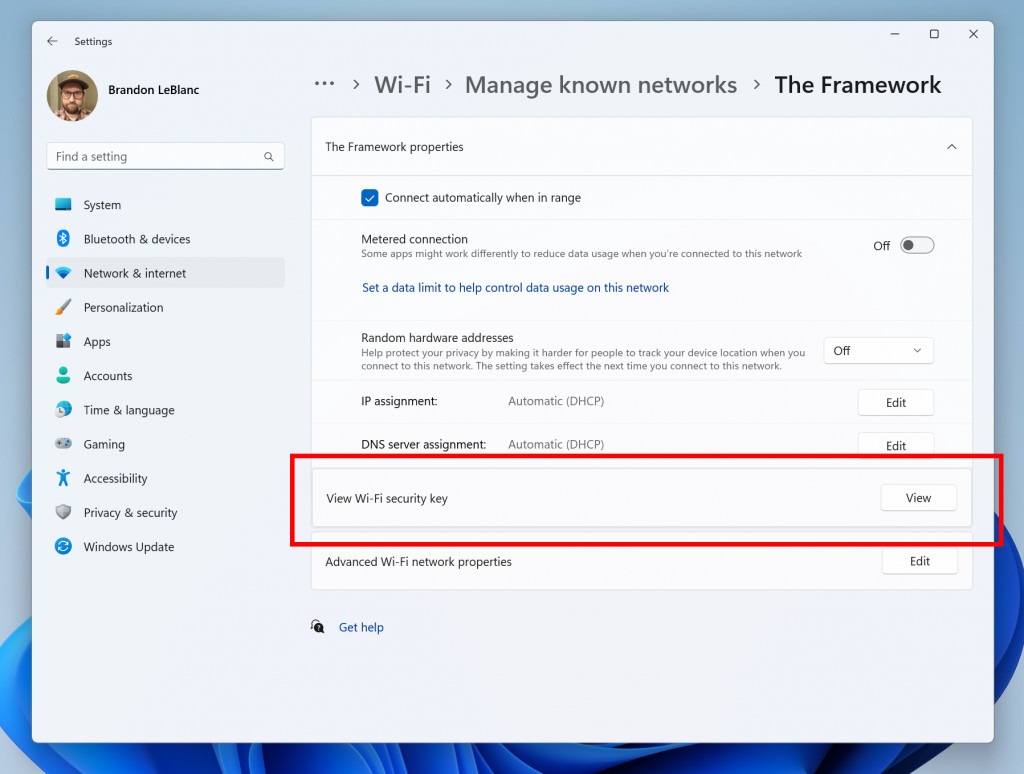
How to See Password Wifi on PC (Windows 11/10)
If you’re using a Windows 11/10 device, follow these steps to see your WiFi password:
- Click on Start: Press the Windows key + X and click on Start.
- Type “Control Panel”: In the search bar, type “Control Panel” and press Enter.
- Open Network And Sharing Center: Click on the icon in the top-right corner of the window to open the Network and Sharing Center.
- Click on Manage Wireless Networks: On the left side of the window, click on “Manage Wireless Networks.”
- Select Your Wifi Network: In the list of available networks, select the one you want to view the password for.
- Click Properties: Right-click on the selected network and click on “Properties.”
- Click on Wireless Properties: In the Properties window, click on the “Wireless” tab.
- Check The Box Next to “Display Characters”: Place a checkmark in the box next to “Display characters.”
- View Your Wifi Password: Your WiFi password will be displayed in plain text.
How to See Password Wifi on Mac
If you’re using a Mac, follow these steps:
- Open Keychain Access: Press Command + Space and type “Keychain” to open Keychain Access.
- Select System Keychain: In the left sidebar, select the “System” keychain.
- Click on Passwords: In the right-hand column, click on the “Passwords” tab.
- Search For Your Wifi Network: Type the name of your WiFi network in the search bar at the top-right corner.
- View Your Wifi Password: Your WiFi password will be displayed below the search results.
How to See Password Wifi on Android
If you’re using an Android device, follow these steps:
- Go to Settings: Open the Settings app and select “Connections.”
- Select Wi-fi: Click on “Wi-Fi” from the list of available connections.
- Select Your Network: Select the WiFi network you want to view the password for.
- Tap The Menu Button: Tap the three dots (⋮) at the top-right corner of the screen.
- Tap “Share”: Select “Share” and tap on “QR Code.”
- View Your Wifi Password: Your WiFi password will be displayed below the QR code.
How to See Password Wifi on Iphone/ipad
If you’re using an iPhone or iPad, follow these steps:
- Go to Settings: Open the Settings app and select “Wi-Fi.”
- Select Your Network: Select the WiFi network you want to view the password for.
- Tap The “i” Icon: Tap on the “i” icon next to the selected network.
- Tap “Password”: Tap on “Password.”
- View Your Wifi Password: Your WiFi password will be displayed in plain text.
How to Recover Your Wifi Password
If you’re unable to view or recover your WiFi password using these steps, it may have been reset or is not stored securely on your device. In this case, try resetting the network name and password through the router settings.
Why You Should Use a Strong Password
Now that we’ve covered how to see your WiFi password, let’s quickly emphasize why you should use a strong and unique password for each of your networks.
- Weak passwords can compromise your security.
- Reusing passwords across multiple devices and networks puts them at risk.
- Using the same password for every network can lead to hacking attempts.
Conclusion
Recovering or viewing your WiFi password is relatively easy, but it requires some basic understanding of how operating systems store sensitive information. Remember to use strong and unique passwords for each of your networks to ensure maximum security.
Faqs
Q: Why do I need to view my WiFi password?
A: You might need to view your WiFi password to reset the network name and password through the router settings or to troubleshoot connectivity issues.
Q: How often should I change my WiFi password?
A: It’s a good idea to change your WiFi password every 3-6 months to maintain maximum security.
Q: Can I use the same password for multiple networks?
A: No, it’s not recommended. Use unique and strong passwords for each network.
Q: What if I forget my WiFi password?
A: Try recovering or viewing your WiFi password using the steps outlined above.


