
How to Check Windows Version: A Step-by-step Guide
Are you curious about the version of Windows installed on your PC? Do you want to know which edition, build, and type of system you’re using? Look no further! In this article, we’ll show you how to check the Windows version on your computer.
Why Check Windows Version?
Checking the Windows version is essential for several reasons:
- System Compatibility: Knowing the exact version of Windows helps ensure that software and hardware components are compatible.
- Update And Upgrade Decisions: Understanding the current version of Windows will guide you in making informed decisions about updates, upgrades, or even switching to a different operating system.
- Troubleshooting: Identifying the correct version of Windows can aid in resolving issues related to specific versions.
How to Check Windows Version on Different Versions
The process of checking the Windows version varies depending on your operating system’s edition:
Windows 11
- Open Settings: Click on the Start button and select the “Settings” icon.
- System: In the System section, click on “About.”
- Version: Look for the “Edition,” “Version,” and “Build” information.
Windows 10
- Search For Info: Type “info” in the search bar and select “About your PC.”
- System: Click on the “System” section.
- Version: Check the “Edition,” “Version,” and “Build” details.
Windows 8.x
- Charms Bar: Move your cursor to the top right corner, click on the Charms icon, and select “Settings.”
- Change PC Settings: Click on “Update and recovery” > “Recovery.”
- PC Settings: Select “About.”
Windows 7 And Vista
- Right-click Computer: Right-click the Start button (Windows key + X) or the Computer icon, then select “Properties.”
- System Properties: Look for the “Edition,” “Type” information.
Additional Ways to Check Windows Version
Besides these specific methods, you can also check the Windows version using other tools and techniques:
Using File Explorer/explorer
- Open File Explorer: Click on the File Explorer icon or press the Windows key + E.
- This PC: Right-click “This PC” (or “Computer”) in the left sidebar and select “Properties.”
- System Properties: Check the “Edition,” “Type” information.
Using Control Panel
- Open Control Panel: Type “Control Panel” in the search bar or navigate to it manually.
- Category View: Ensure you’re in Category view (View > Category).
- System And Security: Click on “System” under System and Security.
- System Properties: Check the “Edition,” “Type” information.
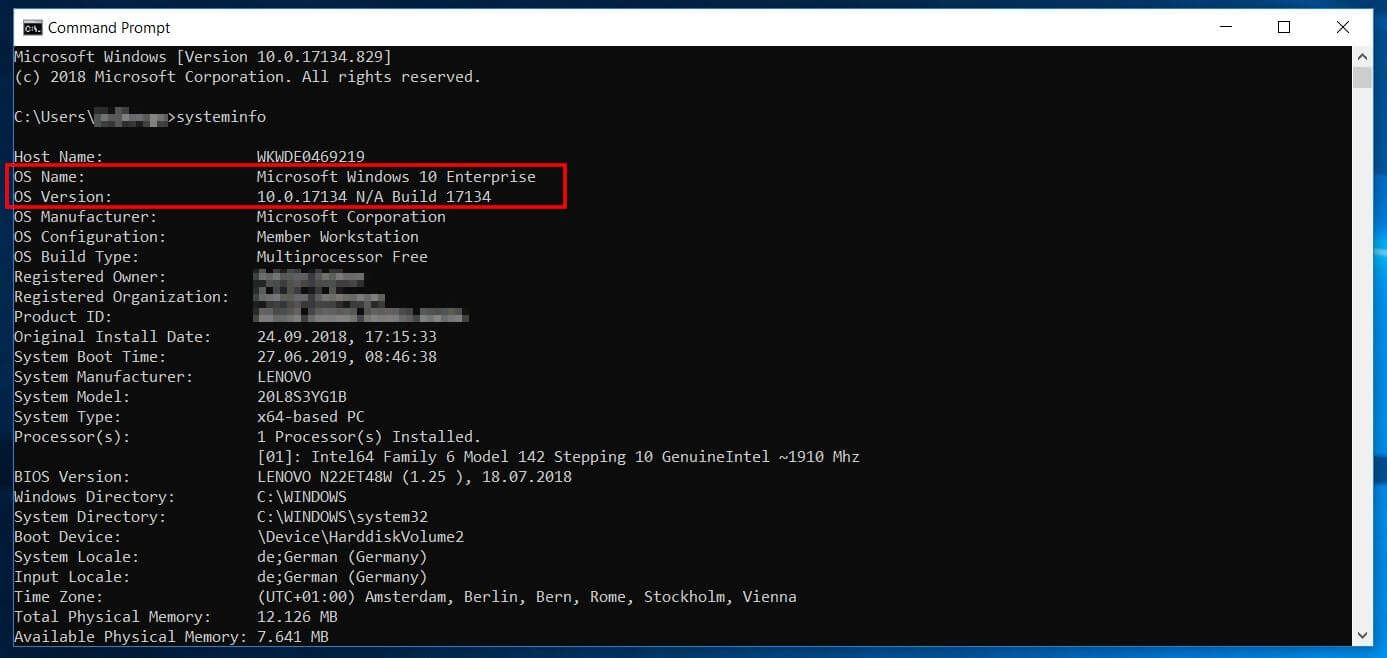
Using Command Prompt
- Open Command Prompt: Type “cmd” in the search bar or press the Windows key + R to open Run, then type “cmd” and press Enter.
- Systeminfo: Type “systeminfo” and press Enter.
- Version: Check the “Edition,” “Version,” and “Build” information.
Checking if Your PC is 32-bit or 64-bit
If you’re unsure whether your PC is 32-bit or 64-bit, follow these steps:
- Check System Properties: Look for the “Type” information in the System Properties window.
- Cpu Architecture: Check the CPU architecture by searching online for your processor model.
Checking Windows Update Version
To check the version of Windows Update on Windows 10:
- Open Settings: Click on the Start button and select the “Settings” icon.
- Update & Security: In the System section, click on “About.”
- Version: Look for the “Version” information.
Checking Windows Media Player Version
To check the version of Windows Media Player:
- Open Windows Media Player: Type “Windows Media Player” in the search bar and select it.
- Menu: Click on the menu icon (three dots) or press Alt + M.
- Help: Select “About.”
- Version: Check the “Version” information.
In conclusion, checking the Windows version is a straightforward process that can be accomplished using various methods depending on your operating system’s edition. By following these steps, you’ll gain valuable insights into your PC’s configuration and make informed decisions about updates, upgrades, or troubleshooting.
Frequently Asked Questions (FAQs)
-
Q: How do I Check The Windows Version on my Computer?
A: Follow the specific method for your operating system’s edition (Windows 11, Windows 10, Windows 8.X, Windows 7, or Vista). -
Q: Why is it Essential to Know The Windows Version?
A: Knowing the exact version of Windows ensures compatibility with software and hardware components. -
Q: How Can I Check if my PC is 32-bit or 64-bit?
A: Check the “Type” information in System Properties, or search online for your processor model. -
Q: Can I Use Other Methods to Check The Windows Version?
A: Yes, you can use File Explorer/Explorer, Control Panel, Command Prompt, and other tools to verify the Windows version. -
Q: How do I Check The Version of Windows Update on my Pc?
A: Follow the steps for your operating system’s edition (Windows 10). -
Q: Can I Check The Version of Windows Media Player on my Computer?
A: Yes, open Windows Media Player and follow the menu to check the “Version” information. -
Q: What if I’m Unsure About Which Method to Use?
A: Refer to this article for a step-by-step guide tailored to your operating system’s edition. -
Q: Are There Any Other Ways to Troubleshoot Issues Related to Windows Versions?
A: Yes, knowing the exact version of Windows can aid in resolving specific problems and ensure compatibility with software and hardware components.


