
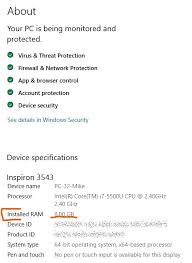
How to See The Memory of Your Pc: A Comprehensive Guide
Are you running low on memory space on your computer? Do you want to know how much free space is available on your hard drive or RAM? Look no further! In this article, we will guide you through a step-by-step process on how to check the memory usage on both Windows and macOS devices.
Understanding Memory Usage
Before we dive into the procedures, it’s essential to understand what memory usage means. Memory refers to the amount of space used by your computer’s operating system, applications, and files. There are two types of memory: RAM (Random Access Memory) and storage (hard drive or solid-state drive).
Windows Vs. Macos: Checking Memory Usage
While both Windows and macOS have built-in tools to check memory usage, the process differs slightly.
Windows: Checking Memory Usage
To check memory usage on a Windows device:
- Press The Win Key + E to open File Explorer.
- Click on This PC in the left sidebar.
- Right-click on The Partition You Want to Check (usually C:) And Select Properties.
- In The Properties Window, Click on The General Tab.
You’ll see the total capacity, used space, and free space for that partition.
Alternatively:
- Press The Win Key + I to open Settings.
- Click on System > Storage.
- Under Local Disk (usually C:), You’ll See a Bar Graph Showing Used And Free Space.
Macos: Checking Memory Usage
To check memory usage on a macOS device:
- Click on The Apple Menu and select About This Mac.
- In The About Window, Click on Storage.
- You’ll See a Bar Graph Showing Used And Free Space For Your Startup Disk (usually Named After Your Computer Model).
Checking Ram Usage on Windows And Macos
To check RAM usage:
- For Windows: Open Task Manager by Pressing Ctrl + Shift + Esc or right-clicking the taskbar and selecting Task Manager.
- For Macos: Click on the Apple menu, select About This Mac, then click on System Report.
What’s Occupying My Memory?
To check which processes are using up your memory:
- On Windows: In Task Manager, go to The Performance Tab and look for Memory usage.
- On Macos: Open Activity Monitor (found in Applications/Utilities) and sort by Memory.
Understanding Storage Usage on Windows And Macos
To check which types of files are occupying your storage space:
- On Windows: Open File Explorer, Right-click a Partition (usually C:) And select Properties.
- On Macos: Click on the Apple menu, select About This Mac, then click on Storage.
Upgrade Your Ram or Storage?
If you’re running low on memory space, consider upgrading your RAM or storage to improve performance.
Conclusion: Checking Memory Usage Made Easy
In this article, we’ve shown you how to check memory usage on both Windows and macOS devices. Whether you want to know how much free space is available on your hard drive or RAM, these simple steps will help you understand what’s occupying your memory.


