
How to See Your Sky Bill Online
Are you wondering how to view your Sky bill online? Perhaps you’re not sure which procedure to follow or where to find the necessary information. Don’t worry, you’ve landed in the right place! In this article, we’ll guide you through a step-by-step process on how to access and download your Sky bill using your computer, smartphone, or tablet.
Understanding Your Sky Bill
Before we dive into the procedure, let’s briefly discuss what you can expect from your Sky bill. Your bill will contain information such as:
- The state of your payment (paying or paid)
- The date of deadline or payment
- The total amount due
- A list of recurrent costs
How to See Your Sky Bill Online
To view your Sky bill online, follow these simple steps:
Seeing Your Sky Bill Online From a Computer
- Access The Sky Website: Go to the official Sky website and click on the “Access” button at the top right corner.
- Log In With Your Sky ID: Enter your Sky ID and password in the required fields and click on the “Access” button.
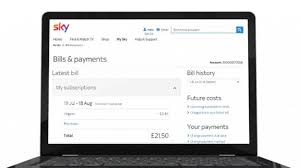
- Navigate to Your Bills Section: Once logged in, navigate to the “Your bills” section, where you’ll find a list of your last three bills.
- View or Download Your Bill: Click on the bill you want to view or download, and you’ll be taken to an interactive page with detailed information.
Seeing Your Sky Bill Online From a Mobile Device (App)
If you prefer using your smartphone or tablet, you can use the My Sky app available for Android and iOS devices. Follow these steps:
- Download And Install The App: Download the My Sky app from the Google Play Store or Apple App Store.
- Log In With Your Sky ID: Open the app, tap on “Access,” and enter your Sky ID and password.
- Navigate to Your Bills Section: Tap on the “Bills” tab at the bottom of the screen to access your bill history.
- View or Download Your Bill: Select the bill you want to view or download, and you’ll be taken to an interactive page with detailed information.
How to Download a Specific Sky Bill
If you need to download a specific bill, follow these steps:
Downloading From a Computer
- Access The Sky Website: Go to the official Sky website and log in with your Sky ID.
- Navigate to Your Bills Section: Click on the “Bills and payments” tab at the top of the page.
- Select The Bill You Want to Download: Click on the bill you want to download, and select the option to open it as a PDF file.
Downloading From a Mobile Device (App)
- Open The My Sky App: Open the My Sky app and log in with your Sky ID.
- Navigate to Your Bills Section: Tap on the “Bills” tab at the bottom of the screen.
- Select The Bill You Want to Download: Select the bill you want to download, and tap on the option to open it as a PDF file.
Tips And Reminders
- If you’re using a computer, make sure your browser is up-to-date to ensure smooth functionality.
- When downloading a bill from a mobile device, be aware that the format may vary depending on the app used (e.G., Chrome or Rows).
- You can also modify your address of turnover and payment method by clicking on the “Modify” button in the My Sky app.
Conclusion
In conclusion, viewing and downloading your Sky bill online is a straightforward process. By following these steps, you’ll be able to access your bill history from both computers and mobile devices. Remember to always keep your browser and apps up-to-date for optimal functionality.
Frequently Asked Questions (FAQs)
- Q: How do I Access my Sky Bill Online?
A: You can access your Sky bill online by going to the official Sky website, logging in with your Sky ID, and navigating to the “Your bills” section. - Q: Can I Download a Specific Sky Bill?
A: Yes, you can download any bill from the past 24 months using either the Sky website or the My Sky app. - Q: How do I Modify my Address of Turnover And Payment Method?
A: You can modify your address of turnover and payment method by clicking on the “Modify” button in the My Sky app. - Q: Can I Receive a Physical Copy of my Bill?
A: Yes, you can opt to receive a physical copy of your bill, but this will incur an additional cost of 2 euros. - Q: How do I Download a Bill Using a Mobile Device (app)?
A: To download a bill using the My Sky app, select the bill you want to download and tap on the option to open it as a PDF file. - Q: Can I View my Bill History From Both Computers And Mobile Devices?
A: Yes, you can view your bill history from both computers and mobile devices using the official Sky website or the My Sky app. - Q: How do I Save Downloaded Bills on my Mobile Device?
A: On Android devices, tap on the three dots at the top right corner of the screen and select “Save” to download the bill. On iOS devices, tap on the arrow inside a square icon at the bottom of the screen and select “Save on Rows” to save the bill. - Q: Can I Collaborate With Other Users to Manage my Sky Account?
A: Yes, you can share your Sky account with others by adding them as authorized users through the My Sky app.
Recommended Reading
- For more information on how to download and view PDF files, visit our guide on how to download PDFs
- To stay up-to-date with the latest technological news and trends, follow us on social media or subscribe to our newsletter.


