
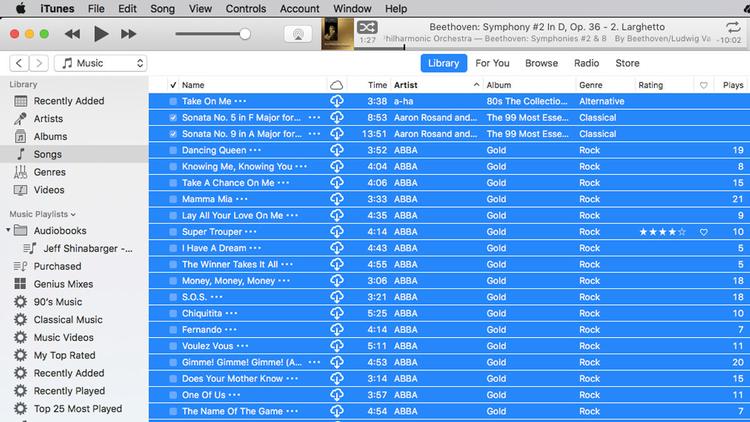
How to Select All Songs on Itunes
Are you tired of having to select individual songs on your iTunes library, only to have them play out of order? Do you want to create a playlist with all your favorite songs but don’t know how to do it quickly? Worry no more! In this article, we’ll show you how to select all songs on iTunes using the keyboard and menus.
Why Select All Songs on Itunes?
Selecting all songs on iTunes can be helpful in several ways:
- Easy Playlist Creation: With all your favorite songs selected, creating a new playlist becomes a breeze.
- Convenient Music Listening: You can quickly play all your desired songs without having to individually select them each time.
Method 1: Selecting All Songs on Itunes Using The Keyboard
On Windows:
- Open iTunes and navigate to the Music section by clicking on “Music” in the top left corner of the screen.
- Press
Ctrl+A(Windows) orCmd+A(Mac) to select all songs.
On Mac (Catalina and later):
- Open Music and navigate to the Library section by clicking on the icon with the three dots.
- Press
Cmd+Ato select all songs.
Method 2: Selecting All Songs on Itunes Using The Menus
On Windows:
- Open iTunes and navigate to the Music section.
- Right-click (Windows) or Control-click (Mac) on a song, then click “Select All” from the context menu.
On Mac (Catalina and later):
- Open Music and navigate to the Library section.
- Click on the three dots icon in the top right corner of the screen, then select “Select All”.
Method 3: Selecting Non-consecutive Songs
If you want to select non-consecutive songs, follow these steps:
On Windows:
- Select a song, hold down
Ctrl(Windows) orCmd(Mac), and click on each additional song you want to add. - Alternatively, use the keyboard shortcut
Shift+Ato select all songs in a library or playlist.
On Mac (Catalina and later):
- Open Music and navigate to the Library section.
- Select a song, hold down
Cmd(Mac), and click on each additional song you want to add. - Alternatively, use the keyboard shortcut
Shift+Ato select all songs in a library or playlist.
Tips For Managing Your Itunes Library
Here are some tips to help you better manage your iTunes library:
- Keep it Clean: Regularly remove duplicates and delete unwanted songs.
- Organize Your Playlists: Use smart playlists or create custom playlists based on your favorite artists, genres, or moods.
- Explore New Music: Discover fresh tunes by browsing through the top charts, curated playlists, or using Apple Music’s recommendations.
Conclusion
Selecting all songs on iTunes is a straightforward process that can save you time and make managing your music library easier. By following these methods, you’ll be able to create playlists, play all your favorite songs in one go, and enjoy a more seamless listening experience.
Here are eight FAQs related to selecting all songs on iTunes:
Q: How do I select all songs on my iPhone or iPad using the Music app?
A: On iOS devices, navigate to the Library section of the Music app, then tap “Select All” from the context menu.
Q: Can I select non-consecutive songs on Windows 10?
A: Yes, you can use the keyboard shortcut Ctrl+A (Windows) or Cmd+A (Mac) followed by deselecting unwanted songs using Ctrl+Shift+A.
Q: How do I deselect all songs in iTunes?
A: Press Ctrl+Shift+A (Windows) or Cmd+Shift+A (Mac) to deselect all songs.
Q: Is there a way to select specific genres, artists, or albums instead of individual songs?
A: Yes, you can use smart playlists or create custom playlists based on your desired criteria.
Q: Can I export my iTunes library to another music platform like Spotify or Google Play Music?
A: Yes, you can transfer your music library using the iTunes Export feature, then import it into another music streaming service.
Q: How do I report duplicates in my iTunes library?
A: Use the “Find Duplicates” feature within the iTunes program to identify and remove duplicate songs.
Q: Can I automatically add new songs to a playlist based on specific criteria?
A: Yes, you can use smart playlists to automatically add new songs that match your desired specifications.


