
How to Select Objects With Photoshop: A Step-by-step Guide
Are you tired of struggling to select objects in your photos using Photoshop? Look no further! In this article, we’ll guide you through the process of selecting objects with ease, using various tools and techniques.
Understanding The Selection Tools
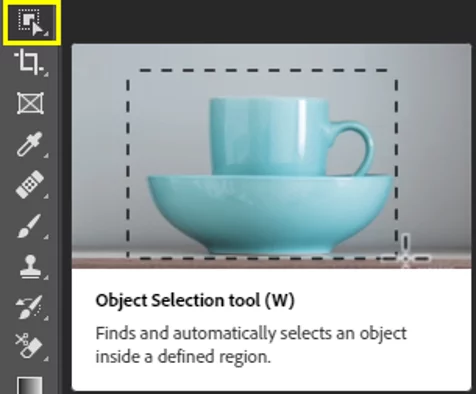
To select an object in Photoshop, you need to use one of the many selection tools available. These tools allow you to create a mask or a path around the object, which can be used for editing or manipulation. The most commonly used selection tools are:
- Lasso Tool: This tool allows you to create a free-form path around an object.
- Magnetic Lasso Tool: This tool helps you select an object by tracing its edges with a magnetic line that snaps onto the object’s contours.
- Polygonal Lasso Tool: This tool enables you to create a polygonal shape around an object.
Using The Rectangular And Elliptical Selection Tools
In addition to the lasso tools, Photoshop also offers two other selection tools: The rectangular and elliptical selection tools. These tools allow you to select objects based on their geometric shapes.
- Rectangular Selection Tool: This tool enables you to create a rectangular shape around an object.
- Elliptical Selection Tool: This tool allows you to create an elliptical shape around an object.
How to Select Objects With The Lasso Tools
To select an object using the lasso tools, follow these steps:
- Choose the desired lasso tool from the toolbar.
- Click and drag the mouse to create a path around the object.
- Release the mouse button when you’ve completed the path.
Tips For Selecting Objects With The Lasso Tools
- Use the magnetic lasso tool to select objects that have complex shapes or contours.
- Use the polygonal lasso tool to select objects that have multiple edges or corners.
- Hold the shift key while selecting an object to add it to the existing selection.
Using The Rectangular And Elliptical Selection Tools
To select an object using the rectangular and elliptical selection tools, follow these steps:
- Choose the desired selection tool from the toolbar.
- Click and drag the mouse to create a shape around the object.
- Release the mouse button when you’ve completed the shape.
Tips For Selecting Objects With The Rectangular And Elliptical Selection Tools
- Use the rectangular selection tool to select objects that have simple, rectangular shapes.
- Use the elliptical selection tool to select objects that have elliptical or circular shapes.
- Hold the shift key while selecting an object to add it to the existing selection.
How to Select Objects With Photoshop Online
If you don’t have access to a desktop computer, you can use Photoshop online. To do this:
- Sign in to your Creative Cloud account.
- Click on the “Photoshop” icon from the toolbar.
- Choose the desired tool from the menu.
- Follow the same steps as above to select an object.
How to Select Objects With Photoshop Mobile
To select objects using Photoshop mobile, follow these steps:
- Open the app and choose the desired tool from the menu.
- Tap on the object you want to select.
- Choose the desired selection mode (e.G., Lasso, magnetic lasso, etc.).
Conclusion
Selecting objects with Photoshop is a breeze once you get the hang of it! By using the various tools and techniques outlined in this article, you’ll be able to select objects with ease, whether you’re working on a desktop computer or mobile device.
Frequently Asked Questions
- What Are The Benefits of Using The Lasso Tools?
- The lasso tools allow for more precise selections, especially when dealing with complex shapes.
- Can I Use Photoshop Online to Select Objects?
- Yes! You can use Photoshop online to select objects using the same tools and techniques as described above.
- How do I Undo a Selection in Photoshop?
- To undo a selection, simply press Ctrl+Z (or Command+Z on a Mac) while selecting an object.
- Can I Select Multiple Objects at Once?
- Yes! You can select multiple objects by holding the shift key while making selections.


