
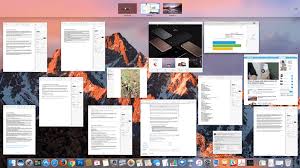
Mastering Macos: A Beginner’s Guide to Selecting Multiple Elements
Are you a Windows user switching to macOS or an existing Mac user looking to improve your productivity? Look no further! This comprehensive guide will walk you through the process of selecting multiple elements on your Mac, making it easier than ever to manage your files and folders.
Why is Selecting Multiple Elements Important?
Selecting multiple elements on your Mac allows you to perform various actions simultaneously, saving you time and effort. Whether you need to delete, copy, or move files, selecting multiple elements makes the process a breeze.
What Are The Different Ways to Select Multiple Elements on Macos?
There are several ways to select multiple elements on macOS, depending on your preferences and needs. Here are some of the most common methods:
Method 1: Using The Keyboard Shortcuts
One of the quickest ways to select multiple elements is by using keyboard shortcuts. To do this:
- Hold down the Command (⌘) + Shift keys
- Click on the first file or folder you want to select
- While holding down the Shift key, click on the last file or folder you want to select
This will select all files and folders between the two points.
Method 2: Using The Mouse
If you prefer using the mouse, here’s how:
- Click on the first file or folder you want to select
- Hold down the Mouse Button while dragging the cursor over the other files or folders you want to select
Release the mouse button when you’re done selecting.
Method 3: Using The Trackpad
If you have a Mac with a trackpad, you can use this method:
- Click on the first file or folder you want to select
- Tap the Trackpad while dragging your finger over the other files or folders you want to select
Release your finger when you’re done selecting.
Method 4: Using The Context Menu
You can also select multiple elements using the context menu:
- Select one file or folder
- Right-click (or Control-click) on the selected item
- Choose Select All from the context menu
This will select all files and folders in the current window.
Method 5: Using The Finder’s List View
When using the Finder’s list view, you can select multiple elements by:
- Selecting one file or folder
- Holding down the Command (⌘) + Shift keys
- Clicking on the next file or folder you want to select
This will automatically select all files and folders between the two points.
Tips And Tricks
Here are some additional tips and tricks to help you master selecting multiple elements on macOS:
- Use the Command (⌘) + A shortcut to select all files and folders in a window.
- Use the Command (⌘) + Shift + > shortcut to select all files and folders in the current folder.
- You can also use the Select All option from the context menu.
By following these methods and tips, you’ll become a pro at selecting multiple elements on your Mac. Happy computing!
Frequently Asked Questions
Here are some frequently asked questions about selecting multiple elements on macOS:
Q: Can I select multiple files or folders using the mouse?
A: Yes! You can use the mouse to select multiple files or folders by clicking and dragging over them.
Q: How do I select all files and folders in a window?
A: Use the Command (⌘) + A shortcut or right-click (or Control-click) on an empty area of the window and choose Select All from the context menu.
Q: Can I use keyboard shortcuts to select multiple elements?
A: Yes! You can use various keyboard shortcuts like Command (⌘) + Shift + > to select multiple files or folders.
By mastering these methods, you’ll be able to efficiently manage your files and folders on macOS.


