
How to Select Two Non-adjacent Columns in Excel: A Step-by-step Guide
Are you struggling to select two non-adjacent columns in Microsoft Excel? Don’t worry, we’ve got you covered! In this article, we’ll show you how to achieve this task easily and efficiently.
Understanding The Problem
Selecting non-adjacent columns can be a bit tricky, especially if you’re new to using Excel. It’s essential to understand that selecting multiple columns requires a different approach than selecting adjacent cells.
Why Use Excel?
Excel is an incredibly powerful tool for data analysis and manipulation. With its vast array of features and functions, it’s no wonder why many professionals rely on it for their work. However, as you might have noticed, some tasks can be a bit challenging, especially when it comes to selecting non-adjacent columns.
Windows Version: Selecting Non-adjacent Columns
If you’re using the Windows version of Excel, follow these steps:
- Open Excel: First, open your Excel file or create a new one.
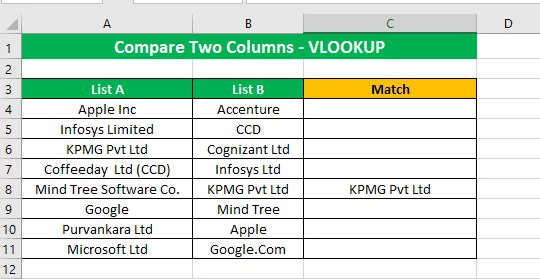
- Select The First Column: Click on the letter that identifies the first column you want to select (e.G., A).
- Hold Ctrl And Click on The Second Column: While holding down the Ctrl key, click on the letter that identifies the second non-adjacent column you want to select (e.G., C).
- Select Additional Columns: If you want to select more columns, continue holding the Ctrl key and clicking on the corresponding letters.
Alternative Method: Using Keyboard Shortcuts
Alternatively, you can use the keyboard shortcut method:
- Open Excel: First, open your Excel file or create a new one.
- Select The First Column: Click on the letter that identifies the first column you want to select (e.G., A).
- Press Ctrl + Spacebar: While holding down the Ctrl key, press the Spacebar key.
- Click on The Second Column: Release the Ctrl key and click on the letter that identifies the second non-adjacent column you want to select (e.G., C).
Mac Version: Selecting Non-adjacent Columns
If you’re using the Mac version of Excel, follow these steps:
- Open Excel: First, open your Excel file or create a new one.
- Select The First Column: Click on the letter that identifies the first column you want to select (e.G., A).
- Hold Command And Click on The Second Column: While holding down the Command key, click on the letter that identifies the second non-adjacent column you want to select (e.G., C).
Online Version: Selecting Non-adjacent Columns
The online version of Excel is also supported:
- Open Excel Online: First, open your Excel file or create a new one using Excel Online.
- Select The First Column: Click on the letter that identifies the first column you want to select (e.G., A).
- Hold Ctrl And Click on The Second Column: While holding down the Ctrl key, click on the letter that identifies the second non-adjacent column you want to select (e.G., C).
Smartphone And Tablet Version: Selecting Non-adjacent Columns
Unfortunately, selecting non-adjacent columns is not possible using the Excel app on smartphones and tablets. However, you can explore other features and functions within the app.
Tips And Tricks
Here are some additional tips to help you master this skill:
- Use The Ctrl Key: When selecting multiple columns, use the Ctrl key to avoid accidentally selecting adjacent cells.
- Select Columns, Not Rows: Remember that selecting non-adjacent columns is different from selecting non-adjacent rows. Focus on clicking on column letters rather than row numbers.
Conclusion
In this article, we’ve shown you how to select two non-adjacent columns in Excel using various versions (Windows, Mac, Online). By following these steps and tips, you’ll become a pro at using Excel’s powerful features to achieve your goals.
Frequently Asked Questions
Q: Can I select multiple columns using the keyboard shortcut method?
A: Yes, you can use the Ctrl + Spacebar combination to select additional columns while holding down the Ctrl key.
Q: How do I select non-adjacent columns on a Mac?
A: On a Mac, hold down the Command key and click on the corresponding column letters.
Q: Can I use Excel Online to select non-adjacent columns?
A: Yes, you can follow the same steps as in the Windows version using Excel Online.
Q: Why can’t I select non-adjacent columns using the Excel app on my smartphone or tablet?
A: Unfortunately, this feature is not currently supported on mobile devices.


