
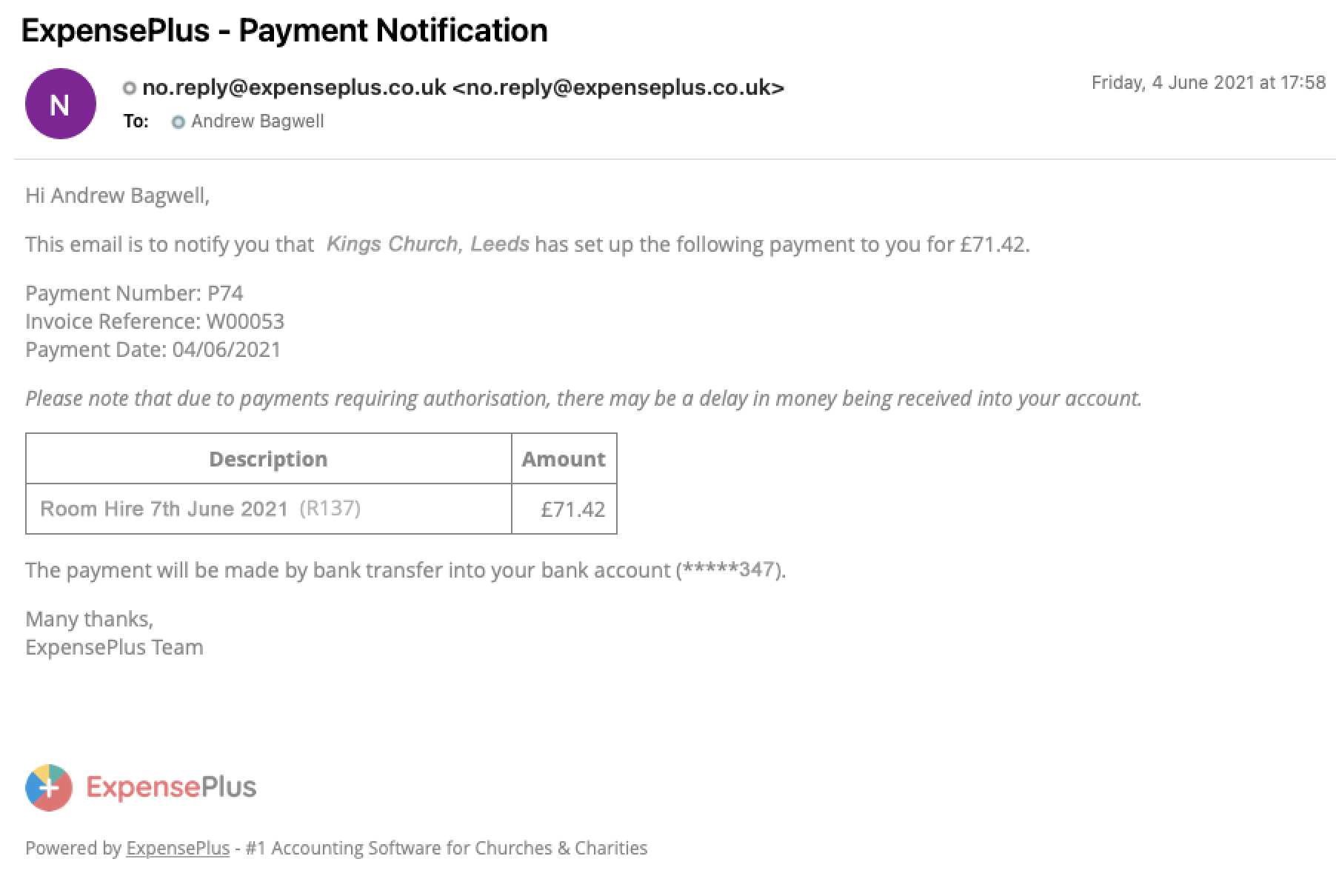
How to Forward a Copy of a Transfer Via Email: A Step-by-step Guide
Are you looking for ways to forward a copy of a transfer via email? Look no further! In this article, we will guide you through the process of forwarding a copy of a transfer via email, including step-by-step instructions and tips on how to do it quickly and easily.
Why Forward a Copy of a Transfer?
Before we dive into the nitty-gritty details, let’s discuss why you might want to forward a copy of a transfer via email. Perhaps you need to send a copy to a third party, or maybe you simply want to keep a record of your transactions. Whatever the reason, forwarding a copy of a transfer via email can be a convenient and efficient way to manage your finances.
Step 1: Access Your Bank’s Online Platform
To forward a copy of a transfer via email, you will first need to access your bank’s online platform. This can usually be done through their official website or mobile app. Make sure you have your login credentials handy, such as your username and password.
Step 2: Locate The Transfer You Want to Forward
Once you are logged in, navigate to the section where you can view your account history or transactions. Look for the specific transfer you want to forward a copy of. You may need to filter by date or type of transaction to find it quickly.
Step 3: Download The Transfer Document
Depending on your bank’s online platform, you may be able to download the transfer document directly as a PDF file. If not, look for an option to view the details of the transfer, and then click on the “Save” or “Download” button to save it to your computer or device.
Step 4: Open Your Email Client
Next, open your email client (such as Gmail or Outlook) and compose a new message. Make sure you have the recipient’s email address entered correctly.
Step 5: Attach The Transfer Document
Locate the transfer document on your device and attach it to the email by clicking on the “Attach file” button. This will send a copy of the transfer via email to the recipient.
How to Forward a Copy of a Transfer Via Email With Unicredit
If you are a UniCredit customer, here’s how you can forward a copy of a transfer via email using their online platform:
- Log in to your UniCredit account on your smartphone or computer.
- Click on the “Communications” icon and select the “Documents” option.
- Look for the specific transfer you want to forward a copy of and click on it.
- Click on the “Share” button and select the email client you want to use (such as Gmail or Outlook).
- Enter the recipient’s email address, add an optional message, and click on the “Send” button.
How to Forward a Copy of a Transfer Via Email With Intesa Sanpaolo
If you are an Intesa Sanpaolo customer, here’s how you can forward a copy of a transfer via email using their online platform:
- Log in to your Intesa Sanpaolo account on your smartphone or computer.
- Click on the “File” icon and select the option “Documents”.
- Look for the specific transfer you want to forward a copy of and click on it.
- Click on the “Visualize PDF” button to view the document, then click on the “Save” or “Download” button to save it to your device.
- Open your email client and compose a new message. Attach the transfer document to the email by clicking on the “Attach file” button.
How to Forward a Copy of a Transfer Via Email With Other Banks
If you have an account with another bank, such as BBVA or Revolut, the process may vary slightly. However, here are some general steps you can follow:
- Log in to your online banking platform.
- Navigate to the section where you can view your account history or transactions.
- Look for the specific transfer you want to forward a copy of and click on it.
- Click on the “Download” or “Save” button to save the document to your device.
- Open your email client and compose a new message. Attach the transfer document to the email by clicking on the “Attach file” button.
Tips For Forwarding a Copy of a Transfer Via Email
Here are some additional tips to keep in mind when forwarding a copy of a transfer via email:
- Make sure you have the correct email address entered for the recipient.
- Use a clear and concise subject line for the email.
- Include any relevant details or comments about the transfer in the body of the email.
- Be mindful of your bank’s policies regarding sensitive information and make sure you are allowed to share this type of data via email.
Conclusion
Forwarding a copy of a transfer via email can be a quick and easy way to manage your finances. By following these step-by-step instructions, you should be able to forward a copy of a transfer via email with ease. Remember to always check your bank’s policies regarding sensitive information before sharing any details via email.
Sources
- UniCredit
- Intesa Sanpaolo
- BBVA
- Revolut
I hope this article has been helpful! If you have any further questions or need additional clarification on how to forward a copy of a transfer via email, please let me know.


