
How to Forward a Folder With Gmail: A Step-by-step Guide
Are you tired of trying to forward a folder with Gmail, but ending up frustrated by the limitations of the service? Don’t worry, we’ve got you covered! In this article, we’ll show you how to forward a folder with Gmail using various methods, including computers, smartphones, and cloud storage services.
Understanding The Limitations of Gmail
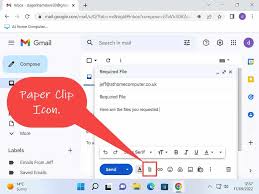
Before we dive into the step-by-step guide, it’s essential to understand that Gmail has limitations when it comes to forwarding folders. You can’t directly forward a folder with Gmail; instead, you’ll need to compress the folder into a ZIP file and then attach it to an email.
Method 1: Forwarding a Folder Using Computer
If you’re using a computer, follow these steps:
Preliminary Operations on Windows
- Create a file compressed with the folder that you want to forward.
- Use the built-in zip utility in Windows or a third-party software like WinRAR.
- Save the compressed file in the same position as the original folder.
Preliminary Operations on Macos
- Create a file compressed with the folder that you want to forward.
- Use the built-in Archive Utility in macOS.
- Save the compressed file in the same position as the original folder.
Method 2: Forwarding a Folder Using Smartphone And Tablet
If you’re using a smartphone or tablet, follow these steps:
Preliminary Operations on Android
- Download and install an app like RAR or Unzip.
- Create a file compressed with the folder that you want to forward.
- Save the compressed file in the same position as the original folder.
Preliminary Operations on Ios
- Download and install an app like Unzip.
- Create a file compressed with the folder that you want to forward.
- Save the compressed file in the same position as the original folder.
Method 3: Forwarding a Folder Using Cloud Storage Services
You can also use cloud storage services like Google Drive, Dropbox, OneDrive, iCloud Drive, or MEGA to forward folders. Here’s how:
Using Google Drive
- Create a new folder on Google Drive.
- Upload the compressed file from your computer or smartphone.
- Share the link with the recipient.
Using Dropbox
- Create a new folder on Dropbox.
- Upload the compressed file from your computer or smartphone.
- Share the link with the recipient.
Using Onedrive
- Create a new folder on OneDrive.
- Upload the compressed file from your computer or smartphone.
- Share the link with the recipient.
Using Icloud Drive
- Create a new folder on iCloud Drive.
- Upload the compressed file from your computer or smartphone.
- Share the link with the recipient.
Using Mega
- Create a new folder on MEGA.
- Upload the compressed file from your computer or smartphone.
- Share the link with the recipient.
Conclusion
Forwarding a folder with Gmail can be a bit tricky, but with these step-by-step guides, you should be able to do it easily. Remember to compress the folder into a ZIP file and then attach it to an email using one of the methods above.
Faqs
- Can I Forward a Folder With Gmail?
No, you can’t directly forward a folder with Gmail. You’ll need to compress the folder into a ZIP file and then attach it to an email. - How do I Compress a Folder in Windows?
Use the built-in zip utility in Windows or a third-party software like WinRAR. - How do I Compress a Folder on Macos?
Use the built-in Archive Utility in macOS. - Can I Use Cloud Storage Services to Forward Folders?
Yes, you can use cloud storage services like Google Drive, Dropbox, OneDrive, iCloud Drive, or MEGA to forward folders. - How do I Share a Folder on Cloud Storage Services?
Create a new folder on the cloud storage service, upload the compressed file, and then share the link with the recipient. - Can I Forward Large Files Using Gmail?
No, Gmail has limitations when it comes to forwarding large files. You can only attach files up to 25 MB in size. - How do I Compress a Folder on Android?
Download and install an app like RAR or Unzip. - How do I Compress a Folder on Ios?
Download and install an app like Unzip.
References


