
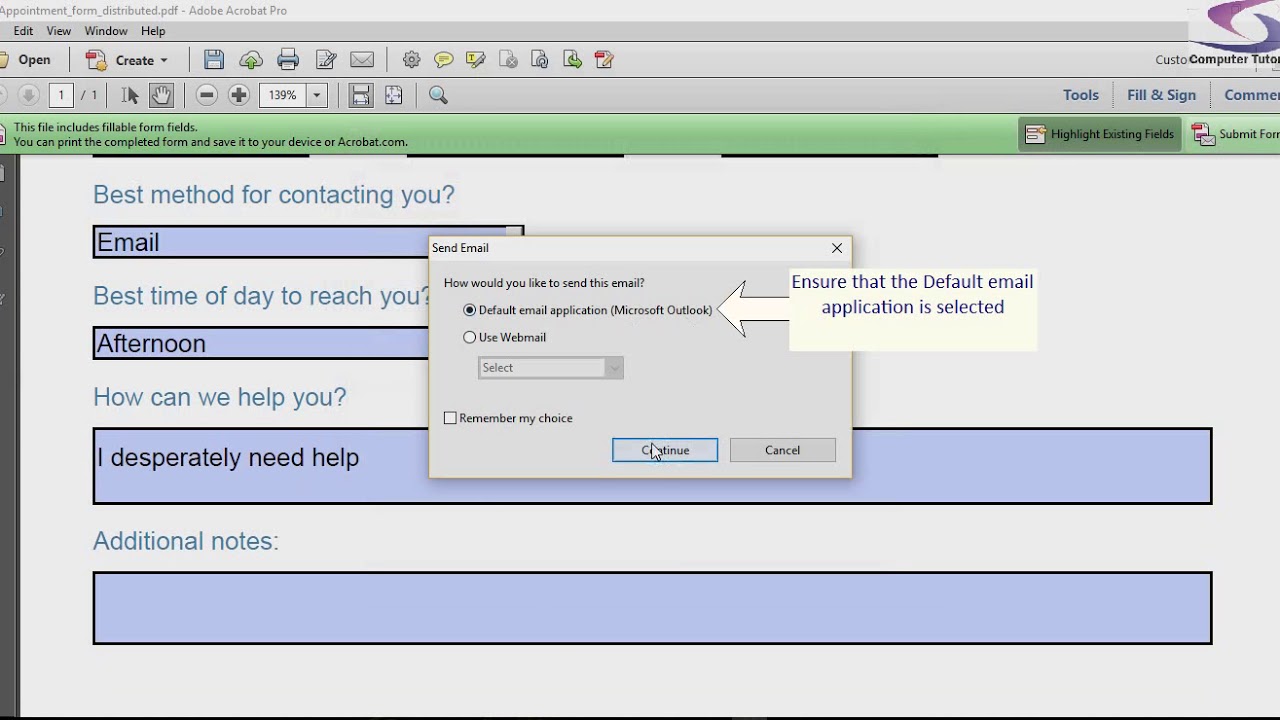
How to Forward a Pdf File Via Email: A Comprehensive Guide
Are you struggling to forward a PDF file via email? Do you find yourself puzzled by the process, especially when using webmail services like Gmail, Outlook.Com, or Yahoo Mail? Look no further! This guide will walk you through the step-by-step process of forwarding a PDF file via email, using various webmail services and email clients.
Understanding The Basics
Before we dive into the specifics, let’s understand the basics. Forwarding a PDF file via email involves attaching the file to an email message and sending it to the intended recipient. However, each webmail service has its own set of limitations and requirements for attaching files.
Webmail Services: A Comparison
Let’s take a look at some of the most popular webmail services and their respective file attachment limits:
- Gmail: 25 MB (for attachments)
- Outlook.Com: 33 MB (for attachments)
- Yahoo Mail: 25 MB (for attachments)
As you can see, each service has its own limit for attaching files. If your PDF file exceeds these limits, you’ll need to compress it or use a cloud storage service like Google Drive or Dropbox.
Forwarding a Pdf File Via Gmail
If you’re using Gmail as your webmail service, follow these steps:
- Log in to your Gmail account.
- Click on the “Compose” button to create a new email message.
- In the “To” field, enter the recipient’s email address.
- In the “Subject” field, enter the subject of the email.
- Attach the PDF file by clicking on the “Attach files” icon and selecting the file from your computer.
- Compose the body of the email as desired.
- Click on the “Send” button to send the email.
Forwarding a Pdf File Via Outlook.Com
If you’re using Outlook.Com as your webmail service, follow these steps:
- Log in to your Outlook.Com account.
- Click on the “New message” icon to create a new email message.
- In the “To” field, enter the recipient’s email address.
- In the “Subject” field, enter the subject of the email.
- Attach the PDF file by clicking on the “Attach files” icon and selecting the file from your computer or OneDrive.
- Compose the body of the email as desired.
- Click on the “Send” button to send the email.
Forwarding a Pdf File Via Yahoo Mail
If you’re using Yahoo Mail as your webmail service, follow these steps:
- Log in to your Yahoo Mail account.
- Click on the “Compose” icon to create a new email message.
- In the “To” field, enter the recipient’s email address.
- In the “Subject” field, enter the subject of the email.
- Attach the PDF file by clicking on the “Attach files” icon and selecting the file from your computer or cloud storage service like Dropbox.
- Compose the body of the email as desired.
- Click on the “Send” button to send the email.
Email Clients: A Comparison
If you’re using an email client like Microsoft Outlook or Apple Mail, follow these steps:
- Microsoft Outlook:
- Open the email client and create a new message.
- In the “To” field, enter the recipient’s email address.
- In the “Subject” field, enter the subject of the email.
- Attach the PDF file by clicking on the “Attach files” icon and selecting the file from your computer or OneDrive.
- Compose the body of the email as desired.
- Click on the “Send” button to send the email.
- Apple Mail:
- Open the email client and create a new message.
- In the “To” field, enter the recipient’s email address.
- In the “Subject” field, enter the subject of the email.
- Attach the PDF file by clicking on the “Attach files” icon and selecting the file from your computer or cloud storage service like iCloud Drive.
- Compose the body of the email as desired.
- Click on the “Send” button to send the email.
Conclusion
Forwarding a PDF file via email is a straightforward process, whether you’re using webmail services like Gmail, Outlook.Com, or Yahoo Mail, or email clients like Microsoft Outlook or Apple Mail. By understanding the basics and following the steps outlined in this guide, you’ll be able to successfully forward your PDF files with ease.
Faqs
- What is The Maximum File Size Limit For Attaching Files Via Email?
The maximum file size limit varies depending on the webmail service or email client being used. - How Can I Compress a Large Pdf File to Send it Via Email?
You can use online services like SmallPDF or Adobe Acrobat to compress your PDF file. - Can I Attach Multiple Files to an Email Message?
Yes, most webmail services and email clients allow you to attach multiple files to an email message. - How do I Know if my Pdf File is Too Large to Send Via Email?
If the file exceeds the maximum attachment limit for your webmail service or email client, you’ll need to compress it or use a cloud storage service like Google Drive or Dropbox. - Can I Forward a Pdf File Via Email Using an Email Client on my Smartphone or Tablet?
Yes, most email clients have mobile apps that allow you to compose and send emails with attachments.
Final Thoughts
Forwarding a PDF file via email is a simple process that requires minimal effort. By understanding the basics and following the steps outlined in this guide, you’ll be able to successfully forward your PDF files with ease. Remember to check the maximum attachment limits for your webmail service or email client and compress your files if necessary. Happy emailing!


