
How to Share a Phone Number on Whatsapp: A Step-by-step Guide
Are you tired of manually copying and pasting phone numbers into WhatsApp? Look no further! In this article, we will guide you through the process of sharing a phone number on WhatsApp using various devices.
Why Share a Phone Number on Whatsapp?
Sharing a phone number on WhatsApp can be convenient for various reasons. For instance, if you’re trying to remember someone’s contact information or want to share it with a friend, sharing a phone number on WhatsApp is an easy way to do so.
Method 1: Sharing a Phone Number From The Chat Screen (Android)
If you’re using an Android device, follow these steps:
- Open WhatsApp and initiate a new chat by tapping on the conversation in which you want to share the contact.
- Tap on the pencil icon in the bottom left corner of the screen.
- Select the “Contact” option from the menu that appears.
- Choose the contact whose number you want to share.
- Select only the phone number from the contact’s information and tap on the arrow icon in the bottom right corner.
- Tap on the airplane icon in the bottom right corner to forward the contact’s information.
Sharing a Phone Number From The Chat Screen (iPhone)
If you’re using an iPhone, follow these steps:
- Open WhatsApp and initiate a new chat by tapping on the conversation in which you want to share the contact.
- Tap on the “+” icon in the bottom left corner of the screen.
- Select the “Contact” option from the menu that appears.
- Choose the contact whose number you want to share.
- Select only the phone number from the contact’s information and tap on the “Forward” button.
- The contact’s information will be displayed in the chat, and you can tap on it to view their details.
Method 2: Sharing a Phone Number From The Contacts App (Android)
If you’re using an Android device, follow these steps:
- Open the Contacts app and select the contact whose number you want to share.
- Tap on the three dots in the top right corner of the screen.
- Select the “Share” option from the menu that appears.
- Choose WhatsApp as the sharing platform.
- Select only the phone number from the contact’s information and tap on the “Forward” button.
Sharing a Phone Number From The Contacts App (iPhone)
If you’re using an iPhone, follow these steps:
- Open the Contacts app and select the contact whose number you want to share.
- Tap on the “Share Contact” option in the top right corner of the screen.
- Choose WhatsApp as the sharing platform.
- Select only the phone number from the contact’s information and tap on the “Forward” button.
Sharing a Phone Number on Whatsapp Web
If you’re using WhatsApp Web, follow these steps:
- Open WhatsApp Web and initiate a new chat by clicking on the conversation in which you want to share the contact.
- Click on the “+” icon in the top left corner of the screen.
- Select the “Contact” option from the menu that appears.
- Choose the contact whose number you want to share.
- Select only the phone number from the contact’s information and click on the “Forward” button.
Method 3: Sharing a Phone Number by Sending a Whatsapp Link
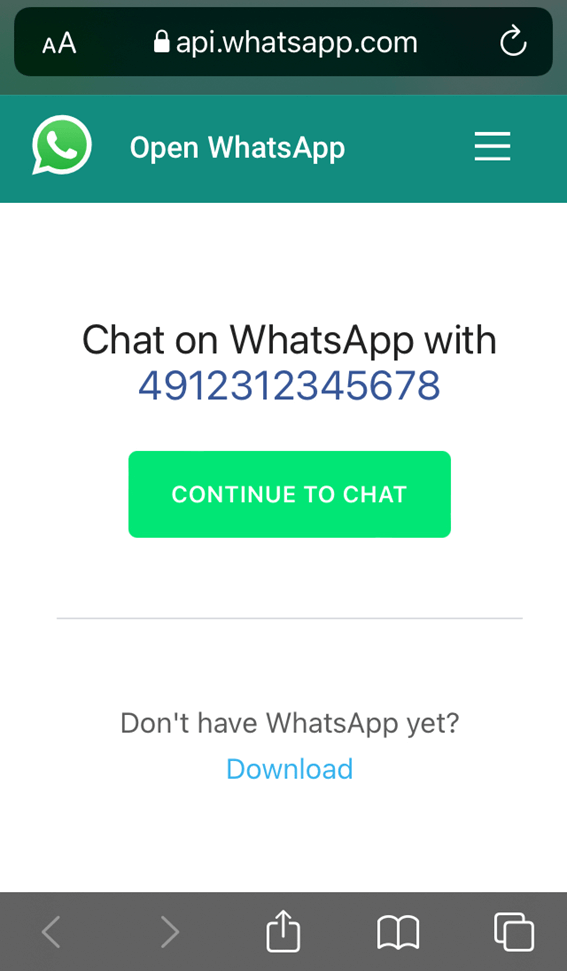
If you’re unable to access your device or prefer not to use the methods above, you can share a phone number on WhatsApp using a link. To do so:
- Open WhatsApp and compose a new message.
- Type in the following format: “Https://Wa.Me/xxxxxxxxxx”
- Replace “xxxxxxxxxx” with the contact’s phone number.
- Send the message to the person you want to share the contact information with.
Conclusion
Sharing a phone number on WhatsApp is an easy process that can be completed using various devices and methods. By following the steps outlined above, you’ll be able to share your contacts’ numbers quickly and efficiently.
Frequently Asked Questions (FAQs)
- Q: Can I Share Multiple Phone Numbers at Once?
A: Unfortunately, it’s not possible to share multiple phone numbers using WhatsApp. - Q: Will The Recipient Receive a Notification When I Share Their Contact Information?
A: Yes, the recipient will receive a notification that you’ve shared their contact information. - Q: Can I Edit or Modify Someone Else’s Contact Information on Whatsapp?
A: No, it’s not possible to edit or modify someone else’s contact information on WhatsApp. - Q: Will Sharing a Phone Number on Whatsapp Save The Recipient’s Contact Information?
A: Yes, if the recipient accepts your shared contact information, their contact list will be updated accordingly. - Q: Can I Share a Phone Number on Whatsapp Web?
A: Yes, you can share a phone number on WhatsApp Web using the method outlined above. - Q: Will Sharing a Phone Number on Whatsapp Affect my Contacts’ Visibility Settings?
A: No, sharing a phone number on WhatsApp will not affect your contacts’ visibility settings. - Q: Can I Use This Feature to Share Contact Information With Groups?
A: Yes, you can use this feature to share contact information with groups on WhatsApp. - Q: Will Sharing a Phone Number on Whatsapp Compromise my Device’s Security?
A: No, sharing a phone number on WhatsApp will not compromise your device’s security.
I hope this article has been informative and helpful!


