
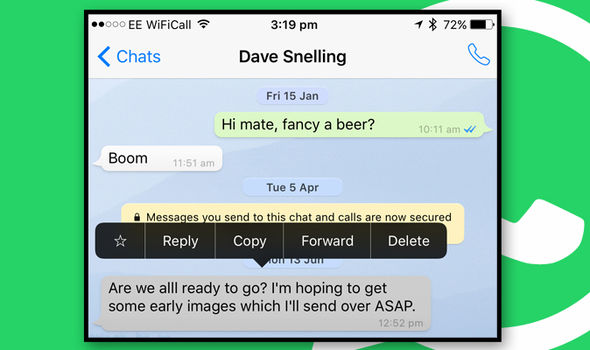
How to Forward a Whatsapp Conversation to Another Contact
Are you tired of switching between multiple conversations on WhatsApp? Do you want to forward an entire chat or specific messages to another contact? Look no further! In this article, we’ll show you how to easily forward a WhatsApp conversation to another contact using your Android or iPhone device.
Why Forward a Whatsapp Conversation?
Forwarding a WhatsApp conversation can be useful in several situations:
- You want to share an entire chat with someone who wasn’t part of the original conversation.
- You need to forward specific messages to another contact without sharing the entire chat.
- You want to save a conversation for future reference or to provide evidence.
Forwarding a Whatsapp Conversation on Android
To forward an entire conversation on Android, follow these steps:
- Open the WhatsApp app and navigate to the Chats tab.
- Select the conversation you want to forward by tapping on it.
- Tap on the three dots (\cdots) in the top-right corner of the screen.
- Select “Export chat” from the menu.
- Choose whether to include media or not.
- Select where you want to save the exported chat.
Forwarding a Whatsapp Conversation on Iphone
To forward an entire conversation on iPhone, follow these steps:
- Open the WhatsApp app and navigate to the Chats tab.
- Select the conversation you want to forward by tapping on it.
- Tap on the “Share” icon in the top-right corner of the screen.
- Select “Export chat” from the menu.
- Choose whether to include media or not.
- Select where you want to save the exported chat.
Forwarding Specific Messages on Android
To forward specific messages on Android, follow these steps:
- Open the WhatsApp app and navigate to the Chats tab.
- Select the conversation containing the messages you want to forward.
- Long press on a message to select it.
- Tap on the “Forward” icon in the bottom-right corner of the screen.
- Choose who you want to forward the message to.
Forwarding Specific Messages on Iphone
To forward specific messages on iPhone, follow these steps:
- Open the WhatsApp app and navigate to the Chats tab.
- Select the conversation containing the messages you want to forward.
- Long press on a message to select it.
- Tap on the “Forward” icon in the bottom-right corner of the screen.
- Choose who you want to forward the message to.
Taking a Screenshot of a Whatsapp Conversation
To take a screenshot of a conversation, follow these steps:
- Open the WhatsApp app and navigate to the Chats tab.
- Select the conversation you want to capture.
- Take a screenshot of the conversation using your device’s power button and volume down button.
Forwarding a Screenshot on Android
To forward a screenshot on Android, follow these steps:
- Open the WhatsApp app and navigate to the Chats tab.
- Select the conversation you want to share.
- Take a screenshot of the conversation using your device’s power button and volume down button.
- Share the screenshot with another contact.
Forwarding a Screenshot on Iphone
To forward a screenshot on iPhone, follow these steps:
- Open the WhatsApp app and navigate to the Chats tab.
- Select the conversation you want to share.
- Take a screenshot of the conversation using your device’s power button and home button.
- Share the screenshot with another contact.
Conclusion
Forwarding a WhatsApp conversation can be a useful feature in various situations. Whether you want to forward an entire chat or specific messages, we hope this guide has provided you with the necessary steps to do so on both Android and iPhone devices.
Faqs
- Q: Can I Forward a Whatsapp Conversation From my Computer?
A: Yes, you can use the WhatsApp Web app to forward a conversation from your computer. - Q: How Many Messages Can I Forward at Once?
A: The number of messages you can forward at once varies depending on the device and operating system. On Android, you can export up to 100,000 messages. On iPhone, there is no limit. - Q: Can I Forward a Screenshot of a Conversation From my Computer?
A: Yes, you can take a screenshot of a conversation using your computer’s keyboard shortcuts. - Q: How do I Forward a Screenshot on Android?
A: To forward a screenshot on Android, follow the steps outlined in this guide. - Q: Can I Forward Specific Messages From my Computer?
A: Yes, you can forward specific messages using the WhatsApp Web app or the desktop client for Windows and macOS.


