
How to Forward an App on Whatsapp: A Step-by-step Guide
Are you tired of manually searching for apps on your phone or computer? Do you want to share a specific app with friends, family, or colleagues? Look no further! In this article, we will show you how to forward an app on WhatsApp using Android, iPhone, and computer.
Why Forwarding Apps is Useful
Forwarding apps can be incredibly useful in various situations. For example, if you want to share a game with your friends, you can simply forward the link to the app store instead of manually searching for it. This way, they can easily download and install the game without having to search for it themselves.
Prerequisites
Before we dive into the step-by-step guide, here are some prerequisites to keep in mind:
- Make sure you have the WhatsApp app installed on your device.
- Ensure that the app you want to forward is available on the app store (e.G., Google Play Store or Apple App Store).
- Be aware that forwarding apps via WhatsApp has limitations, such as file size restrictions.
Forwarding Apps on Android
To forward an app on WhatsApp using an Android device:
- Copy The App Link: Open the Google Play Store and search for the app you want to share. Copy the app’s link by tapping on the three dots in the top-right corner of the app’s page.
- Open Whatsapp: Open the WhatsApp app and select the conversation where you want to send the app link.
- Tap on The “+” Icon: Tap on the “+” icon in the bottom-left corner of the screen to start a new chat or open an existing one.
- Select “Document”: Select “Document” from the menu, then choose “Link” and paste the copied link.
- Forward The App: Tap on the “Forward” button to send the app link to your friend.
Forwarding Apps on Iphone
To forward an app on WhatsApp using an iPhone:
- Copy The App Link: Open the App Store and search for the app you want to share. Copy the app’s link by tapping on the sharing icon (the box with an arrow).
- Open Whatsapp: Open the WhatsApp app and select the conversation where you want to send the app link.
- Tap on The “+” Icon: Tap on the “+” icon in the bottom-right corner of the screen to start a new chat or open an existing one.
- Select “Share”: Select “Share” from the menu, then choose “Link” and paste the copied link.
- Forward The App: Tap on the “Send” button to send the app link to your friend.
Forwarding Apps on Computer
To forward an app on WhatsApp using a computer:
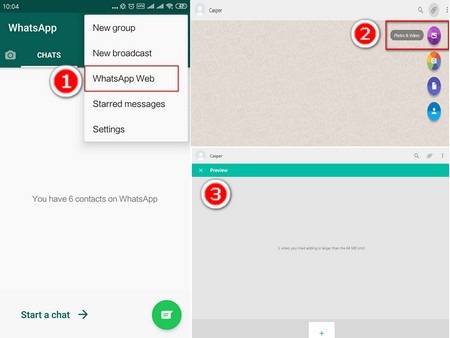
- Open Whatsapp Web: Open WhatsApp Web by scanning the QR code with your phone or logging in with your credentials.
- Copy The App Link: Copy the app’s link from the Microsoft Store (for Windows 10) or Mac App Store (for macOS).
- Paste The Link: Paste the copied link into a new message on WhatsApp Web.
- Forward The App: Send the app link to your friend by clicking on the “Send” button.
Additional Tips
- Be aware that forwarding apps via WhatsApp may not always work, especially if the app is not available in your region or has specific installation requirements.
- If you’re using an Android device, make sure to copy the app’s link from the Google Play Store instead of downloading the APK file directly.
- When sharing apps with friends, be mindful of their device compatibility and any necessary system updates.
Conclusion
Forwarding apps on WhatsApp is a convenient way to share your favorite games, productivity tools, or entertainment apps with friends and family. By following these step-by-step guides for Android, iPhone, and computer, you can easily share apps via WhatsApp without having to manually search for them.
Frequently Asked Questions (FAQs)
- Q: Can I Forward an App on Whatsapp if It’s Not Available in my Region?
A: Unfortunately, no. App availability is limited to specific regions, and forwarding apps via WhatsApp may not work. - Q: How do I Know if The App is Compatible With my Device?
A: Check the app’s system requirements before sharing it on WhatsApp. - Q: Can I Forward a Pack of Installation (e.G., Apk File) Instead of Just The Link?
A: Yes, but be aware that this may not work due to file size restrictions and compatibility issues.
Hope you found the article informative and helpful! If you have any more questions or need further clarification, please feel free to ask.


