
How to Forward a Mail: A Step-by-step Guide
Are you wondering how to forward a mail to multiple recipients? Look no further! In this article, we will guide you through the process of forwarding a mail using various email providers, including Gmail, Outlook, and iCloud.
Why Forward a Mail?
Forwarding a mail is a convenient way to share information with multiple people without having to repeat yourself. Whether it’s for work or personal purposes, forwarding a mail can save time and effort. In this article, we will show you how to forward a mail using different email providers and scenarios.
Pre-requisites
Before forwarding a mail, you need to have an email account with a provider that supports forwarding emails. Most popular email providers, such as Gmail, Outlook, and iCloud, offer this feature.
Step 1: Open Your Email Account
To begin, open your email account on the web or through your device’s email app. Make sure you are logged in to your account.
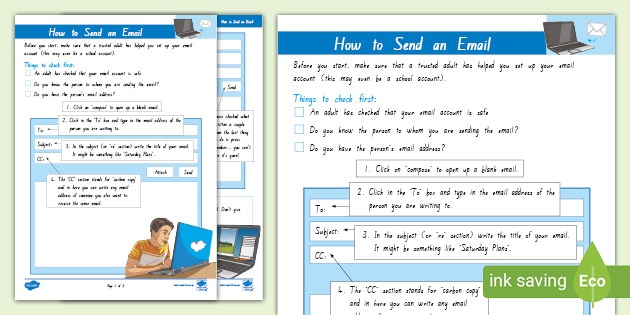
Step 2: Compose a New Message
Click on the “Compose” button or press Ctrl+N (Windows) or Command+N (Mac) to create a new message.
Step 3: Add Recipients
In the “To” field, add the email addresses of the recipients you want to forward the mail to. You can separate multiple addresses with commas or add them one by one.
Step 4: Use CC And Bcc Fields (Optional)
If you want to send a copy of the mail to additional recipients without making them visible to the primary recipient, use the “CC” field. Similarly, if you want to send a blind carbon copy (BCC) to recipients without their email addresses being revealed, use the “BCC” field.
Step 5: Forward The Mail
Once you have added all the necessary recipients and any additional information, click on the “Forward” button to send the mail.
How to Forward a Mail to Multiple Recipients
If you want to forward a mail to multiple people without revealing their email addresses, follow these steps:
- Open your email account and compose a new message.
- Add the recipient’s email address in the “CC” field.
- In the “To” field, add the email address of the primary recipient.
- Forward the mail as usual.
How to Forward a Mail to All Contacts
If you want to forward a mail to all contacts saved in your email account, follow these steps:
- Open your email account and compose a new message.
- Click on the “Contacts” tab.
- Select the contacts you want to forward the mail to.
- Add the selected contacts to the “To” field.
- Forward the mail as usual.
How to Create a Contact List
If you want to create a contact list for forwarding emails, follow these steps:
- Open your email account and go to the “Contacts” tab.
- Click on the “+” icon to add a new label.
- Name the label (e.G., “Friends”).
- Add contacts to the label by clicking on the three vertical dots next to each contact’s name.
How to Forward a Mail From a Contact List
To forward a mail using a contact list, follow these steps:
- Open your email account and compose a new message.
- Click on the “Contacts” tab.
- Select the contact list you created earlier.
- Add the selected contacts to the “To” field.
- Forward the mail as usual.
Conclusion
Forwarding emails is an essential skill for anyone who wants to save time and effort in their digital communication. By following these steps, you can learn how to forward a mail using various email providers and scenarios. Whether it’s for work or personal purposes, forwarding emails can help you stay organized and productive.
Frequently Asked Questions
- Q: How do I Forward a Mail to Multiple Recipients?
A: You can add multiple email addresses in the “To” field, separate by commas. - Q: What is The Difference Between CC And Bcc Fields?
A: The CC field sends a copy of the mail to additional recipients without revealing their email addresses, while the BCC field sends a blind carbon copy to recipients without their email addresses being visible. - Q: How do I Create a Contact List For Forwarding Emails?
A: You can create a label in your email account’s contacts tab and add contacts to it. - Q: Can I Forward a Mail From a Contact List?
A: Yes, you can select the contact list you created earlier and add its members to the “To” field. - Q: How do I Forward a Mail Anonymously?
A: You can use services like Anonymousemail that allow you to send emails without revealing your email address. - Q: Can I Forward a Mail on Whatsapp?
A: While WhatsApp is primarily an instant messaging app, you can share a mail using other apps or copy and paste the text into a chat message.
Common Mistakes
- Forgetting to add recipients in the “To” field
- Using the wrong email provider’s features (e.G., CC vs. BCC)
- Not creating a contact list for forwarding emails
Best Practices
- Use clear and concise subject lines
- Keep your messages brief and to the point
- Use formatting options like bold, italics, and bullet points to make your message more readable
By following these best practices and avoiding common mistakes, you can effectively forward emails using various email providers and scenarios.


