
How to Forward Emails on Iphone: A Step-by-step Guide
Are you tired of struggling to forward emails on your iPhone? Look no further! In this article, we’ll show you how to configure your email account, send emails with attachments, and even forward PEC (Certified Email) messages.
Configuring Your Email Account
Before you can start forwarding emails, you need to configure your email account. This is a straightforward process that involves setting up your iCloud or third-party email account on your iPhone. Here’s how:
- Open The Settings App: Go to the Home screen and tap on the Settings icon.
- Tap on Password & Accounts: Scroll down and tap on Password & Accounts (or Mail in iOS 14).
- Add a New Account: Tap on Add Account and select your email provider from the list (e.G., ICloud, Microsoft Exchange, Google, Yahoo!, AOL, Outlook.Com, or another service).
- Enter Your Credentials: Enter your email address and password to authenticate your account.
- Configure Other Settings: If necessary, configure other settings such as synchronizing contacts, calendar events, and reminders.
Sending Emails With Attachments
Now that you’ve configured your email account, it’s time to learn how to send emails with attachments! Here’s what you need to do:
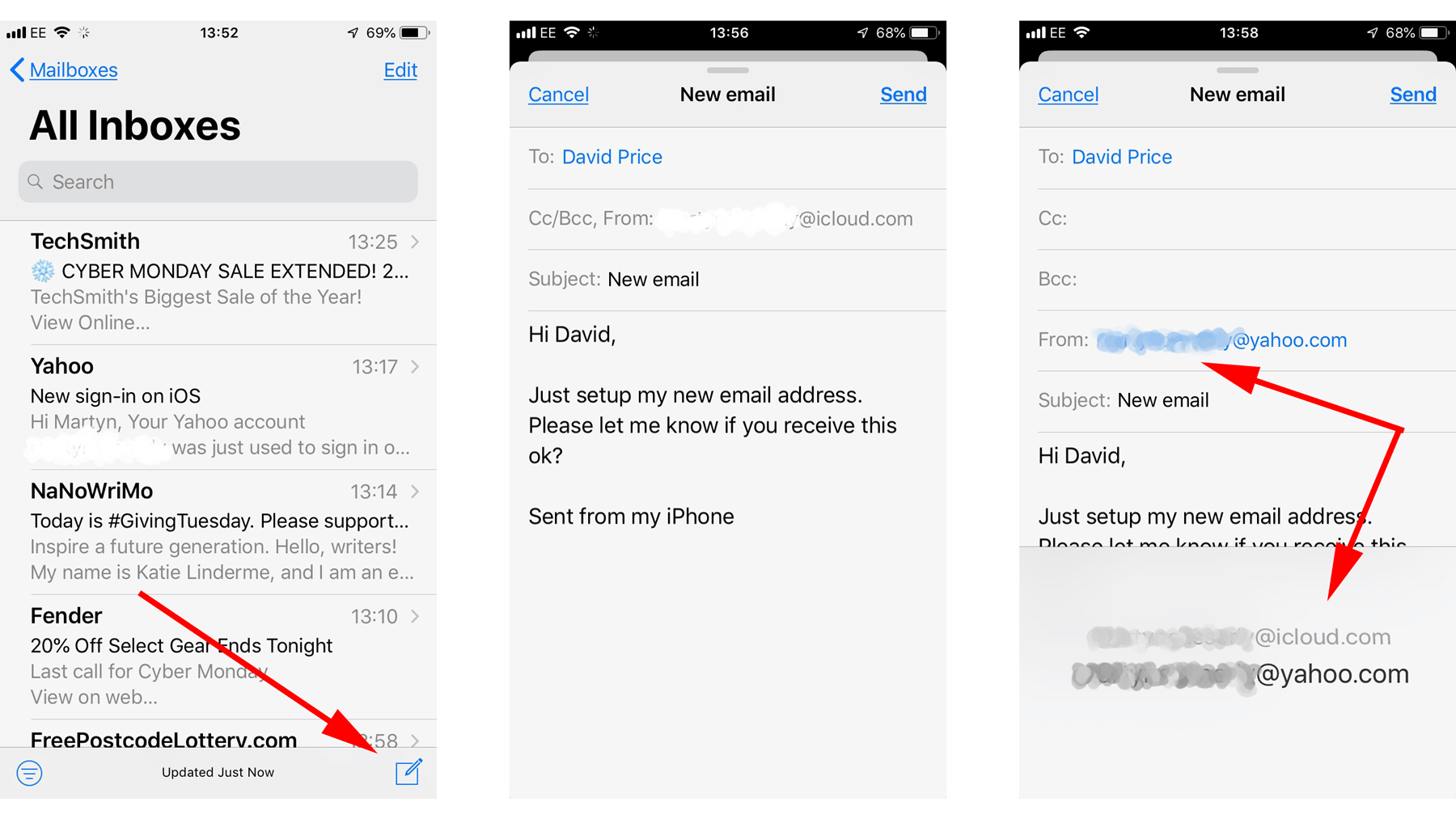
- Open The Mail App: Go to the Home screen and tap on the Mail icon.
- Create a New Message: Tap on the Compose button (or the “+” sign) to create a new email.
- Add Recipients: Enter the recipient’s email address in the To field.
- Attach Files: Tap on the paperclip icon to attach files from your iPhone or iPad (up to 5GB using iCloud Mail Drop).
- Write And Send Your Message: Write your email and tap on the Send button.
Forwarding Emails
Now that you know how to send emails with attachments, let’s talk about forwarding emails! Here’s how:
- Open The Mail App: Go to the Home screen and tap on the Mail icon.
- Select a Message: Select an email you want to forward by tapping on it.
- Tap on The Forward Button: Tap on the Forward button (represented by a small arrow) to forward the email.
- Enter The Recipient’s Address: Enter the recipient’s email address in the To field.
Forwarding Pec Emails
If you need to forward PEC emails, there are two options:
- Configure Your Pec Account: Configure your PEC account in the Mail app by choosing the option “Another” from the Add Account menu and entering the IMAP/SMTP settings.
- Use a Third-party App: Use a third-party app (e.G., Aruba PEC Mobile) to forward PEC emails.
Troubleshooting Common Issues
If you’re experiencing issues with forwarding emails, here are some troubleshooting tips:
- Check Your Email Account Credentials: Make sure you’ve entered the correct login credentials for your email account.
- Verify Imap/smtp Settings: Ensure that your IMAP/SMTP settings are correct if you’re using a third-party email service.
- Restart Your Iphone: Try restarting your iPhone to see if it resolves any connectivity issues.
Conclusion
Forwarding emails on your iPhone is a breeze! By following these steps, you can configure your email account, send emails with attachments, and even forward PEC messages. If you encounter any issues, refer to our troubleshooting section for help.
Frequently Asked Questions (FAQs)
- Q: How do I Forward an Email on my Iphone?
A: To forward an email on your iPhone, open the Mail app, select a message, tap on the Forward button, and enter the recipient’s address. - Q: Can I Forward Emails With Attachments?
A: Yes! You can forward emails with attachments by tapping on the paperclip icon in the Mail app. - Q: How do I Configure my Pec Account on my Iphone?
A: To configure your PEC account, go to the Settings app, tap on Password & Accounts, and select “Another” from the Add Account menu. - Q: What if I’m Having Trouble Forwarding Emails?
A: Try restarting your iPhone or checking your email account credentials and IMAP/SMTP settings.
Bonus Tip
Did you know that you can use a third-party app to forward emails on your iPhone? Some popular options include GMail, Outlook, and Yahoo Mail.


