
How to Mandate a Email: A Step-by-step Guide
In today’s digital age, emailing has become an essential means of communication for both personal and professional purposes. Whether you’re trying to contact someone for work or simply want to share a funny email with a friend, understanding how to mandate a email is crucial.
What You Need to Know Before Mandating a Email
Before we dive into the nitty-gritty of emailing, let’s cover some basics. To send an email, you’ll need:
- An email account (which can be created for free on various platforms such as Gmail, Outlook, or iCloud)
- A device with internet access (be it a computer, smartphone, or tablet)
- The recipient’s email address
- A message to share
Setting Up Your Email Account
If you don’t have an email account yet, now is the perfect time to create one. You can sign up for free on popular platforms like Gmail, Outlook, or iCloud.
Choosing The Right Service Provider
When selecting a service provider, consider factors such as:
- Storage space: Look for providers offering generous storage capacities
- Security features: Opt for services with robust encryption and spam filtering capabilities
- Ease of use: Choose providers with user-friendly interfaces
Some popular options include:
- Gmail: Google’s email service offers 15 GB of free storage, advanced security features, and seamless integration with other Google apps.
- Outlook: Microsoft’s email platform provides 5 GB of free storage, robust security features, and excellent compatibility with Windows devices.
- Icloud Mail: Apple’s email service offers 5 GB of free storage, easy integration with Mac and iOS devices, and robust security features.
How to Mandate a Email on Your PC
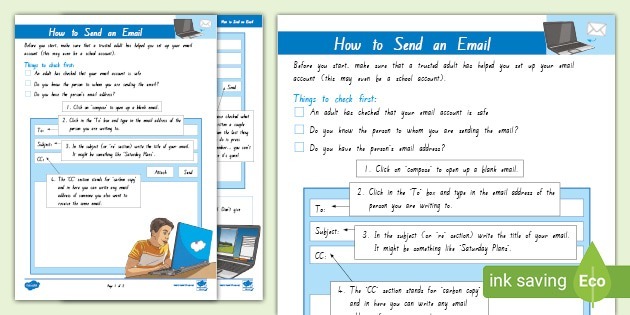
Once you have an email account set up, it’s time to learn how to mandate a email. Here’s a step-by-step guide:
- Access Your Email Account: Log in to your email account using your device’s web browser or a dedicated client like Microsoft Outlook.
- Compose a New Message: Click on the “New Message” button (usually represented by a pencil icon) and fill in the recipient’s email address, subject line, and body of the email.
- Attach Files if Necessary: If you want to include attachments, click on the paperclip icon and select the file(s) you wish to attach.
How to Mandate a Email on Your Mobile Device
Mandating a email on your mobile device is just as straightforward:
- Download a Dedicated App: Install the official email app for your chosen service provider (e.G., Gmail, Outlook, or iCloud Mail).
- Log in to Your Account: Enter your login credentials to access your email account.
- Compose And Send: Follow the same steps as above to compose and send an email.
How to Mandate a Email With Multiple Recipients
Want to share your email with multiple people? No problem!
- Add CC or Bcc Recipients: When composing your email, look for the “CC” (carbon copy) or “BCC” (blind carbon copy) fields.
- Enter Recipient Addresses: Type in the email addresses of those you wish to include.
How to Mandate a Email With Attachments
Need to share files with others? Here’s how:
- Attach Files: Click on the paperclip icon and select the file(s) you want to attach.
- Specify File Permissions: If necessary, choose the permission level for each attached file.
How to Mandate a Email With Read Confirmation
Want to ensure your email recipient has read your message? You can:
- Use a Service Provider’s Built-in Feature: Some providers offer read confirmation services.
- Request Confirmation Manually: Include a request in your email asking the recipient to confirm they’ve read it.
How to Mandate an Anonymous Email
Want to send an anonymous email without revealing your identity? Here are some steps:
- Choose an Anonymous Service Provider: Look for providers offering anonymous emailing services.
- Comply With Terms And Conditions: Ensure you understand and agree to the provider’s terms and conditions.
How to Mandate a Email on Whatsapp
Want to share an email with someone on WhatsApp? Here are some steps:
- Copy And Paste The Email Content: Copy the email text and paste it into your WhatsApp chat.
- Share The Email as a Pdf or Image: Attach the email as a PDF or screenshot.
Conclusion
Mandating a email is a simple yet effective way to communicate with others online. By following these steps, you can send emails efficiently and effectively, whether on your PC, mobile device, or through various service providers.


