
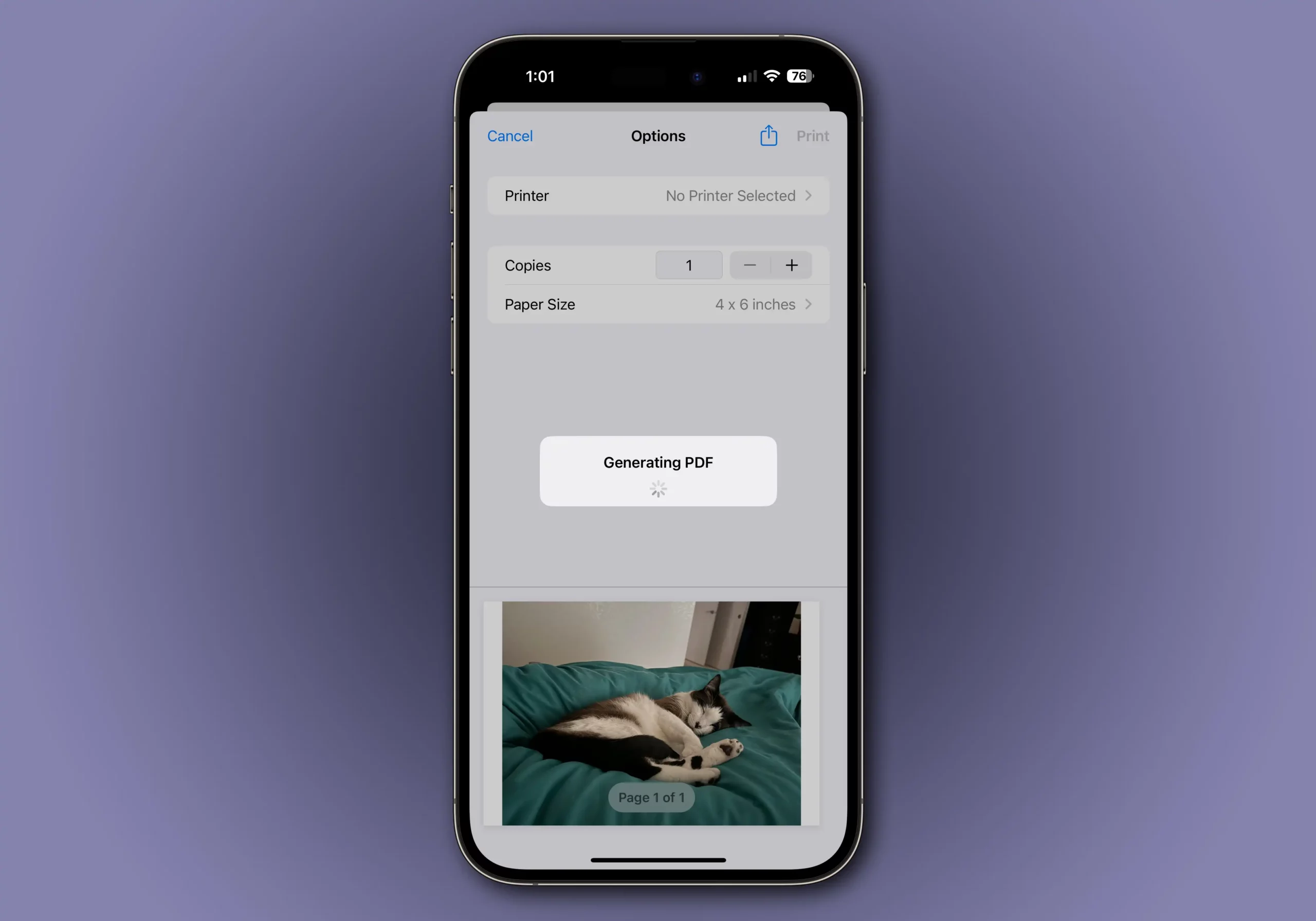
How to Mandate Documents in Pdf on Your Mobile
Are you tired of sending documents through email or messaging apps? Do you want a more efficient way to share files with others? You’re not alone! Many people struggle with sharing documents, especially when it comes to large files like PDFs. But don’t worry, we’ve got you covered.
In this article, we’ll show you how to mandate documents in PDF on your mobile phone using various apps and services. We’ll explore the different options available, from messaging apps to cloud storage services, and provide step-by-step instructions on how to use them.
Why Mandate Documents in Pdf?
Before we dive into the nitty-gritty of sharing documents, let’s quickly discuss why mandating documents in PDF is a good idea. Here are some benefits:
- Security: PDFs are a secure way to share files, as they can be encrypted and protected from unauthorized access.
- Convenience: Sharing documents in PDF format is easy and convenient, especially when compared to sending large files through email or messaging apps.
- Flexibility: PDFs can be shared with anyone, regardless of their device or operating system.
Options For Mandating Documents in Pdf
Now that we’ve covered the benefits of mandating documents in PDF, let’s explore some options for sharing these types of files on your mobile phone:
Whatsapp (Android/iOS)
Did you know that WhatsApp allows you to share documents in PDF format? Here’s how:
- Open WhatsApp and start a new conversation or select an existing one.
- Tap the paperclip icon to attach a file.
- Select the document you want to share from your device’s storage.
That’s it! Your recipient will receive the PDF file, which they can open and view on their device.
Gmail (Android/iPhone/iPad)
Gmail is another popular option for sharing documents in PDF format. Here’s how:
- Open Gmail and compose a new email or select an existing one.
- Tap the paperclip icon to attach a file.
- Select the document you want to share from your device’s storage.
You can also forward emails with attachments, including PDFs, using Gmail.
Dropbox (Android/iPhone/iPad)
Dropbox is a cloud storage service that allows you to store and share files online. Here’s how:
- Open Dropbox and select the file you want to share.
- Tap the “Share” icon and choose the recipient(s) from your contact list.
- Select the option to share a link to the file.
Your recipients will receive an email with a link to download the PDF file.
Nearby Share is a feature on Android devices that allows you to share files with other nearby devices. Here’s how:
- Open Nearby Share and select the file you want to share.
- Tap the “Share” icon and choose the recipient device from your list of nearby devices.
- Select the option to share a link to the file.
Your recipients will receive an email with a link to download the PDF file.
Files by Google (Android)
Files by Google is a file manager app that allows you to store, access, and share files on your Android device. Here’s how:
- Open Files by Google and select the file you want to share.
- Tap the “Share” icon and choose the recipient(s) from your contact list.
- Select the option to share a link to the file.
Your recipients will receive an email with a link to download the PDF file.
Rows (iOS/iPadOS)
Rows is a file manager app for iOS devices that allows you to store, access, and share files on your device. Here’s how:
- Open Rows and select the file you want to share.
- Tap the “Share” icon and choose the recipient(s) from your contact list.
- Select the option to share a link to the file.
Your recipients will receive an email with a link to download the PDF file.
Conclusion
Sharing documents in PDF format is easier than ever, thanks to various apps and services available on our mobile phones. Whether you’re using WhatsApp, Gmail, Dropbox, Nearby Share, Files by Google, or Rows, there’s a solution for everyone.
In this article, we’ve explored some of the most popular options for sharing documents in PDF format on your mobile phone. We hope this guide has been helpful and that you’ll find it easier to share files with others using these apps and services.
Frequently Asked Questions (FAQs)
Here are some frequently asked questions about sharing documents in PDF format:
- Q: Can I Share Large Pdf Files Using Whatsapp?
A: Yes, WhatsApp allows you to share large PDF files up to 100MB. - Q: How do I Share a Pdf File Using Gmail?
A: Simply attach the PDF file to an email and send it to your recipient(s). - Q: Can I Share Pdf Files Using Dropbox?
A: Yes, Dropbox allows you to store and share PDF files with others online. - Q: How do I Share a Pdf File Using Nearby Share?
A: Select the file you want to share and choose the recipient device from your list of nearby devices. - Q: Can I Use Files by Google to Share Pdf Files?
A: Yes, Files by Google allows you to store, access, and share PDF files on your Android device. - Q: How do I Share a Pdf File Using Rows?
A: Select the file you want to share and choose the recipient(s) from your contact list.
We hope these FAQs have been helpful in answering some of the most common questions about sharing documents in PDF format!


