
How to Forward Email to Multiple Recipients on Gmail
As a busy professional or student, you might often find yourself needing to forward an email to multiple recipients without having to individually reply to each of them. Fortunately, Google’s popular email service, Gmail, makes this process relatively easy and efficient. In this tutorial, we will guide you through the steps of forwarding emails on Gmail using both the web version and the mobile app.
Why Forward Emails?
Before diving into the step-by-step instructions, let’s quickly discuss why you might need to forward emails in the first place. Here are some scenarios where email forwarding comes in handy:
- When sharing information with a large group of people, such as colleagues, classmates, or friends.
- To keep track of conversations and discussions across multiple recipients.
- For marketing or promotional purposes, where you want to share a specific message with a wide audience.
Forwarding Emails on Gmail (Web Version)
To forward emails on the web version of Gmail, follow these steps:
- Open Gmail: Log in to your Gmail account using your email address and password.
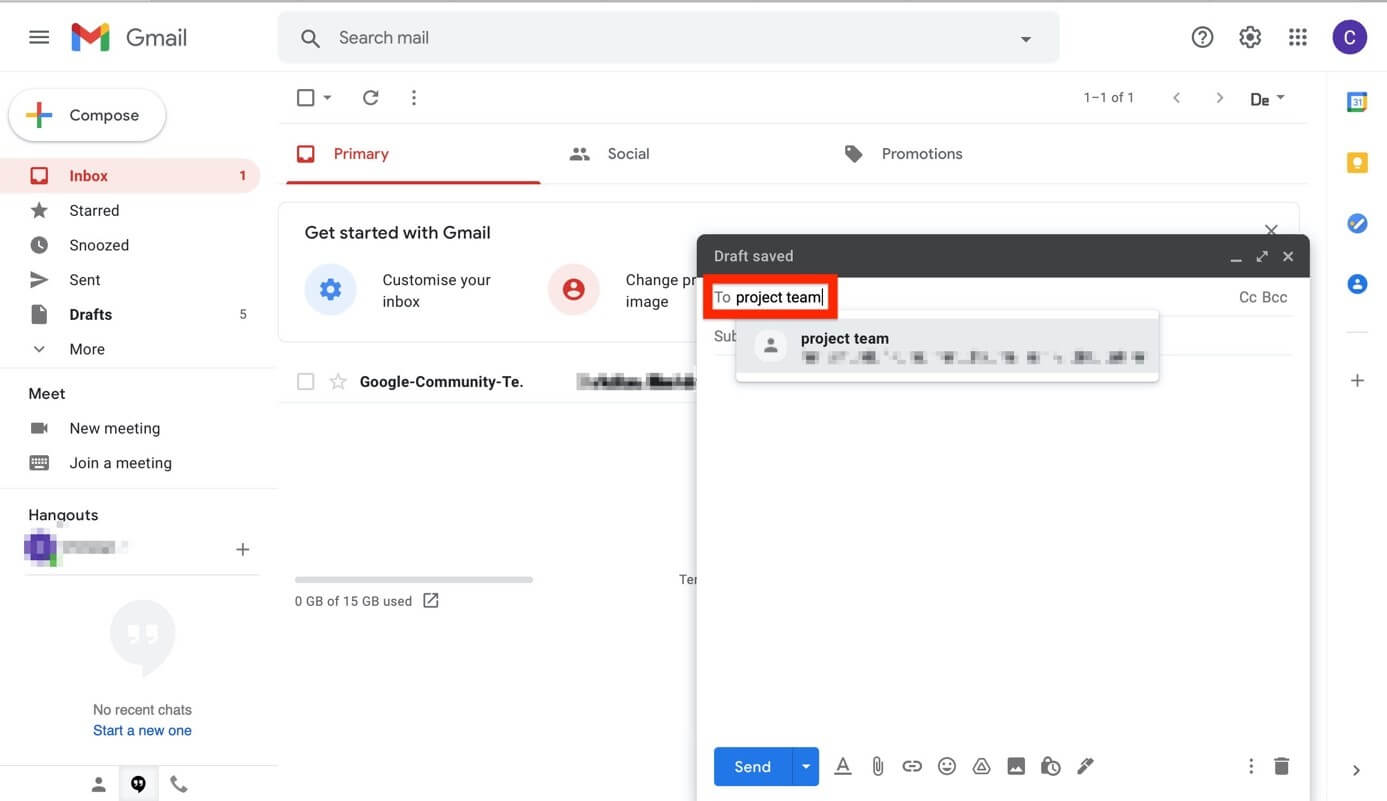
- Compose a New Email: Click on the “Compose” button at the top left corner of the page or press ‘c’ on your keyboard to initiate a new email composition process.
- Enter Recipient’s Email Addresses: In the “To” field, type in the email addresses of all the recipients you want to forward the message to, separated by commas. If an address is already saved in your contacts list, Gmail will suggest it as you type.
- Add CC or Bcc if Needed: If you need to include additional recipients who should not be directly addressed (e.G., Copy knowledge or hidden), use the “CC” or “BCC” fields respectively. Be cautious with using BCC, as it can sometimes cause issues in certain email clients.
- Write Your Message: Enter the body of the email you want to forward and any additional information you wish to include.
- Attach Files if Necessary: You can attach files to the email by clicking on the “paperclip” icon or dragging them into the composition window.
- Forward The Email: Click on the “Send” button to send the email, but instead of sending it directly, you’ll see a “Forward” option appear at the bottom of the page. Click on that.
Using Gmail’s Built-in Forwarding Feature
Gmail has an intelligent forwarding system that will automatically detect the recipient addresses in the original message and suggest them when forwarding. If you’re using this feature, you can simply click on the suggested recipients to include them in your forward.
How to Forward Emails Using Gmail App (Android & Ios)
On mobile devices, you have two options for forwarding emails:
Using The Gmail App
- Open the Gmail app and navigate to the message you want to forward.
- Tap on the three vertical dots at the top right corner of the screen.
- Select “Forward” from the menu that appears.
- Enter the recipient’s email address in the “To” field, separated by commas.
- Add any additional information or attachments as needed.
- Tap on the “Send” button to forward the message.
Using Gmail’s Mobile Web Interface
- Open your device’s web browser and log in to your Gmail account.
- Navigate to the message you want to forward.
- Click on the three vertical dots at the top right corner of the page.
- Select “Forward” from the menu that appears.
- Enter the recipient’s email address in the “To” field, separated by commas.
- Add any additional information or attachments as needed.
- Tap on the “Send” button to forward the message.
Troubleshooting Email Forwarding Issues
If you encounter any issues while trying to forward emails using Gmail, don’t worry! Here are some tips:
- Check Your Internet Connection: Make sure you have a stable internet connection and that your browser or app is updated.
- Verify Recipient Email Addresses: Double-check the email addresses of your recipients to ensure they’re correct and spelled correctly.
- Use Gmail’s Built-in Forwarding Feature: If you’re having trouble using the manual method, try switching to Gmail’s automatic forwarding feature.
- Contact Google Support: Reach out to Google’s customer support team if you’re still facing issues.
Conclusion
Forwarding emails on Gmail is a straightforward process that can save you time and effort when sharing information with multiple recipients. By following these steps, you’ll be able to forward emails efficiently using both the web version and the mobile app. Remember to troubleshoot any issues promptly by checking your internet connection or using Gmail’s built-in forwarding feature.
Faqs
Here are some frequently asked questions related to email forwarding on Gmail:
- Q: Can I Forward Multiple Attachments in a Single Email?
A: Yes, you can forward multiple attachments by selecting them when composing the new email. - Q: How do I Know if a Recipient Has Already Received The Forwarded Message?
A: If you’re using Gmail’s built-in forwarding feature, it will automatically detect duplicate messages and prevent unnecessary forwards. - Q: Can I Schedule an Email Forward to Send at a Later Time?
A: Yes, you can schedule an email forward by clicking on the “Send Later” button when composing the new message.


