
How to Forward Heavy Files With Gmail: A Step-by-step Guide
Are you tired of struggling to forward large files with Gmail? Do you need a reliable way to share heavy files with others without having to worry about size limitations? Look no further! In this article, we will show you how to forward heavy files with Gmail using various methods.
The Problem With Forwarding Heavy Files With Gmail
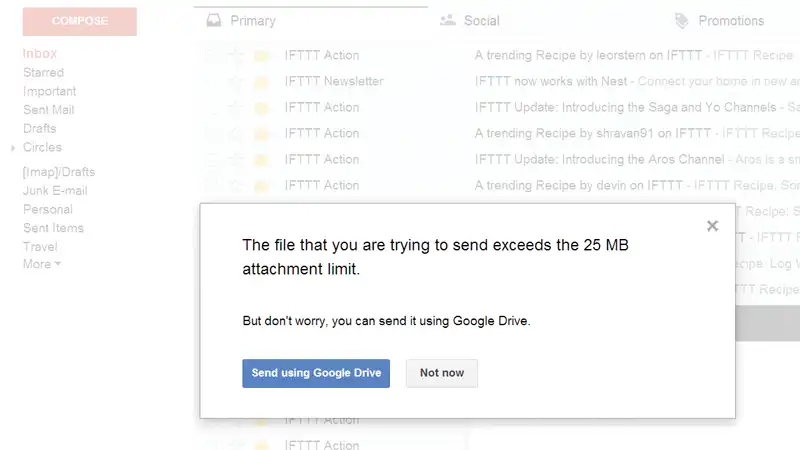
Gmail’s default file size limit for attachments is 25 MB. While this may seem like a lot, it can be restrictive when dealing with large files such as videos, high-quality images, or compressed documents. When you try to forward a heavy file that exceeds the 25 MB limit, Gmail will not allow you to do so.
Method 1: Forwarding Heavy Files Using Google Drive
Fortunately, there is a way to bypass Gmail’s size limitations and forward heavy files with ease. You can use Google Drive to upload your large file and then share it with others via email. Here’s how:
- Step 1: Go to drive.Google.Com and sign in with your Google account.
- Step 2: Click on the “New” button and select “File” or “Folder” to upload your heavy file.
- Step 3: Once uploaded, right-click on the file and select “Get link.”
- Step 4: Copy the link and paste it into an email message on Gmail.
Method 2: Forwarding Heavy Files Using Gmail’s Link of Drive
If you have already uploaded a large file to Google Drive, you can share it with others by creating a “Link of Drive” in Gmail. Here’s how:
- Step 1: Sign in to your Google account and go to drive.Google.Com.
- Step 2: Find the heavy file you want to share and right-click on it.
- Step 3: Select “Get link” and copy the link.
- Step 4: Go to Gmail and click on the “Compose” button.
- Step 5: Paste the link into the email message.
Method 3: Using Alternative Services
If you need to forward heavy files regularly, you may want to consider using alternative services that offer larger file size limits. Some popular options include:
- Dropbox: A cloud storage service that allows you to share large files with others.
- OneDrive: Microsoft’s cloud storage service that offers a generous free plan and larger file size limits.
- WeTransfer: A simple service that allows you to transfer heavy files with ease.
Conclusion
Forwarding heavy files with Gmail can be challenging, but it’s not impossible. By using Google Drive or alternative services like Dropbox or OneDrive, you can easily share large files with others without worrying about size limitations. Remember to always follow the specific instructions for each method to ensure successful file transfer.
Frequently Asked Questions
- What is The Maximum File Size Limit For Gmail Attachments?
- The maximum file size limit for Gmail attachments is 25 MB.
- How Can I Forward Heavy Files With Gmail?
- You can use Google Drive or alternative services like Dropbox or OneDrive to forward heavy files.
- Can I Use Gmail’s Link of Drive Feature to Share Large Files?
- Yes, you can use Gmail’s Link of Drive feature to share large files.
- What Are Some Popular Alternatives For Forwarding Heavy Files?
- Some popular alternatives include Dropbox, OneDrive, and WeTransfer.
- Can I Forward Heavy Files From my Smartphone or Tablet Using Gmail?
- Yes, you can forward heavy files from your smartphone or tablet using Gmail’s mobile app.
- How do I Configure Google Drive to Share Large Files With Others?
- You can configure Google Drive to share large files by creating a “Link of Drive” in the settings menu.
- Can I Use Outlook or Apple Mail to Forward Heavy Files With Gmail?
- Yes, you can use Outlook or Apple Mail to forward heavy files with Gmail by configuring it as an email client.
We hope this article has been helpful in explaining how to forward heavy files with Gmail. If you have any further questions or need additional assistance, please don’t hesitate to ask!


