
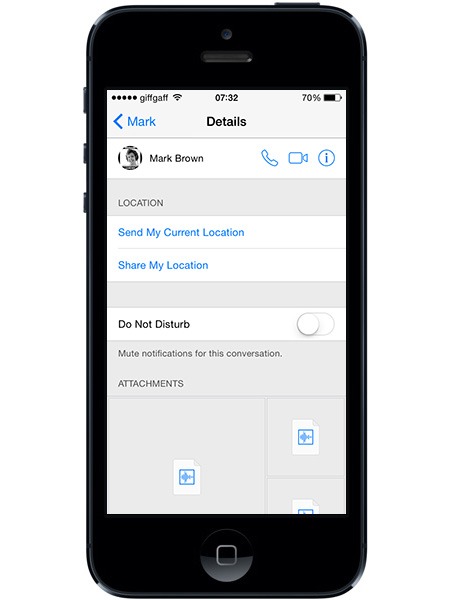
How to Mandate Your Position: A Step-by-step Guide
Are you tired of wondering where your friends are in a crowded place? Do you want to share a fantastic spot with them, but don’t know how to find it? Or perhaps you’re looking for ways to stay safe by sharing your location with loved ones. Whatever the reason, this article will guide you through the process of mandating your position using popular apps like WhatsApp, Telegram, Google Maps, and more.
Why Share Your Location?
Sharing your location can be a convenient way to stay connected with friends and family, especially in situations where it’s not possible to meet up. Whether you’re exploring a new city or navigating through an unfamiliar area, sharing your position can help others track your whereabouts and ensure your safety.
How to Mandate Your Position on Whatsapp
If you use WhatsApp on your Android or iPhone device and want to share your location with contacts, follow these steps:
- Enable Location Services: Make sure the location services are enabled on your device. You can find detailed instructions in our tutorial on how to enable location services on Android or iPhone.
- Open Whatsapp: Launch the WhatsApp app and navigate to the conversation with the contact you want to share your position with.
- Tap on The Plus Icon: Tap on the plus icon (+) at the bottom of the screen, which will open a menu with various options.
- Choose ‘Location’: Select the ‘Location’ option from the menu.
- Select Your Location: Choose whether to share your current location or a specific place of interest nearby.
- Set a Time Limit (Optional): If you choose to share your position in real-time, you can set a time limit for how long the sharing will last (e.G., 15 Minutes, 1 hour, or 8 hours).
- Tap ‘Share’: Tap on the ‘Share’ button to send the location to the contact.
How to Mandate Your Position on Telegram
If you use Telegram as your messaging app and want to share your location with contacts, follow these steps:
- Enable Location Services: Ensure that the location services are enabled on your device. You can find detailed instructions in our tutorial on how to enable location services on Android or iPhone.
- Open Telegram: Launch the Telegram app and navigate to the conversation with the contact you want to share your position with.
- Tap on The Plus Icon: Tap on the plus icon (+) at the bottom of the screen, which will open a menu with various options.
- Choose ‘Location’: Select the ‘Location’ option from the menu.
- Select Your Location: Choose whether to share your current location or a specific place of interest nearby.
- Set a Time Limit (Optional): If you choose to share your position in real-time, you can set a time limit for how long the sharing will last (e.G., 15 Minutes, 1 hour, or 8 hours).
- Tap ‘Share’: Tap on the ‘Share’ button to send the location to the contact.
How to Mandate Your Position With Google Maps
If you want to share your position directly using Google Maps, follow these steps:
- Enable Location Services: Ensure that the location services are enabled on your device.
- Open Google Maps: Launch the Google Maps app and navigate to the location sharing feature.
- Choose a Location: Select whether to share a specific place nearby or your current position.
- Set a Time Limit (Optional): If you choose to share your position in real-time, you can set a time limit for how long the sharing will last (e.G., 15 Minutes to 24 hours).
- Select a Contact: Choose a contact from Google or select an app of third-party service to share the location with.
- Tap ‘Share’: Tap on the ‘Share’ button to send the location to the selected contact.
How to Mandate Your Position With Iphone
If you have an iPhone, follow these steps to share your position using the built-in “Where” app:
- Enable Location Services: Ensure that the location services are enabled on your device.
- Open The Where App: Launch the Where app and navigate to the person’s profile you want to share your location with.
- Tap ‘Start Sharing’: Tap on the ‘Start sharing’ button and enter the name of the person(s) you want to share your position with.
- Set a Time Limit (Optional): If you choose to share your position in real-time, you can set a time limit for how long the sharing will last (e.G., 1 Hour until fine day).
- Tap ‘Share’: Tap on the ‘Share’ button to send the location to the selected contact.
Discontinuing Location Sharing
If you want to discontinue the sharing of your position, follow these steps:
- For WhatsApp: Open WhatsApp and navigate to the conversation with the person(s) you shared your position with. Tap on the three dots at the top right corner and select ‘Stop sharing location’.
- For Telegram: Open Telegram and navigate to the conversation with the person(s) you shared your position with. Tap on the plus icon (+) at the bottom of the screen, which will open a menu with various options. Select ‘Location’ and then tap on the ‘Stop sharing’ button.
- For Google Maps: Open Google Maps and navigate to the location sharing feature. Tap on the three dots at the top right corner and select ‘Stop sharing’.
- For iPhone’s Where App: Open the Where app and navigate to the person’s profile you shared your position with. Tap on the voice ‘I’ at the bottom of the screen, which will open a menu with various options. Select ‘Discontinue sharing’ and confirm by tapping on ‘Yes’.
We hope this guide has helped you understand how to mandate your position using popular apps like WhatsApp, Telegram, Google Maps, and more. Remember to always share your location responsibly and only with trusted contacts.


