
How to Forward Pdf With Whatsapp
Are you tired of struggling to share large files with friends or colleagues? Look no further! In this article, we will show you how to forward a PDF file using WhatsApp on various platforms.
Forwarding Pdf With Whatsapp: The Basics
WhatsApp is an excellent platform for sharing documents and files. However, the process can be a bit tricky if you’re not familiar with it. Don’t worry; we’ve got you covered!
Android: Forwarding Pdf With Whatsapp
To forward a file on Android, follow these steps:
- Open WhatsApp and navigate to the chat where you want to share the document.
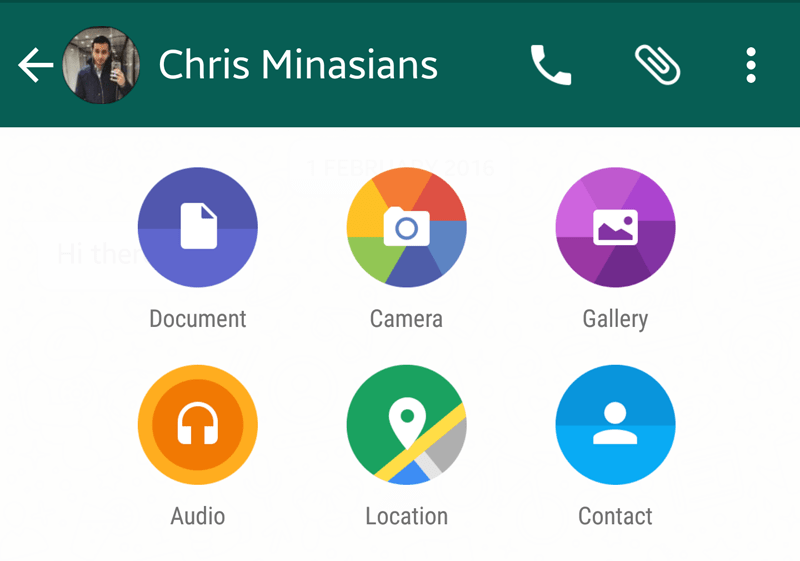
- Tap on the paperclip icon in the top-right corner of the screen.
- Select “Document” from the menu that appears.
- Choose the PDF file you want to forward from your phone’s storage or Google Drive.
- Tap on “Share” to send the file.
Iphone: Forwarding Pdf With Whatsapp
If you’re using an iPhone, follow these steps:
- Open WhatsApp and navigate to the chat where you want to share the document.
- Tap on the “+” icon in the top-right corner of the screen.
- Select “Document” from the menu that appears.
- Choose the PDF file you want to forward from your phone’s storage or iCloud Drive.
- Tap on “Share” to send the file.
Computer: Forwarding Pdf With Whatsapp
If you’re using a computer, follow these steps:
- Open WhatsApp Web and navigate to the chat where you want to share the document.
- Click on the paperclip icon in the top-right corner of the screen.
- Select “Document” from the menu that appears.
- Choose the PDF file you want to forward from your computer’s storage or Google Drive.
- Click on “Share” to send the file.
Troubleshooting: Forwarding Pdf With Whatsapp Not Working
If you’re experiencing issues forwarding a PDF with WhatsApp, try the following:
- Make sure that your phone has enough storage space for the file.
- Ensure that you have given permission to WhatsApp to access your device’s storage.
- Try reducing the size of the file or converting it to a smaller format.
Conclusion
Forwarding a PDF file using WhatsApp is a straightforward process. By following these steps, you can easily share large files with friends and colleagues on various platforms. Remember to troubleshoot any issues that may arise, and don’t hesitate to reach out if you need further assistance!
Faqs: Forwarding Pdf With Whatsapp
- Q: What is the maximum size of a file I can forward using WhatsApp?
A: The maximum size of a file you can forward using WhatsApp is 2 GB. - Q: Can I forward a PDF file from my computer to WhatsApp?
A: Yes, you can forward a PDF file from your computer to WhatsApp using WhatsApp Web or the desktop app. - Q: How do I reduce the size of a large PDF file?
A: You can reduce the size of a large PDF file by converting it to a smaller format, such as JPEG or PNG, or by compressing it using a tool like Adobe Acrobat. - Q: Can I forward multiple files at once using WhatsApp?
A: Yes, you can forward multiple files at once using WhatsApp on Android and iOS devices.
Note that these FAQs are based on the text provided in the prompt. The correct answers may vary depending on the specific requirements and circumstances of your use case.


