
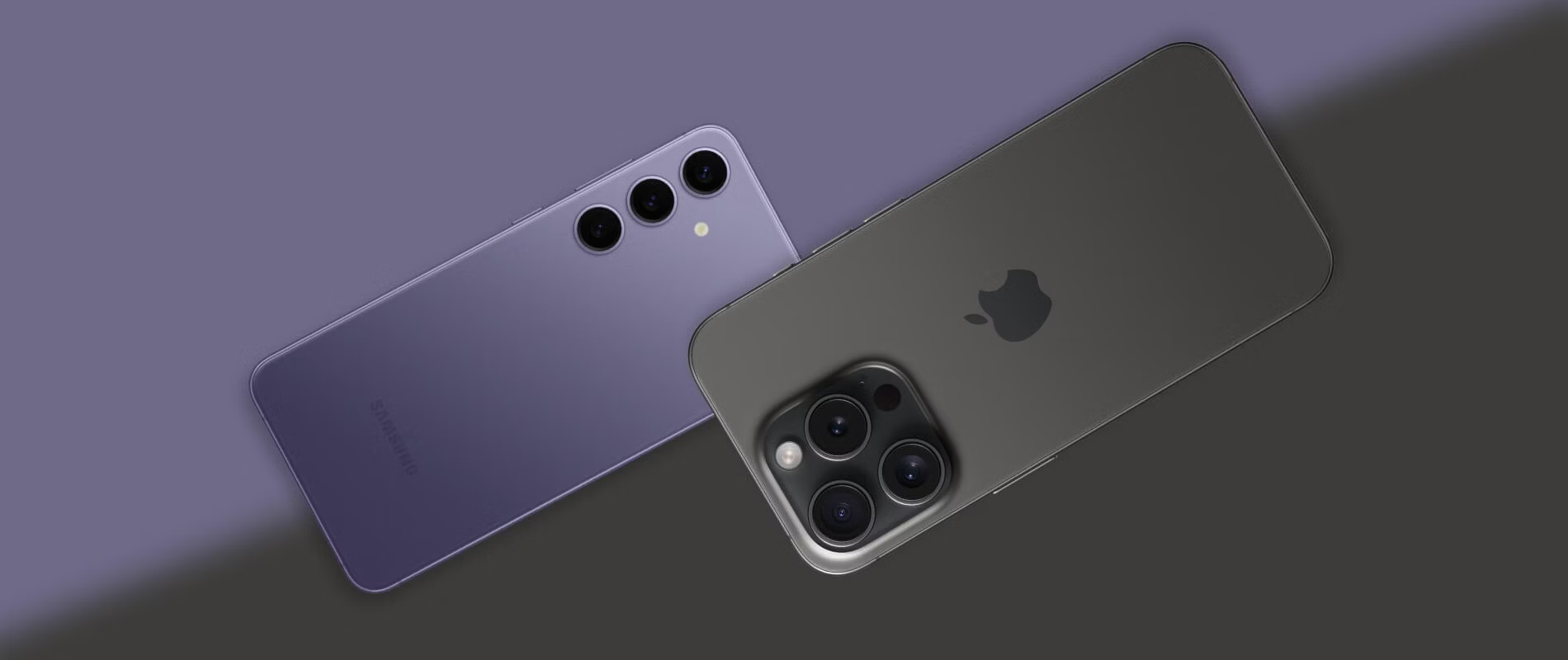
The Ultimate Guide to Forwarding Photos From Iphone to Android
Are you tired of using Bluetooth to transfer photos from your iPhone to your Android device? While the process might seem straightforward, it’s not always feasible due to Apple’s limitations on software usage. But don’t worry, there are other ways to achieve this without sacrificing quality or convenience.
The Problem With Bluetooth Transfer
Bluetooth technology is supported by iPhones, making it easy to connect devices and transfer files. However, when it comes to forwarding photos from an iPhone to an Android device using Bluetooth, the process becomes complicated due to Apple’s proprietary technology, AirDrop. This means you can’t use Bluetooth to transfer photos between two devices of the same company (Apple).
The Solution: Send Anywhere
Send Anywhere is a free app available for both iOS and Android devices that allows you to share files, including photos, quickly and easily. The process is straightforward:
- Download Send Anywhere on Iphone: Visit the App Store and download Send Anywhere. You may need to enter your Apple ID credentials.
- Download Send Anywhere on Android: Open the Google Play Store and download Send Anywhere.
- Initiate Sharing on Iphone: Launch the app, select the file you want to share (photo), and generate a temporary code.
- Enter Code on Android: Open Send Anywhere on your Android device, enter the code, and wait for the file to download.
Other Alternatives
While Send Anywhere is an excellent solution, there are other options to consider:
- Google Photos: Share photos between devices using Google Photos’ cloud-based service.
- Messaging Apps: Utilize messaging apps like WhatsApp, Messenger, or Telegram to forward photos. However, be aware that some apps may compress the image quality.
- Email: Send photos via email, which provides complete control over image quality.
How to Use Send Anywhere
To use Send Anywhere effectively:
- Enable Send Heic Photos as Jpg on Iphone: Go to Settings > [your name] > iCloud > Photos and toggle off the switch next to “Send HEIC Photos as JPG.”
- Select Forward in Send Anywhere on Iphone: Open Send Anywhere, select the file you want to share (photo), and choose “Forward.”
- Enter Code or Scan QR Code on Android: Launch Send Anywhere on your Android device, enter the code or scan the QR code, and wait for the file to download.
Tips And Tricks
- To avoid entering codes repeatedly, try connecting both devices to the same Wi-Fi network.
- When forwarding multiple files, select them all at once in the Send Anywhere app.
- If you’re using an older Android device without a QR code scanner, use the manual input method instead.
Conclusion
Forwarding photos from your iPhone to your Android device doesn’t have to be complicated. With Send Anywhere and other alternatives like Google Photos, messaging apps, or email, you can easily share files between devices. Choose the option that suits your needs, and enjoy seamless photo transfer!


