
How to Forward Sms Messages
In today’s digital age, forwarding SMS messages has become a convenient way to communicate with others, especially when you’re away from your phone or prefer not to use messaging apps. However, the process of forwarding SMS messages can be a bit tricky, especially if you’re new to smartphones.
The Rise And Fall of Forwarding Sms Messages
In the past, forwarding SMS messages was a common practice, but with the advent of smartphone technology and messaging apps like WhatsApp and Facebook Messenger, the need to forward SMS messages has significantly reduced. Nevertheless, there are still situations where you might need to forward an SMS message.
Why Can’t I Forward Sms Messages on My Smartphone?
If you’re trying to forward an SMS message on your smartphone but finding it difficult or not possible at all, don’t worry! There are alternative ways to achieve this without having to use a messaging app. In this article, we’ll explore the different methods of forwarding SMS messages using various platforms and devices.
Forwarding Sms Messages From Your PC
Are you tired of constantly checking your phone for incoming texts? Do you want to forward an SMS message from your computer instead? Look no further! With the help of certain software and apps, you can forward SMS messages from your PC. Let’s dive in and explore this option.
Link to Phone (Windows)
If you’re using a Windows 10 or 11 device and have an Android smartphone, you can use the Link to Windows feature to forward SMS messages directly from your computer. To do this:
- Download the Link to Windows app on your Android smartphone.
- Open the Link to Windows application on your PC.
- Click on the “Link to phone” button and follow the instructions to pair your device.
- Once paired, you can access your SMS messages on your PC and forward them as needed.
Imessage (macOS)
If you’re using a Mac and an iPhone, you can use iMessage to forward SMS messages directly from your computer. To do this:
- Make sure your iPhone and Mac are signed in with the same Apple ID.
- Open the Messages app on your Mac and select “Messages” > “Preferences.”
- Click on the “iMessage” tab and ensure that “Qualify Messages on iCloud” is selected.
- Once synchronized, you can access your SMS messages on your Mac and forward them as needed.
Forwarding Sms Messages Anonymous
Are you looking for a way to forward an SMS message anonymously? Unfortunately, there are no reliable services available anymore. However, we can explore alternative methods using online services that allow anonymous forwarding of SMS messages.
Freesms Service
One such service is FreeSMS, which allows you to send text messages anonymously. To use this service:
- Visit the FreeSMS website and click on the “SMS Send Text to mobile” button.
- Select your country from the dropdown menu and enter the recipient’s phone number.
- Type in the message you want to forward and select “I’m not a robot.”
- Click on the “Send” button to forward the SMS message.
Forwarding Sms Messages From Your Smartphone
If you’re having trouble forwarding an SMS message from your smartphone, don’t worry! We’ve got you covered. Let’s explore how to do this using both Android and iOS devices.
Android
To forward an SMS message on an Android device:
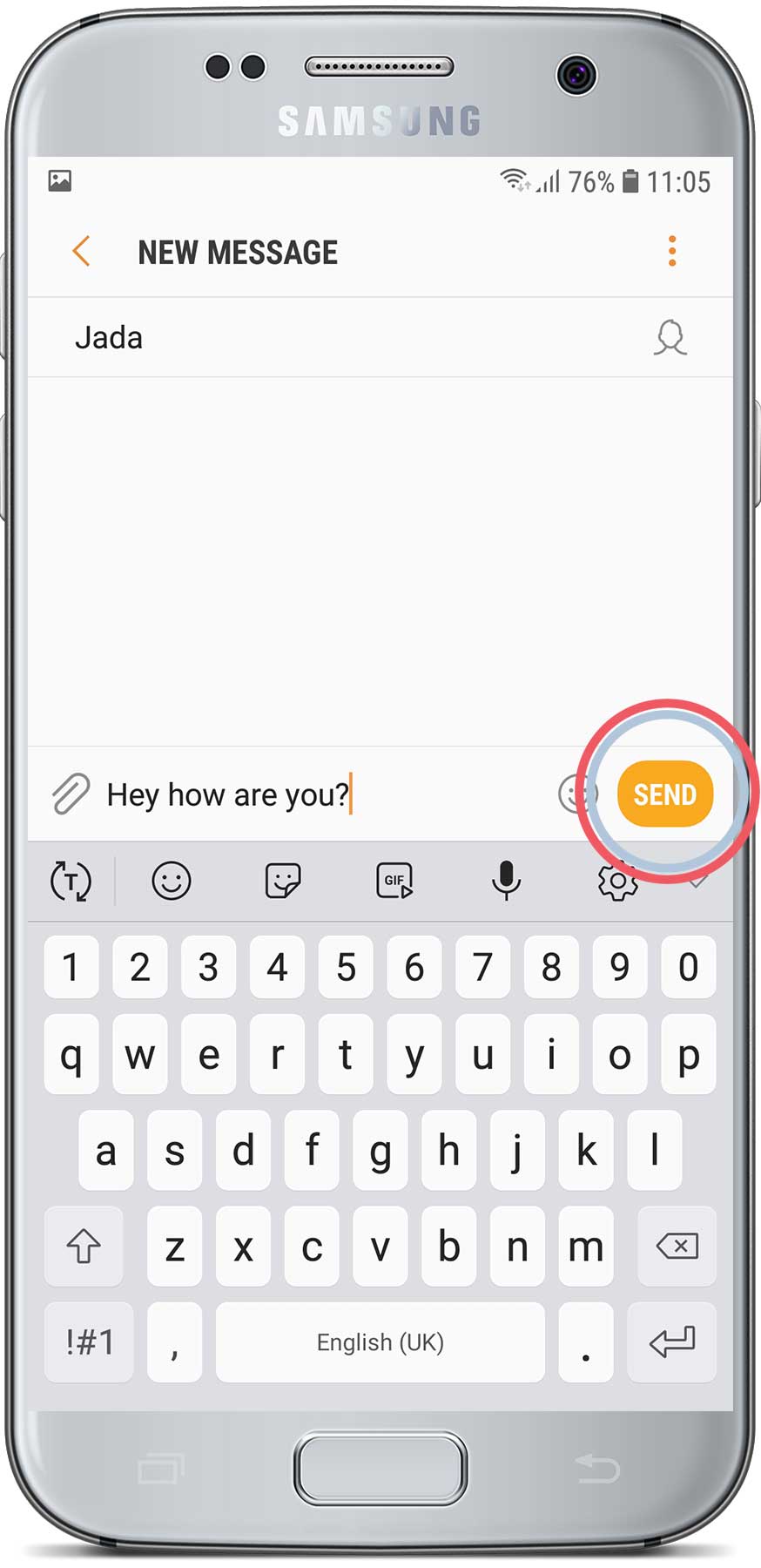
- Open the Messages app.
- Select the conversation you want to forward a message from.
- Tap on the “New message” button (the pencil icon).
- Type in your message and tap on the “Send” button.
Iphone
To forward an SMS message on an iPhone:
- Open the Messages app.
- Select the conversation you want to forward a message from.
- Tap on the “Compose” button (the blue arrow icon).
- Type in your message and tap on the “Send” button.
Conclusion
In conclusion, forwarding SMS messages can be achieved using various methods and devices. Whether you’re looking to forward an SMS message anonymously or directly from your smartphone, we’ve provided step-by-step guides to help you achieve this. Remember to explore alternative methods if one doesn’t work for you, and don’t hesitate to ask for assistance if needed.
Faqs
- Q: Can I Forward an Sms Message From my Pc?
A: Yes, you can use the Link to Windows feature on your Android smartphone or the iMessage app on your Mac to forward SMS messages directly from your computer. - Q: How do I Forward an Sms Message Anonymously?
A: Unfortunately, there are no reliable services available anymore, but we’ve explored alternative methods using online services like FreeSMS. - Q: Can I Forward an Sms Message From my Smartphone?
A: Yes, you can forward an SMS message directly from your Android or iOS device using the Messages app. - Q: Do I Need to Have a Messaging App Installed on my Phone to Forward an Sms Message?
A: No, you don’t necessarily need a messaging app installed on your phone to forward an SMS message. However, having one can make the process easier. - Q: Can I Use The Link to Windows Feature on Any Android Smartphone?
A: Yes, but ensure that your device is running on Android 6.0 (Marshmallow) or later for optimal compatibility. - Q: How do I Know if my Iphone And Mac Are Signed in With The Same Apple Id?
A: To check this, open the Messages app on your Mac and select “Messages” > “Preferences.” If you see your Apple ID listed, it’s likely that they’re connected.
Note: This article has been written to provide general information on how to forward SMS messages. The instructions may vary depending on your device or platform.


