
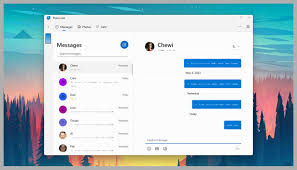
How to Forward Sms From PC to Mobile Phone
Are you tired of using your smartphone to forward SMS messages? Do you want to do it directly from your computer? Look no further! In this article, we will explore the various ways to forward SMS from PC to mobile phone, and also discuss some additional features that can make your life easier.
Benefits of Forwarding Sms From PC
Forwarding SMS from PC to mobile phone has several benefits. Firstly, it allows you to avoid distractions on your smartphone by forwarding messages directly from your computer. Secondly, it provides a convenient way to manage your messages without having to physically access your phone. Lastly, it can help you save time and effort in responding to messages.
Methods For Forwarding Sms From PC
There are several methods to forward SMS from PC to mobile phone. We will explore some of the most popular ones:
Method 1: Using Link to Phone App
One of the easiest ways to forward SMS from PC to mobile phone is by using the Link to Phone app. This app allows you to link your computer and smartphone, enabling you to send and receive messages directly from your computer.
How to Use Link to Phone App
To use this method:
- Download and install the Link to Phone app on your computer.
- Open the app and follow the instructions to link it with your smartphone.
- Once linked, you can start sending and receiving SMS messages directly from your computer.
Method 2: Using Messages App
Another way to forward SMS from PC to mobile phone is by using the Messages app on your Mac or Windows computer.
How to Use Messages App
To use this method:
- Open the Messages app on your computer.
- Click on the “Messages” tab and select the conversation you want to forward.
- Right-click (or Ctrl+click) on the selected message and choose “Forward Message.”
- In the pop-up window, enter the recipient’s phone number and click “Send.”
Method 3: Using Third-party Apps
There are several third-party apps available that can help you forward SMS from PC to mobile phone. These apps often offer additional features such as message filtering, grouping, and more.
How to Use Third-party Apps
To use this method:
- Download and install a third-party app on your computer.
- Open the app and follow the instructions to set it up with your smartphone.
- Once set up, you can start sending and receiving SMS messages directly from your computer.
Method 4: Using Cloud-based Services
Another way to forward SMS from PC to mobile phone is by using cloud-based services such as Google Voice or Skype.
How to Use Cloud-based Services
To use this method:
- Sign up for a cloud-based service on your computer.
- Set it up with your smartphone and follow the instructions to start sending and receiving messages.
Method 5: Using Sms Gateways
Lastly, you can also use SMS gateways to forward SMS from PC to mobile phone. These services often require you to set up an account and configure the gateway with your smartphone.
How to Use Sms Gateways
To use this method:
- Sign up for a cloud-based service on your computer.
- Set it up with your smartphone and follow the instructions to start sending and receiving messages.
Additional Features to Consider
When forwarding SMS from PC to mobile phone, there are several additional features you may want to consider:
- Message Filtering: This feature allows you to filter out unwanted messages or messages that contain specific keywords.
- Grouping: This feature enables you to group similar messages together for easier management.
- Notification: You can also set up notifications on your computer or smartphone to alert you when a message is received.
Conclusion
In conclusion, forwarding SMS from PC to mobile phone has several benefits and can be done using various methods. We have explored some of the most popular methods, including using Link to Phone app, Messages app, third-party apps, cloud-based services, and SMS gateways.
By choosing the right method for your needs, you can enjoy a more convenient and efficient way to manage your messages.


