
How to Forward Heavy Videos Via Email: A Step-by-step Guide
Are you tired of struggling to forward heavy videos via email? Do you want to share your favorite YouTube videos or home movies with friends and family, but don’t know how? Look no further! In this article, we’ll guide you through the process of forwarding heavy videos via email using various services.
Why Can’t I Forward Heavy Videos Via Email?
You may have noticed that when you try to attach a large video file to an email, it either doesn’t work or gives you an error message. This is because most email services have size limits for attachments, typically around 25-30 MB. If your video file exceeds this limit, you can’t attach it directly to the email.
Solutions to Forward Heavy Videos Via Email
Fortunately, there are several solutions to forward heavy videos via email without having to resort to manual file sharing or cloud storage services.
Gmail
If you’re a Gmail user, you can follow these steps:
- Access Your Account: Log in to your Gmail account using the official website.
- Compose a New Email: Click on the “+” button to compose a new email.
- Attach The Video File: Click on the “Attachments” icon and select the video file you want to forward.
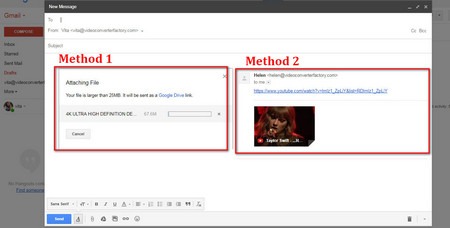
- If Necessary, Upload to Google Drive: If the video exceeds 25 MB, Gmail will automatically upload it to Google Drive. You’ll receive a link that you can share with others.
Outlook.com
Outlook.Com also has its own method for forwarding heavy videos via email:
- Access Your Account: Log in to your Outlook account using the official website.
- Compose a New Email: Click on the “New message” button to compose a new email.
- Attach The Video File: Click on the “Attachments” icon and select the video file you want to forward.
- If Necessary, Upload to Onedrive: If the video exceeds 34.5 MB, Outlook.Com will ask you to upload it to OneDrive. You can then share the link with others.
Apple Mail
Apple Mail users can follow these steps:
- Access Your Account: Log in to your Apple ID account using the official website.
- Compose a New Email: Click on the “Mail” icon and compose a new email.
- Attach The Video File: Select the video file you want to forward from your iCloud library.
Alternative Solutions
If none of these solutions work for you, there are other alternatives available:
- WeTransfer: A service that allows you to share files up to 2 GB in size.
- Mail Drop: Apple’s own service for sharing large files via email.
How to Forward a Youtube Video Via Email
You can forward a YouTube video via email by copying the link of the video and pasting it into an email message.
- Copy The Link: Copy the link of the YouTube video you want to share.
- Paste The Link: Paste the link into an email message, along with any other desired information.
Conclusion
Forwarding heavy videos via email doesn’t have to be a chore! By following these simple steps and using various services, you can share your favorite videos with friends and family without breaking a sweat. Whether you’re a Gmail user or use Outlook.Com or Apple Mail, there’s always a way to forward those pesky video files.
Faqs
Q: What happens if my video file exceeds the size limit?
A: If your video file exceeds the size limit, most email services will ask you to upload it to their cloud storage service (e.G., Google Drive, OneDrive).
Q: Can I use WeTransfer or other cloud storage services?
A: Yes! There are several alternative solutions available, including WeTransfer and Mail Drop.
Q: How do I forward a YouTube video via email?
A: Simply copy the link of the YouTube video you want to share and paste it into an email message.


