
How to Forward Messages on Whatsapp: A Step-by-step Guide
Are you tired of typing long messages on WhatsApp? Do you want to send photos, videos, or documents to your friends and family with ease? Look no further! In this article, we will guide you through the process of forwarding messages on WhatsApp, whether you’re using a smartphone or a computer.
What is Forwarding on Whatsapp?
Forwarding on WhatsApp allows you to share messages, photos, videos, and documents with others by copying and pasting them into a new conversation. This feature is useful for sharing information, funny memes, or even reminders with your contacts.
How to Forward Messages on Whatsapp Using a Smartphone
To forward messages on WhatsApp using a smartphone, follow these steps:
- Open Whatsapp: Open the WhatsApp app on your smartphone.
- Access The Chat Screen: Access the chat screen where you want to forward the message.
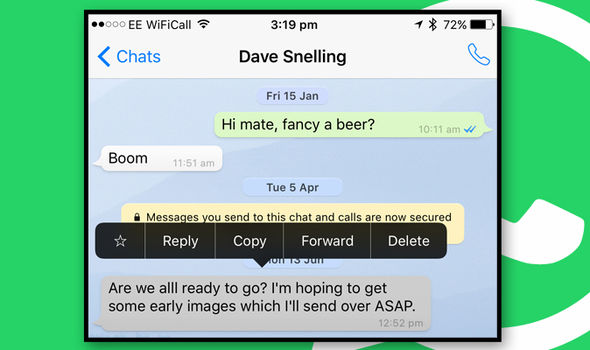
- Tap And Hold: Tap and hold on the message you want to forward.
- Select Forward: Select “Forward” from the menu that appears.
- Choose a Contact: Choose a contact or group to send the forwarded message to.
How to Forward Messages on Whatsapp Using a Computer
To forward messages on WhatsApp using a computer, follow these steps:
- Open Whatsapp Web: Open WhatsApp Web in your computer browser.
- Access The Chat Screen: Access the chat screen where you want to forward the message.
- Click And Hold: Click and hold on the message you want to forward.
- Select Forward: Select “Forward” from the menu that appears.
- Choose a Contact: Choose a contact or group to send the forwarded message to.
How to Forward Messages With Photos or Videos
To forward messages with photos or videos, follow these steps:
- Access The Chat Screen: Access the chat screen where you want to forward the photo or video.
- Tap on The Media Icon: Tap on the media icon (camera or gallery) to select a photo or video from your phone’s gallery or take a new one using the camera.
- Select Forward: Select “Forward” from the menu that appears.
- Choose a Contact: Choose a contact or group to send the forwarded message to.
How to Forward Messages With Documents
To forward messages with documents, follow these steps:
- Access The Chat Screen: Access the chat screen where you want to forward the document.
- Tap on The Document Icon: Tap on the document icon (folder) to select a document from your phone’s gallery or cloud storage.
- Select Forward: Select “Forward” from the menu that appears.
- Choose a Contact: Choose a contact or group to send the forwarded message to.
How to Forward Messages With Voice Notes
To forward messages with voice notes, follow these steps:
- Access The Chat Screen: Access the chat screen where you want to forward the voice note.
- Tap on The Mic Icon: Tap on the mic icon to record a new voice note or select an existing one from your phone’s gallery.
- Select Forward: Select “Forward” from the menu that appears.
- Choose a Contact: Choose a contact or group to send the forwarded message to.
How to Forward Messages With Location or Contacts
To forward messages with location or contacts, follow these steps:
- Access The Chat Screen: Access the chat screen where you want to forward the location or contact.
- Tap on The Map Icon: Tap on the map icon to share your current location or select a contact from your phone’s address book.
- Select Forward: Select “Forward” from the menu that appears.
- Choose a Contact: Choose a contact or group to send the forwarded message to.
How to Forward Messages to Everyone
To forward messages to everyone, follow these steps:
- Access The Chat Screen: Access the chat screen where you want to forward the message.
- Tap on The Three Dots Icon: Tap on the three dots icon (…).
- Select “Broadcast”: Select “Broadcast” from the menu that appears.
- Choose Contacts: Choose contacts or groups to send the forwarded message to.
How to Forward Messages With Ok Google
To forward messages using Ok Google, follow these steps:
- Access Whatsapp: Open WhatsApp on your smartphone.
- Tap And Hold: Tap and hold on the message you want to forward.
- Say “Ok Google”: Say “Ok Google” followed by “forward WhatsApp to [contact]”.
- Select Forward: Select “Forward” from the menu that appears.
How to Forward Messages With a Timer
To forward messages with a timer, follow these steps:
- Access Whatsapp: Open WhatsApp on your smartphone.
- Tap And Hold: Tap and hold on the message you want to forward.
- Select “Ephemeral Messages”: Select “Ephemeral Messages” from the menu that appears.
- Choose a Timer: Choose a timer (24 hours, 7 days, or 90 days) for the forwarded message.
Conclusion
Forwarding messages on WhatsApp is a simple and convenient way to share information with others. Whether you’re using a smartphone or a computer, following these steps will guide you through the process of forwarding messages with photos, videos, documents, voice notes, location, or contacts. Remember to always choose a contact or group to send the forwarded message to.
Faqs
- What is Forwarding on Whatsapp?
Forwarding on WhatsApp allows you to share messages, photos, videos, and documents with others by copying and pasting them into a new conversation. - How do I Forward Messages on Whatsapp Using a Smartphone?
To forward messages on WhatsApp using a smartphone, tap and hold on the message you want to forward, select “Forward” from the menu that appears, and choose a contact or group to send the forwarded message to. - How do I Forward Messages on Whatsapp Using a Computer?
To forward messages on WhatsApp using a computer, access WhatsApp Web in your browser, tap and hold on the message you want to forward, select “Forward” from the menu that appears, and choose a contact or group to send the forwarded message to. - How do I Forward Messages With Photos or Videos?
To forward messages with photos or videos, access the chat screen where you want to forward the photo or video, tap on the media icon (camera or gallery) to select a photo or video from your phone’s gallery or take a new one using the camera. - How do I Forward Messages With Documents?
To forward messages with documents, access the chat screen where you want to forward the document, tap on the document icon (folder) to select a document from your phone’s gallery or cloud storage.


