
Contacting a Song Like Suoneria on Android: A Step-by-step Guide
Are you tired of using the same old default ringtone on your Android device? Do you want to personalize your phone with a song that means something special to you? Look no further! In this article, we will guide you through the process of contacting a song like suoneria on Android.
Why Choose a Song as Your Ringtone?
Using a song as your ringtone can be a great way to personalize your device and make it stand out. Not only can it be a fun way to express yourself, but it can also serve as a reminder of a special memory or person in your life.
Step 1: Download The Song
The first step in contacting a song like suoneria on Android is to download the song that you want to use as your ringtone. You can do this by using an app such as ZEDGE, which has a vast library of songs and ringtones available for download.
Step 2: Prepare The Song
Once you have downloaded the song, you will need to prepare it for use as a ringtone. This involves cutting a portion of the song to create a shorter clip that is around 30-40 seconds long.
Step 3: Use Ringtone Maker App
To cut and edit the song, you can use an app called Ringtone Maker, which is available on the Play Store and other alternative stores. This app allows you to select the portion of the song that you want to use as your ringtone and then save it in a format that is compatible with your Android device.
Step 4: Save The Ringtones
Once you have edited the song, you will need to save it as a ringtone on your device. This involves selecting the option to save the edited clip as a ringtone on your phone’s settings menu.
How to Contact a Song Like Suoneria on Samsung
If you are using a Samsung device, the process of contacting a song like suoneria is similar to that described above for Android devices. However, there may be some slight variations in terms of the settings menu and app selection.
Step 5: Open Settings Menu
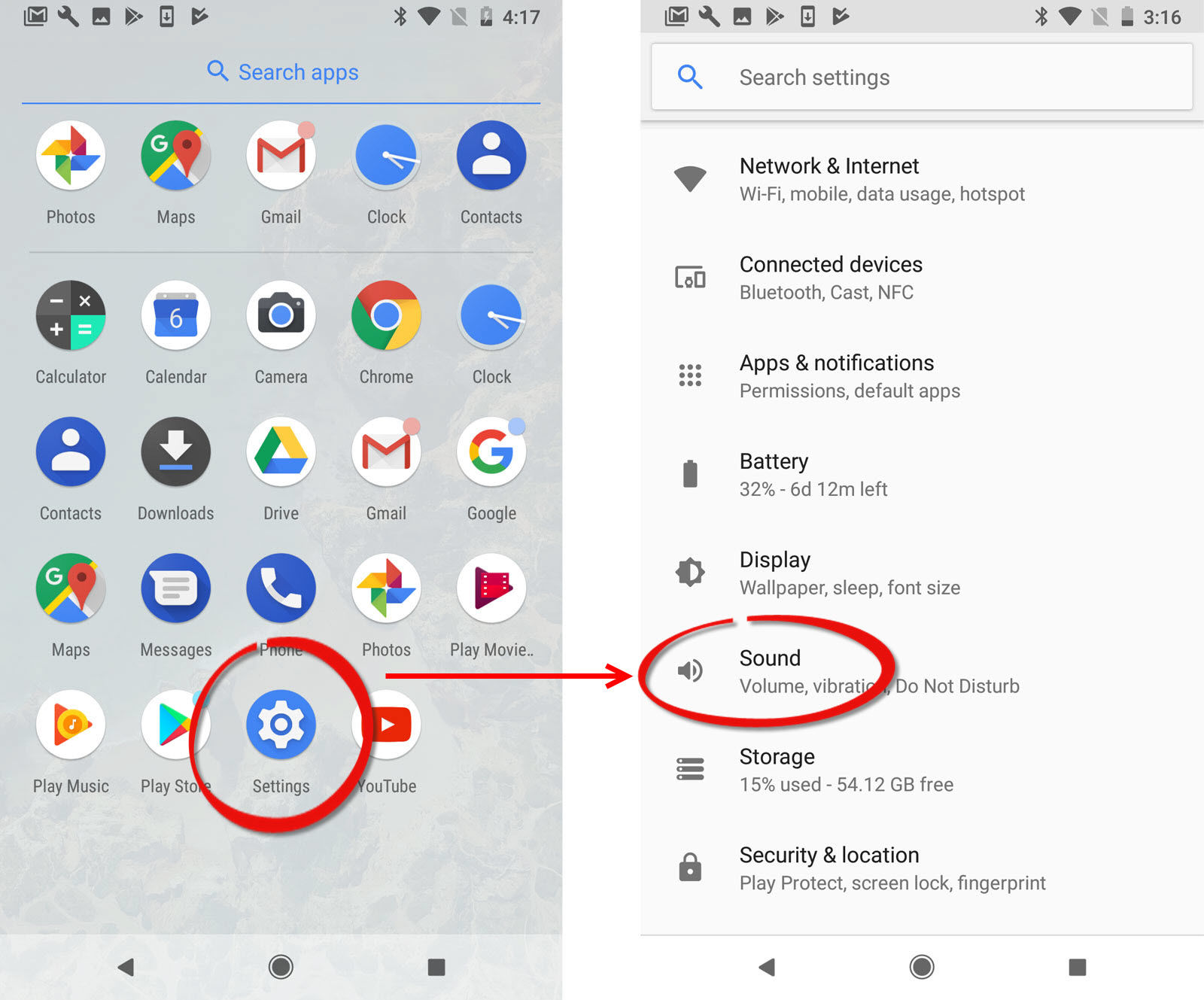
To start the process of contacting a song like suoneria on Samsung, you will need to open the settings menu on your device. This can usually be found by selecting the gear icon from the home screen or settings button.
Step 6: Select Sounds And Vibration Option
Once in the settings menu, select the option for sounds and vibration. This is where you can customize the sounds that your phone makes when it rings or receives a message.
Step 7: Choose Suoneria Option
From the sounds and vibration menu, select the suoneria option. This will allow you to choose from a variety of available ringtones on your device.
How to Contact a Song Like Suoneria on Huawei
If you are using a Huawei device, the process of contacting a song like suoneria is similar to that described above for Android devices and Samsung devices.
Step 8: Open Settings Menu
To start the process of contacting a song like suoneria on Huawei, you will need to open the settings menu on your device. This can usually be found by selecting the gear icon from the home screen or settings button.
Step 9: Select Sounds And Vibration Option
Once in the settings menu, select the option for sounds and vibration. This is where you can customize the sounds that your phone makes when it rings or receives a message.
How to Contact a Song Like Suoneria on Redmi
If you are using a Redmi device from Xiaomi, the process of contacting a song like suoneria is similar to that described above for Android devices and Samsung devices.
Step 10: Open Settings Menu
To start the process of contacting a song like suoneria on Redmi, you will need to open the settings menu on your device. This can usually be found by selecting the gear icon from the home screen or settings button.
How to Contact a Song Like Suoneria on Iphone
If you are using an iPhone, the process of contacting a song like suoneria is slightly different than that described above for Android devices and Samsung devices.
Step 11: Open Settings Menu
To start the process of contacting a song like suoneria on iPhone, you will need to open the settings menu on your device. This can usually be found by selecting the gear icon from the home screen or settings button.
Step 12: Select Sounds And Feedback Option
Once in the settings menu, select the option for sounds and feedback. This is where you can customize the sounds that your phone makes when it rings or receives a message.
How to Contact a Song Like Suoneria on Iphone Without Itunes
If you are using an iPhone and do not have access to iTunes, there is still a way to contact a song like suoneria on your device. This involves using the GarageBand app, which comes pre-installed on iOS devices.
Step 13: Open Garageband App
To start the process of contacting a song like suoneria on iPhone without iTunes, you will need to open the GarageBand app on your device. This can usually be found by selecting the GarageBand icon from the home screen or apps button.
Conclusion
Contacting a song like suoneria on Android devices is a fun and easy process that can add a personal touch to your phone’s ringtone. Whether you are using an Android, Samsung, Huawei, Redmi, or iPhone device, following the steps outlined above will guide you through the process of selecting and saving a song as your ringtone.
Frequently Asked Questions
Q: What is a suoneria?
A: A suoneria is a type of ringtone that originated in Italy and typically involves using a short clip of music or sound as a personalized ringtone.
Q: How do I contact a song like suoneria on my Android device?
A: To contact a song like suoneria on your Android device, follow the steps outlined above.
Q: Can I use any type of song as my ringtone?
A: While you can use most types of music or sound as your ringtone, it is recommended to choose a song that is around 30-40 seconds long and has a clear audio quality.
Q: How do I save the edited clip as a ringtone on my device?
A: To save the edited clip as a ringtone on your device, select the option to save the edited clip as a ringtone on your phone’s settings menu.


