
Configuring Your Samsung Tv: A Step-by-step Guide
Are you a satisfied Samsung TV owner looking to take your viewing experience to the next level? With its sleek design and feature-rich interface, setting up your TV’s timer functionality can seem daunting, but fear not! This comprehensive guide will walk you through every step of configuring your Samsung TV’s timer, lighting, and standby features.
Understanding Your Tv’s Timer Functionality
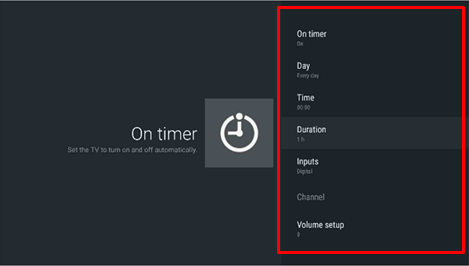
Before we dive in, let’s cover the basics. The timer function on your Samsung TV allows you to automate various settings, such as turning off the TV at a specific time or adjusting the brightness levels. This feature can be accessed through the Settings menu and is available on most modern Samsung TVs.
Configuring The Timer For Turning Off Your TV
To set up the timer for turning off your TV, follow these simple steps:
- Access The Settings Menu: Press the “Settings” button on your remote control to open the menu.
- Select The General Voices: Navigate to the “General” section and select the option that says “Management system” or simply “System.”
- Choose The Timer Option: From the list of options, select the timer function by pressing the “OK” button on your remote control.
- Set The Time: Choose the desired time for turning off your TV by scrolling through the available options (1 hour, 2 hours, etc.) And selecting the one that suits you best.
- Confirm Your Selection: Press the “OK” button to confirm your selection.
Configuring The Timer For Adjusting Lighting Levels
If you have a Samsung TV with the timer lighting function, follow these steps to adjust the brightness levels:
- Access The Settings Menu: Press the “Settings” button on your remote control to open the menu.
- Select The General Voices: Navigate to the “General” section and select the option that says “Management system” or simply “System.”
- Choose The Timer Lighting Option: From the list of options, select the timer lighting function by pressing the “OK” button on your remote control.
- Set The Time: Choose the desired time for adjusting the brightness levels by scrolling through the available options (1 hour, 2 hours, etc.) And selecting the one that suits you best.
- Confirm Your Selection: Press the “OK” button to confirm your selection.
Removing The Timer Function
If you’ve already set up a timer on your Samsung TV but want to remove it, follow these steps:
- Access The Settings Menu: Press the “Settings” button on your remote control to open the menu.
- Select The General Voices: Navigate to the “General” section and select the option that says “Management system” or simply “System.”
- Choose The Timer Option: From the list of options, select the timer function by pressing the “OK” button on your remote control.
- Deactivate The Timer: Choose the “Disable” option to remove the timer from your TV’s settings.
Using Smartthings App For Timer Configuration
If you have a Samsung TV and want to configure the timer using the SmartThings app, follow these steps:
- Download And Install The Smartthings App: Download and install the SmartThings app on your smartphone or tablet.
- Connect Your TV to The App: Connect your TV to the SmartThings app by following the in-app instructions.
- Access The Timer Function: Open the SmartThings app and navigate to the timer function by selecting “Automations” from the menu.
- Configure The Timer: Set up the timer by choosing the desired time for turning off or adjusting lighting levels.
Conclusion
Configuring your Samsung TV’s timer functionality is a breeze, thanks to this step-by-step guide. By following these simple steps, you can automate various settings on your TV, such as turning it off at a specific time or adjusting the brightness levels. Remember to always check if your TV model supports the timer function before attempting to configure it.
Frequently Asked Questions (FAQs)
- Q: What is The Purpose of The Timer Function on my Samsung Tv?
A: The timer function allows you to automate various settings, such as turning off the TV at a specific time or adjusting the brightness levels. - Q: How do I Access The Timer Function on my Samsung Tv?
A: To access the timer function, navigate to the Settings menu and select the “General” section. - Q: Can I Configure The Timer Using The Smartthings App?
A: Yes, you can configure the timer using the SmartThings app by connecting your TV to the app and navigating to the timer function. - Q: How do I Remove The Timer Function From my Samsung Tv?
A: To remove the timer function, navigate to the Settings menu and select the “General” section, then choose the “Disable” option. - Q: What Are The Benefits of Using The Smartthings App For Timer Configuration?
A: The SmartThings app allows you to configure the timer remotely and access various automation features on your TV. - Q: Can I Schedule Multiple Events Using The Timer Function?
A: Yes, you can schedule multiple events using the timer function by selecting different times for each event. - Q: How do I Check if my Samsung TV Supports The Timer Function?
A: Check your TV’s user manual or contact the manufacturer to see if your model supports the timer function.
Bolded Heading
Configuring Your Samsung Tv: Additional Tips And Tricks
As you’ve learned in this guide, configuring your Samsung TV’s timer functionality is a straightforward process. However, there are some additional tips and tricks that can enhance your viewing experience:
- Use The Smartthings App to Control Multiple Devices: The SmartThings app allows you to control multiple devices, including your Samsung TV, using a single interface.
- Experiment With Different Timer Settings: Don’t be afraid to experiment with different timer settings to find what works best for you.
- Check For Software Updates Regularly: Regularly check for software updates on your Samsung TV and SmartThings app to ensure you have the latest features and bug fixes.
By following these tips and tricks, you can unlock new features and enhance your viewing experience with your Samsung TV. Happy watching!


