
How to Set Adobe Reader as Default Pdf Viewer: A Step-by-step Guide
Are you tired of constantly switching between different PDF viewers on your computer or mobile device? Do you want to set Adobe Reader as the default PDF viewer for all your files? Look no further! In this article, we will guide you through a step-by-step process to set Adobe Reader as the default PDF viewer on Windows, Mac, Android, iPhone and iPad, Chrome, and Outlook.
Why Set Adobe Reader as Default Pdf Viewer?
Adobe Reader is one of the most popular and reliable PDF viewers available in the market. It offers advanced features such as text search, commenting, and sharing capabilities that make it a preferred choice among users. By setting Adobe Reader as the default PDF viewer, you can ensure seamless integration with your computer or mobile device, making it easier to view and interact with PDF files.
Setting Adobe Reader as Default Pdf Viewer on Windows
To set Adobe Reader as the default PDF viewer on Windows, follow these steps:
- Click on The Start Button: Click on the Start button located at the bottom left corner of your screen.
- Select Settings: From the menu that appears, select Settings.
- Choose Apps: In the Settings window, click on the “Apps” option from the list of available settings.
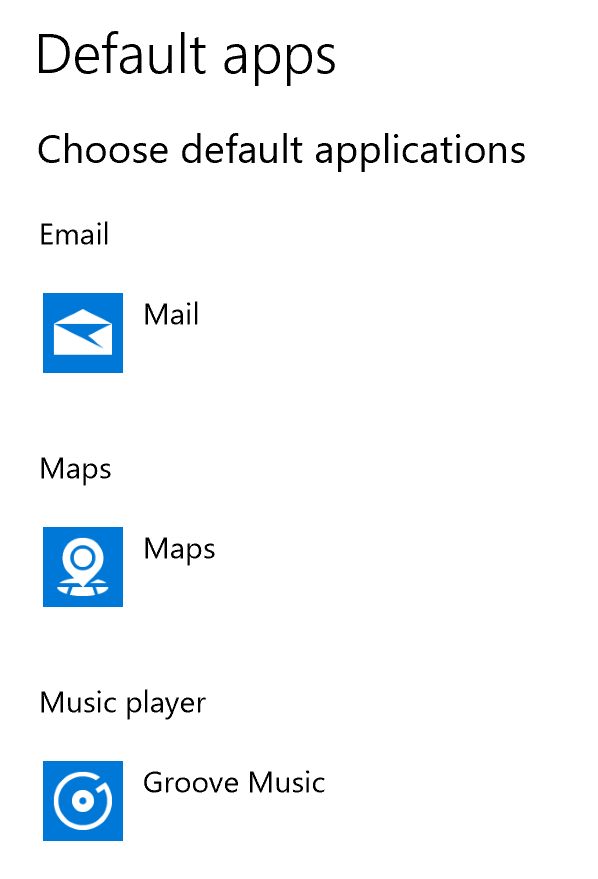
- Select Default Apps: In the “Apps” section, click on the “Default apps” option.
- Choose Pdf Viewer: Scroll down to the “PDF viewer” section and select Adobe Reader as your default PDF viewer.
Setting Adobe Reader as Default Pdf Viewer on Mac
To set Adobe Reader as the default PDF viewer on Mac, follow these steps:
- Open Finder: Open the Finder application on your Mac.
- Click on The Finder Icon: Click on the Finder icon located in the Dock.
- Select File: From the menu bar, select “File” > “Get Info”.
- Highlight Adobe Reader: In the “Get Info” window, highlight Adobe Reader as your default PDF viewer.
Setting Adobe Reader as Default Pdf Viewer on Android
To set Adobe Reader as the default PDF viewer on Android, follow these steps:
- Open Mi Rows Manager: Open the Mi Rows Manager application on your device.
- Tap on Documents: Tap on the “Documents” icon located at the top of the screen.
- Select Adobe Acrobat: In the list of available applications, select Adobe Acrobat as your default PDF viewer.
Setting Adobe Reader as Default Pdf Viewer on Iphone And Ipad
To set Adobe Reader as the default PDF viewer on iPhone and iPad, follow these steps:
- Open Settings: Open the Settings application on your device.
- Select Adobe Acrobat: In the “Settings” window, select Adobe Acrobat as your default PDF viewer.
Setting Adobe Reader as Default Pdf Viewer on Chrome
To set Adobe Reader as the default PDF viewer on Chrome, follow these steps:
- Click on Extensions: Click on the three vertical dots located at the top right corner of the browser.
- Select More Tools: From the menu that appears, select “More tools”.
- Choose Extensions: In the list of available extensions, click on the “Extensions” option.
- Search For Adobe Acrobat: Search for the Adobe Acrobat extension in the list.
- Install And Enable Extension: Install and enable the Adobe Acrobat extension.
Setting Adobe Reader as Default Pdf Viewer on Outlook
To set Adobe Reader as the default PDF viewer on Outlook, follow these steps:
- Open Outlook: Open the Outlook application on your device.
- Select Settings: From the menu bar, select “File” > “Options”.
- Choose File Types: In the “Outlook Options” window, click on the “File types” option.
- Select Adobe Reader: Select Adobe Reader as your default PDF viewer.
Conclusion
Setting Adobe Reader as the default PDF viewer is a simple process that can be completed in just a few steps. By following these step-by-step guides, you can ensure seamless integration with your computer or mobile device and enjoy advanced features like text search, commenting, and sharing capabilities. Happy viewing!


