
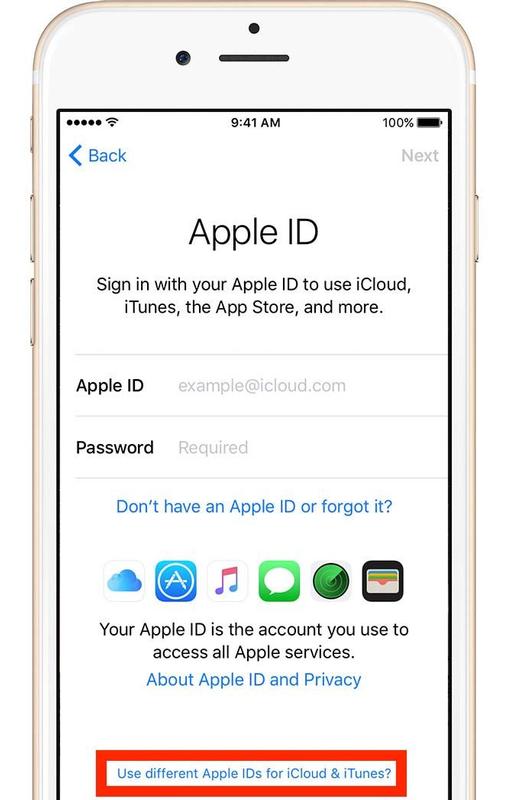
How to Set Up Apple ID on Various Devices: A Step-by-step Guide
Are you still using an iPhone, iPad, or Mac without setting up your Apple ID? Do you want to utilize all the services offered by Apple, such as iCloud, App Store, and Apple Music? Look no further! In this article, we will guide you through the process of setting up your Apple ID on various devices.
Setting Up Apple ID on Iphone
If you have already set up your iPhone but want to change or add a new Apple ID, follow these steps:
- Go to Settings and tap on your name at the top.
- Scroll down to the bottom and tap on “Sign Out.”
- Tap on “Sign In” and enter the email address and password of the new Apple ID you want to use.
- If prompted, enter the verification code sent to your other Apple devices.
Setting Up Apple ID on Ipad
If you have an iPad and want to set up or change your Apple ID, follow these steps:
- Go to Settings and tap on your name at the top.
- Scroll down to the bottom and tap on “Sign Out.”
- Tap on “Sign In” and enter the email address and password of the new Apple ID you want to use.
- If prompted, enter the verification code sent to your other Apple devices.
Setting Up Apple ID on Mac
If you have a Mac and want to set up or change your Apple ID, follow these steps:
- Go to System Preferences and click on “Apple ID.”
- Click on “Sign In” and enter the email address and password of the new Apple ID you want to use.
- If prompted, enter the verification code sent to your other Apple devices.
Setting Up Apple ID on PC
If you have a Windows 10 PC and want to set up or change your Apple ID, follow these steps:
- Download and install the iCloud for Windows app from the Microsoft Store.
- Launch the app and sign in with your Apple ID and password.
- If prompted, enter the verification code sent to your other Apple devices.
What Happens When You Set Up Apple ID
When you set up an Apple ID on a device, you can:
- Access iCloud services like iCloud Drive, Photos, and Contacts
- Use the App Store to download and install apps
- Enjoy Apple Music and other Apple services
- Sync data across all your Apple devices
Tips And Tricks
If you forget your Apple ID or password, don’t worry! You can recover them using the following methods:
- If you forgot your email address, try finding it on one of your associated devices.
- If you forgot your password, use the authentication process to reset it.
Conclusion
Setting up an Apple ID is a straightforward process that unlocks all the features and services offered by Apple. Whether you’re setting up a new device or changing your existing Apple ID, follow these steps to get started. Remember to also sync your data across all your devices for a seamless experience.
Frequently Asked Questions (FAQs)
- What is an Apple Id?
An Apple ID is a unique account that allows you to access various Apple services and features. - Why do I Need an Apple Id?
You need an Apple ID to use iCloud, App Store, Apple Music, and other Apple services. - Can I Set up Multiple Apple Ids on One Device?
Yes, but each Apple ID must be associated with a separate account. - How do I Recover my Forgotten Apple ID or Password?
Use the authentication process or consult the relevant guides for more information. - What Happens if I Forget my Apple ID or Password?
You can recover them using the methods mentioned above. - Can I Use an Apple ID on Multiple Devices Simultaneously?
Yes, as long as you have a stable internet connection and have set up two-factor authentication. - How do I Change my Apple ID on Multiple Devices at Once?
Follow the steps outlined in this article to update your Apple ID across all devices. - What Are The Benefits of Having an Apple Id?
With an Apple ID, you can access various services like iCloud Drive, Photos, and Contacts, as well as enjoy Apple Music and other features.


