
How to Set Google Chrome as Your Default Browser on Pc, Mac, Android, Xiaomi, Samsung, Iphone, And Ipad
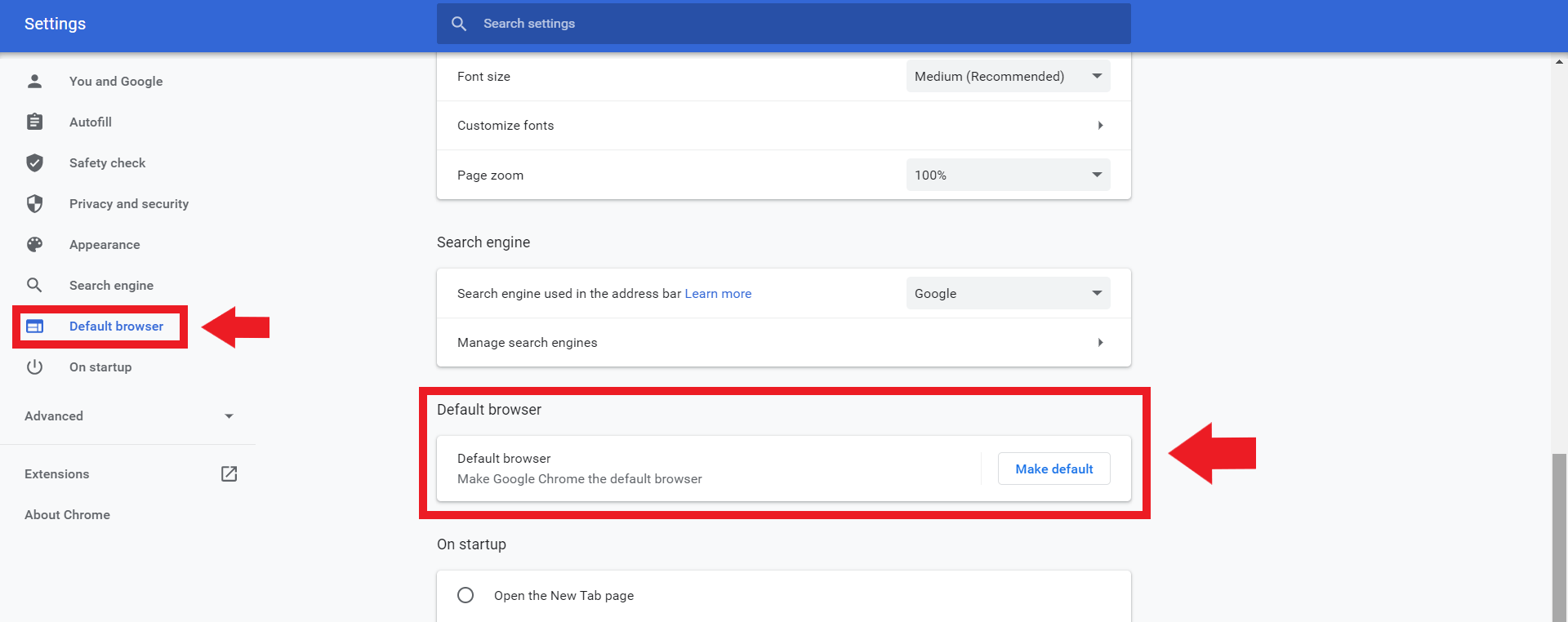
Are you tired of switching between multiple browsers on your devices? Look no further! In this article, we will guide you through the step-by-step process of setting Google Chrome as your default browser on PC, Mac, Android, Xiaomi, Samsung, iPhone, and iPad.
Why Set Google Chrome as Your Default Browser?
Google Chrome is one of the most popular browsers available today. It offers a seamless browsing experience, with features like incognito mode, tab management, and extensions that make it a favorite among users. Setting Google Chrome as your default browser ensures that every link you click opens in Chrome, making it easier to manage your online activities.
Setting Google Chrome as Your Default Browser on Pc: Windows 10
To set Google Chrome as your default browser on Windows 10, follow these steps:
- Click on the Start button and select Settings.
- Click on Apps and then select Default apps.
- Scroll down to the Web browser section and click on the current default browser (usually Microsoft Edge).
- Select Google Chrome from the list of available browsers.
- Confirm your selection by clicking OK.
Setting Google Chrome as Your Default Browser on Pc: Windows 11
The process is similar for Windows 11:
- Click on the Start button and select Settings.
- Click on Apps and then select Default apps.
- Scroll down to the Web browser section and click on the current default browser (usually Microsoft Edge).
- Select Google Chrome from the list of available browsers.
- Confirm your selection by clicking OK.
Setting Google Chrome as Your Default Browser on Pc: Windows 8.1 And Earlier
For earlier versions of Windows, follow these steps:
- Click on the Start button and select Control Panel.
- Click on Programs and Features.
- Select Enforce programs to perform default actions.
- Look for Google Chrome in the list and click on it.
- Select Enforce this program as a default action.
Setting Google Chrome as Your Default Browser on Mac
To set Google Chrome as your default browser on Mac, follow these steps:
- Open System Preferences and click on General.
- Click on the button next to Default web browser and select Google Chrome from the list.
- Confirm your selection by clicking OK.
Setting Google Chrome as Your Default Browser on Android
For Android devices, follow these steps:
- Go to Settings and select Apps & notifications.
- Select Default apps and then click on Browser app.
- Choose Google Chrome from the list of available browsers.
- Confirm your selection by clicking OK.
Setting Google Chrome as Your Default Browser on Xiaomi
The process is similar for Xiaomi devices:
- Go to Settings and select Apps & notifications.
- Select Default apps and then click on Browser app.
- Choose Google Chrome from the list of available browsers.
- Confirm your selection by clicking OK.
Setting Google Chrome as Your Default Browser on Samsung
For Samsung devices, follow these steps:
- Go to Settings and select Applications.
- Select Default applications and then click on Browser.
- Choose Google Chrome from the list of available browsers.
- Confirm your selection by clicking OK.
Setting Google Chrome as Your Default Browser on Iphone And Ipad
For iOS 14 and later, follow these steps:
- Open the Settings app and select Chrome.
- Tap on the toggle switch next to “Default browser” to enable it.
- Confirm your selection by tapping Done.
And that’s it! By following these simple steps, you can set Google Chrome as your default browser across all your devices. Say goodbye to switching between multiple browsers and hello to a seamless browsing experience with Google Chrome!


