
Setting Up a Default Google Account: A Step-by-step Guide
Are you tired of juggling multiple Google accounts on your devices? Do you want to make sure that your primary account is set as the default whenever you use Google services? Look no further! In this article, we’ll show you how to set up a default Google account on various platforms, including Android, iPhone/iPad, PC, and Google Chrome.
Why Set Up a Default Google Account?
Setting up a default Google account can save you time and hassle in the long run. With a single account set as the default, you’ll be able to access your Google services seamlessly across all your devices. No more switching between accounts or remembering multiple passwords!
Setting Up a Default Google Account on Android
If you’re using an Android device, setting up a default Google account is relatively straightforward.
- Associate Your Profile With Android: If this is the first time you’ve used your Android device, you’ll be prompted to add your Google account during the initial configuration process. Simply follow the prompts to set up your account.
- Add an Account if You’ve Already Set Up Android: If you’ve already set up your Android device and want to add a new Google account, go to Settings > Accounts > Add account. Select Google and enter your email address and password.
- Choose Your Default Account: Once you’ve added multiple accounts, go to the apps that use Google services (like Gmail, YouTube, or Maps) and select the default account you want to use.
Tips:
- If you delete an account from your device, any apps associated with that account will no longer receive updates until a new account is configured.
- Some data associated with deleted accounts may still be stored on your device.
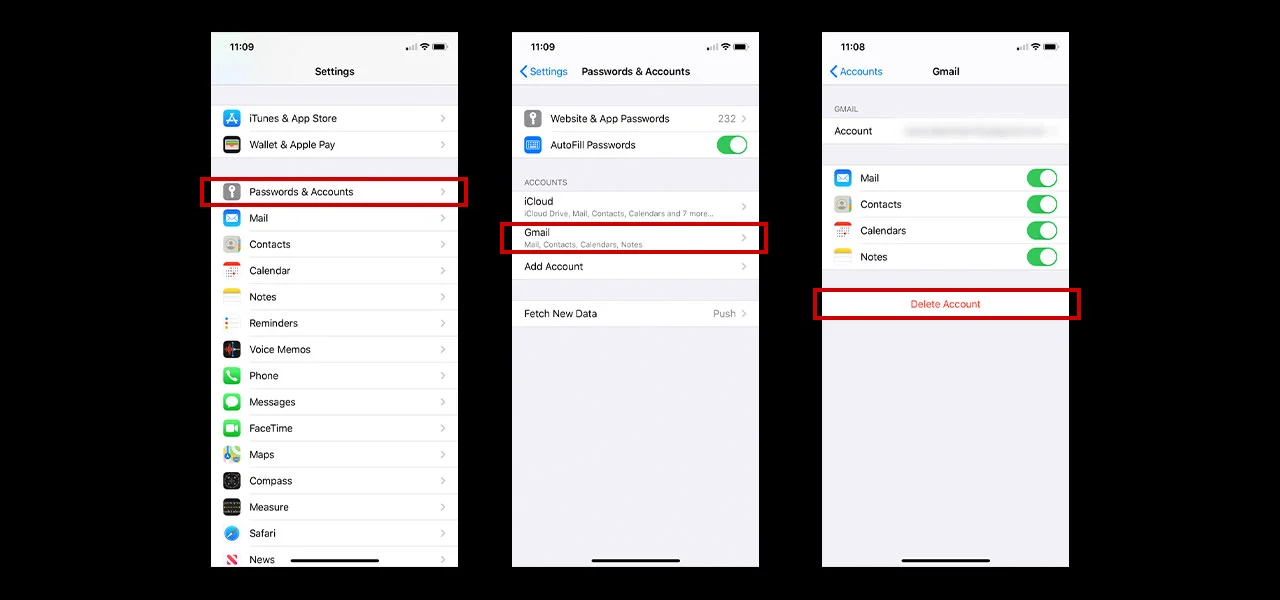
Setting Up a Default Google Account on Iphone/ipad
If you’re using an iPhone or iPad, setting up a default Google account is similar to the process on Android.
- Add Your Google Account: Go to Settings > Contacts > Accounts > Add account and select Google. Enter your email address and password.
- Synchronize Mail, Contacts, Calendars, And Grades: Follow the prompts to synchronize these services with your new Google account.
Tips:
- Make sure you’re using the correct iOS version for detailed setup instructions.
- Consider configuring your default account as soon as possible after setting up your device.
Setting Up a Default Google Account on PC
If you’ve been using multiple Google accounts on your PC, it’s time to set up a default account. Here’s how:
- Sign in With Your Current Account: Sign in to the browser or app that uses Google services.
- Access Your Profile: Go to your profile picture at the top right corner of the screen and click on it.
- Remove Your Current Account: Click on “Go out” (or “Disconnect” if you have multiple accounts connected).
- Select a New Default Account: Choose an account from the list that will be used as the default.
Tips:
- Be aware that deleting an account may affect apps and services associated with it.
- Some data may still be stored on your device after deleting an account.
Setting Up a Default Google Account on Google Chrome
If you’re using Google Chrome, setting up a default Google account is straightforward:
- Sign in to Your Current Account: Sign in to Google Chrome with your current account.
- Go to The Profile Picture: Click on the profile picture at the top right corner of the browser window.
- Click on “Add”: Add an account or remove an existing one by clicking on the three dots next to it.
- Select Your New Default Account: Choose your new default account from the list.
Tips:
- Be aware that deleting an account will affect any data associated with it in Google Chrome.
- Syncing multiple accounts can lead to duplicated entries and other issues.
Conclusion
Setting up a default Google account on various platforms is easier than you think! With this guide, you should now be able to set up your primary account as the default whenever using Google services. Remember to take care when deleting accounts or configuring new ones to avoid potential issues with apps and data associated with them.
Frequently Asked Questions (FAQs)
- Q: Can I Have Multiple Google Accounts on my Device?
A: Yes, you can have multiple Google accounts on your device, but only one will be set as the default. - Q: Will Deleting an Account Delete All Associated Data?
A: No, some data may still be stored on your device after deleting an account. - Q: How do I Prevent Duplicate Entries When Syncing Multiple Accounts?
A: Make sure to configure each account separately and avoid adding the same account multiple times. - Q: Can I Set up a Default Google Account on my Android Wear or Apple Watch?
A: Unfortunately, setting up a default Google account is not supported on wearable devices. - Q: Will Changing my Primary Account Affect Any Apps Associated With It?
A: Yes, changing your primary account may affect some apps that use Google services. - Q: Can I Set up Multiple Accounts For Different Purposes (e.G., Work And Personal)?
A: Yes, you can set up separate accounts for different purposes, but be aware of potential issues when switching between them.


