
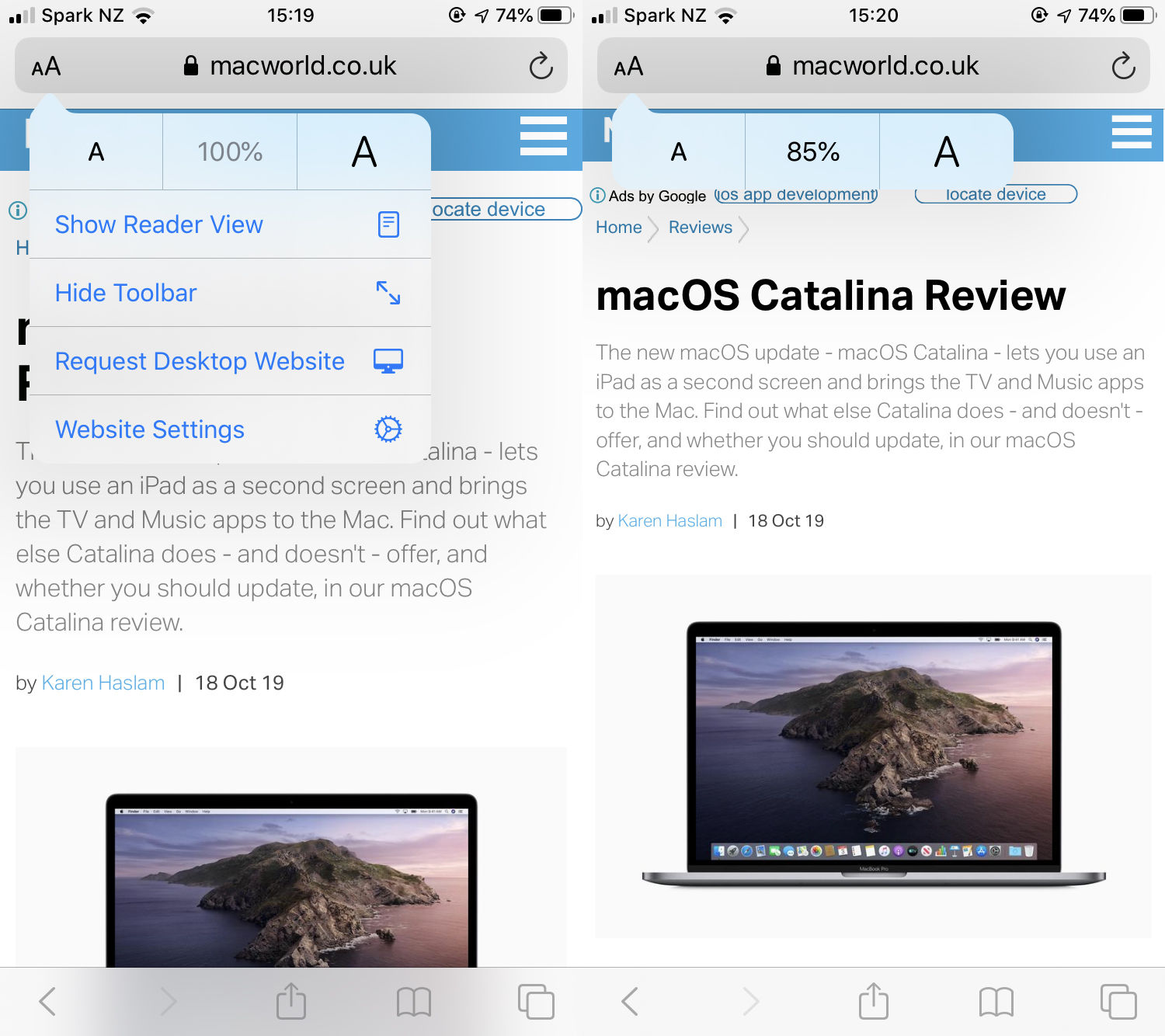
How to Personalize Your Iphone’s Safari Browser: A Step-by-step Guide
Are you tired of seeing the same default home screen on your iPhone’s Safari browser? Do you want to personalize it with your favorite websites, bookmarks, and shortcuts? Look no further! In this article, we’ll guide you through the process of customizing your Safari browser on your iPhone.
Why Personalize Your Safari Browser?
Before we dive into the nitty-gritty of personalization, let’s talk about why it’s a good idea to customize your Safari browser. By doing so, you can:
- Make your browsing experience more efficient and convenient
- Access your favorite websites with just one tap
- Create shortcuts for frequently visited pages
- Personalize your home screen with images or videos
Step 1: Open Safari And Navigate to The Home Screen
To get started, open the Safari app on your iPhone. You should see the default home screen with a few pre-installed bookmarks and shortcuts.
Step 2: Tap on The + Icon in The Bottom Left Corner
Tap on the + icon located in the bottom left corner of the screen. This will bring up a new tab where you can add new bookmarks, shortcuts, or edit existing ones.
Step 3: Add a Website to Your Bookmarks
To add a website to your bookmarks, tap on the “Add Bookmark” button and enter the URL of the website you want to save. You can also add a shortcut name for easier identification.
Step 4: Create a Shortcut
Want to access your favorite websites with just one tap? Tap on the “Create Shortcut” button and choose a location on your home screen where you’d like to place the shortcut. Enter a name for the shortcut, and you’ll have instant access to that website!
Step 5: Customize Your Home Screen
Now it’s time to get creative! You can personalize your home screen by adding images or videos as backgrounds. To do this, go to Settings > Safari > Home Screen and select an image from your photo library.
Step 6: Add a Website to The Preferred Section
Want to make accessing certain websites even easier? Tap on the “Preferred” section in the bottom right corner of the screen. Here, you can add websites that you visit frequently or want to keep as bookmarks.
How to Create a Shortcut For Google on Your Iphone’s Safari Browser
Did you know that you can also create shortcuts for specific engines like Google directly within Safari? To do this:
- Open Settings > Safari
- Tap on “Engine of Enquiry”
- Select Google from the list
And voilà! You’ll have instant access to Google whenever you want.
Frequently Asked Questions (FAQs)
Q: Can I personalize my iPhone’s Safari browser with custom backgrounds?
A: Yes, you can add images or videos as backgrounds to your home screen in Settings > Safari > Home Screen.
Q: How do I create a shortcut for a website on my iPhone’s Safari browser?
A: Tap on the + icon in the bottom left corner of the screen and select “Create Shortcut”.
Q: Can I add websites directly from the search bar to the preferred section?
A: Yes, tap on the voice “Add to Preferred” when you’re viewing a website.
Q: How do I customize my iPhone’s Safari browser with shortcuts for specific engines like Google?
A: Go to Settings > Safari and select Google as your engine of choice.
Conclusion
Customizing your iPhone’s Safari browser is easier than ever! By following these simple steps, you can personalize your home screen, create shortcuts for frequently visited websites, and make accessing your favorite pages a breeze. So go ahead, get creative, and take control of your browsing experience!
Additional Tips And Tricks:
- To reopen closed panels, tap on the Panels closed #of late option.
- To monitor your privacy during navigation, actuate the Resoconto on the privacy option.
- If you use multiple Apple devices, you can visualize open panels on other devices by tapping on the Panels *iCloud option.
We hope this article has been helpful in guiding you through the process of personalizing your iPhone’s Safari browser. Happy browsing!


